What do you need?
MySQL Workbench is a free program for working with databases. A database is where your site keeps its data. To connect, Workbench needs a few details, like a key and an address.
- Host name: the address of the database server. Find it in your welcome email or ask Hostvento support.
- Port: usually 3306. It is the standard door number for MySQL.
- User name and password: from the MySQL Databases page in cPanel.
- Database name: optional here, but handy.
First: allow your computer
Hosting servers block outside computers by default. You must add your computer's IP address to the allowed list. An IP address is a number that names your device on the internet. In cPanel, open Remote MySQL, type your IP and click Add Host. Search "what is my IP" to find yours. If your plan does not offer this, ask Hostvento support.
Steps
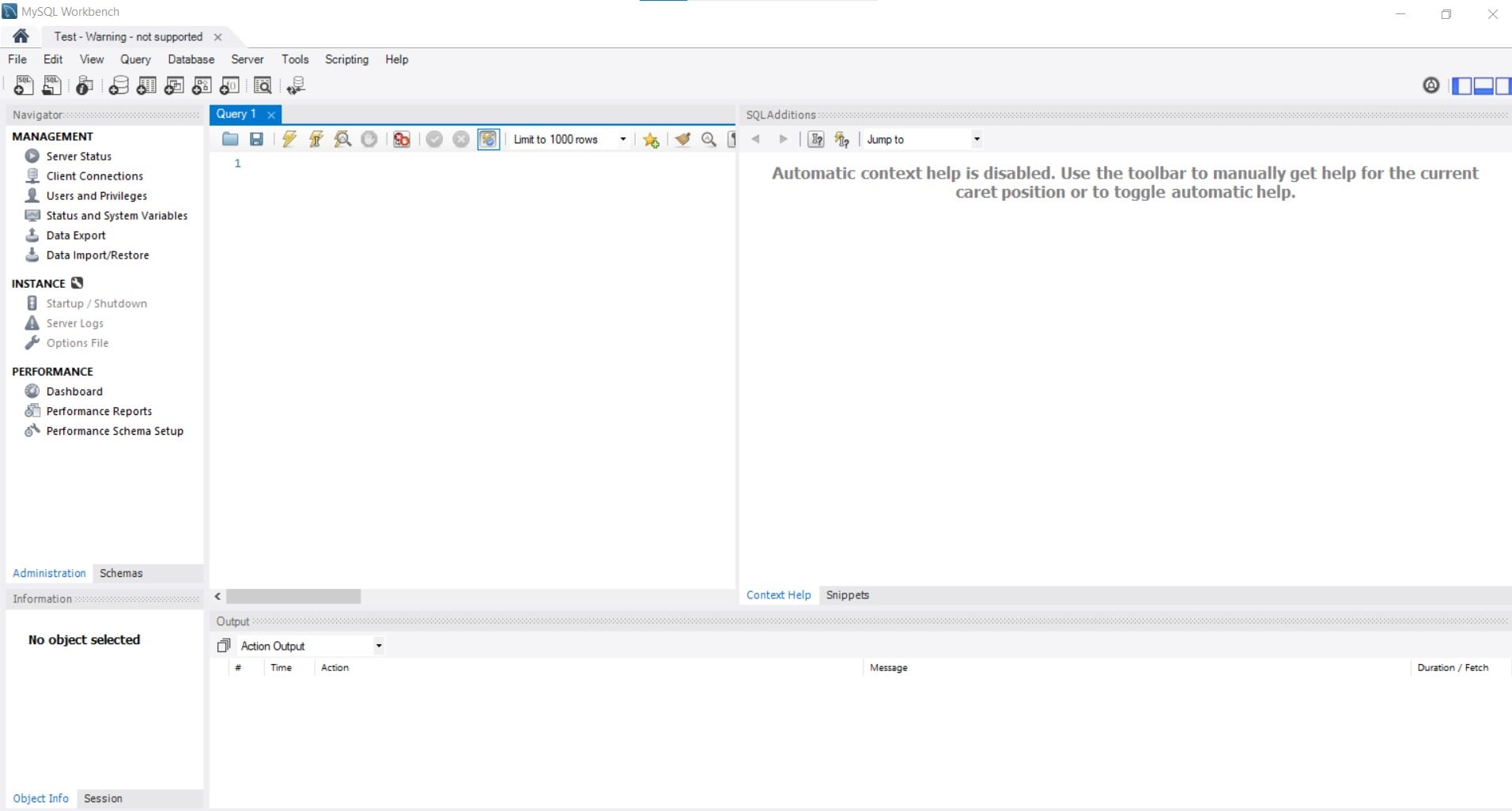
- Open MySQL Workbench.
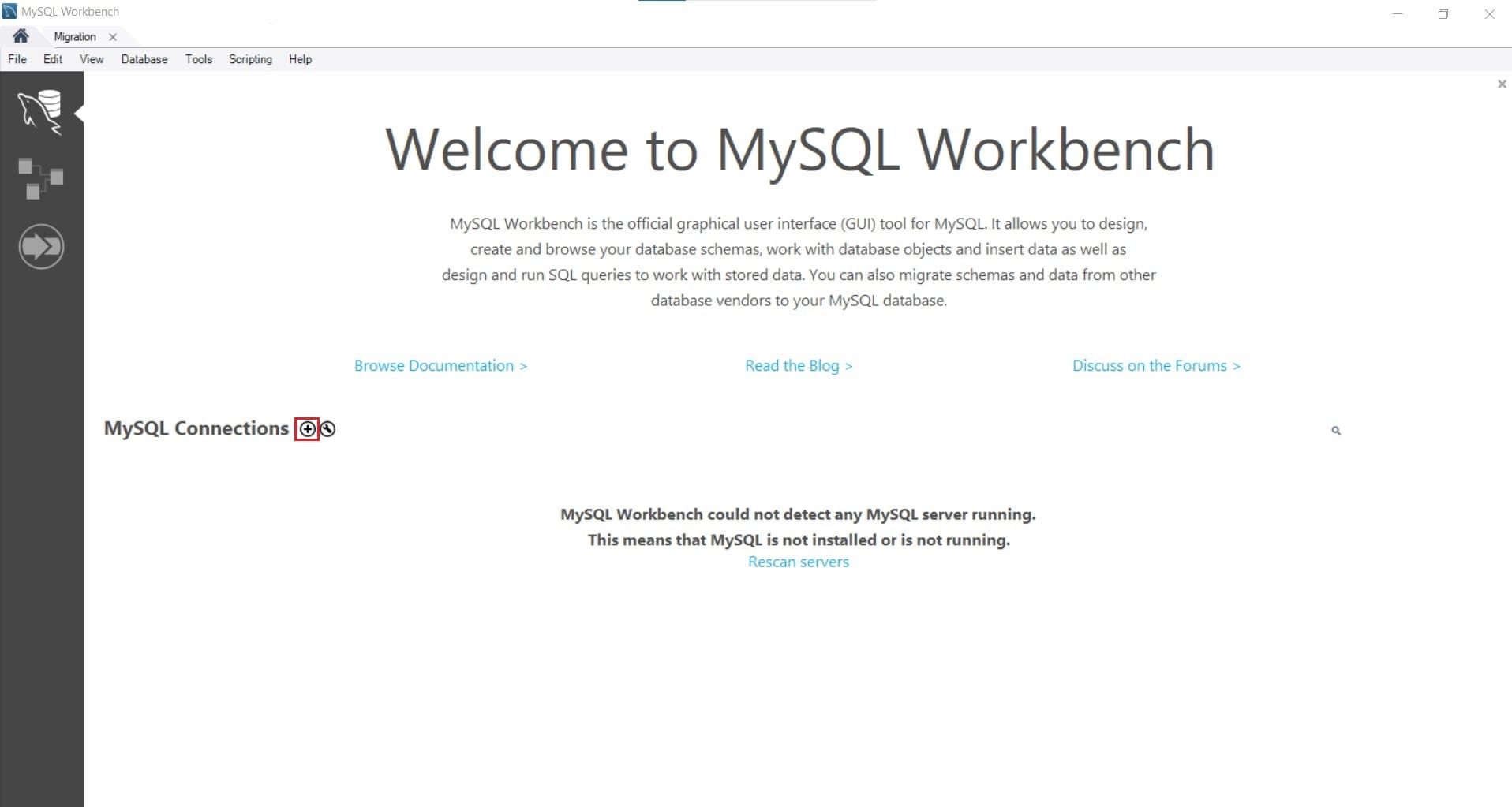
- On the Home screen, click the plus sign next to MySQL Connections.
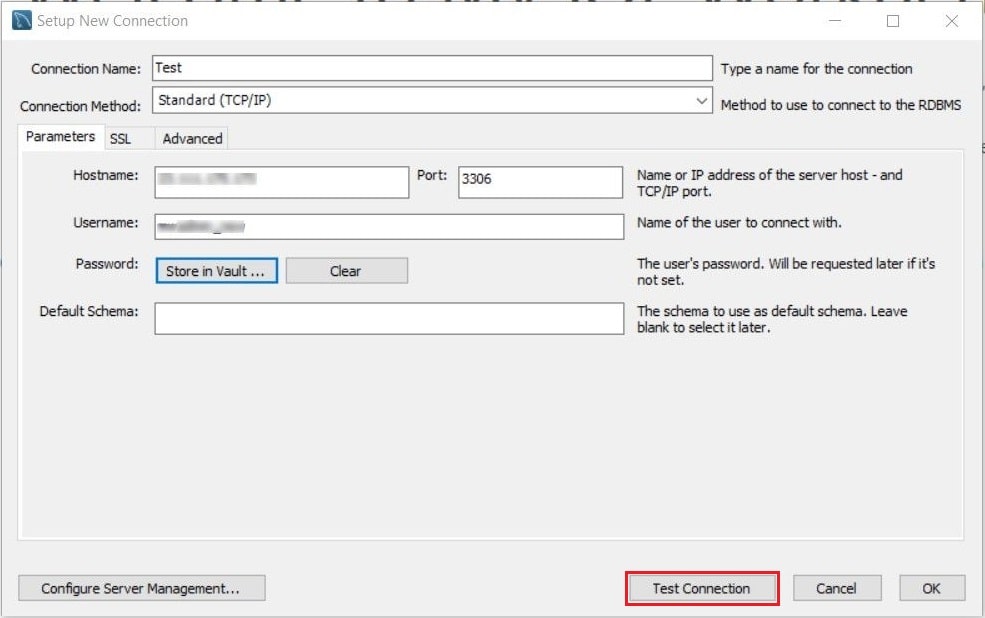
- Type any name in Connection Name, such as My Website.
- Keep Connection Method as Standard (TCP/IP).
- Type the server address in Hostname.
- Type 3306 in Port unless told otherwise.
- Type your database user in Username.
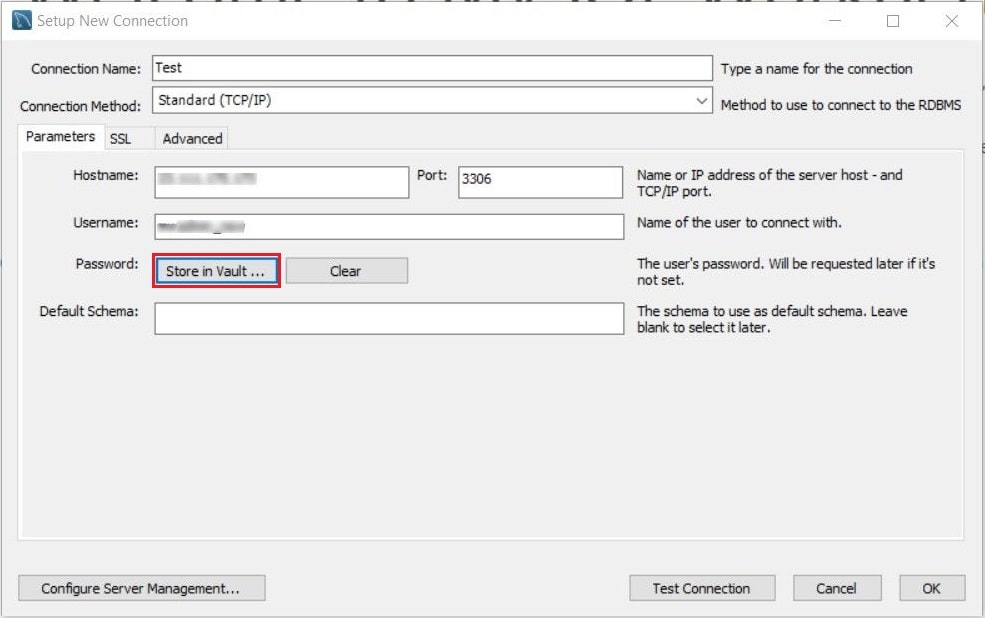
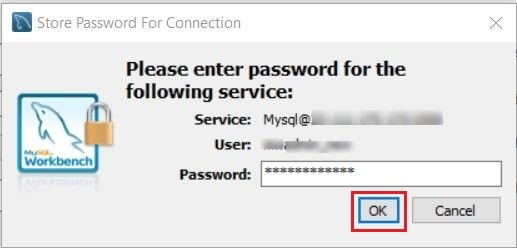
- Click Store in Vault and type the password. Or leave it blank and type it when asked.
- Type your database name in Default Schema. A schema is another word for database.
- Click Test Connection.
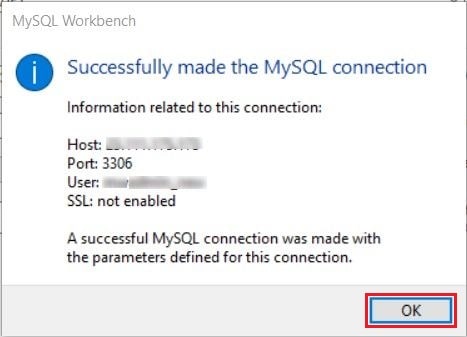
- If you see a success message, click OK.
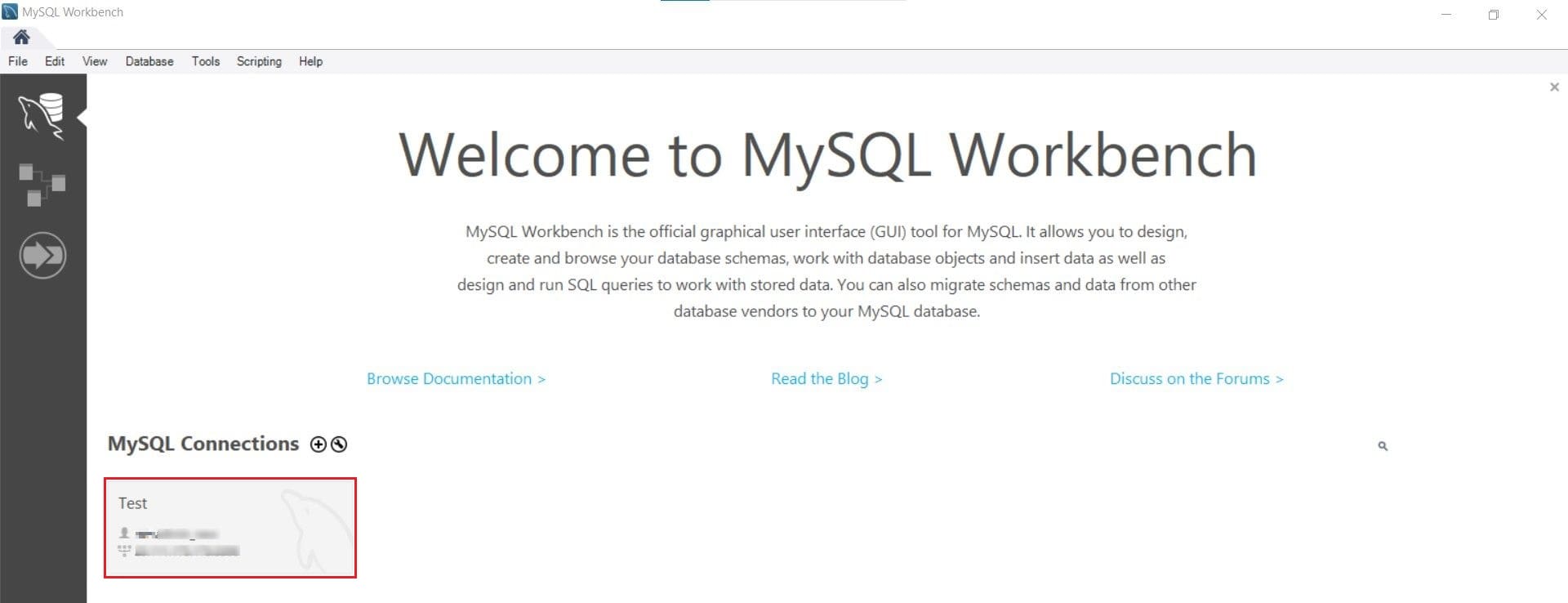
- Double-click the new tile to open it.
If the test fails
- Check for typing mistakes in the user, password and host.
- Check that your IP is on the Remote MySQL list. It may have changed.
- Your network or firewall may block port 3306.
Tip: Still stuck? Open a support ticket and include the exact error message.
Quick recap
- Get the host, port, user and password first.
- Add your IP in cPanel under Remote MySQL.
- Click the plus sign, fill in the form, then Test Connection.
- Double-click the connection to open it.