

What is SSMS?
SQL Server is a database system from Microsoft. A database stores the data for your site or app. SQL Server Management Studio, or SSMS, is a free Microsoft program. You install it on your computer. It lets you see and manage a database that lives on a server far away. That is what "remote" means.
What you need
- SSMS installed on your Windows computer.
- Server name or IP address. An IP address is a number that names a device on the internet. Find it in your welcome email or ask Hostvento support.
- Login and password for the database.
- Remote access allowed for your computer. Many servers block outsiders until you add your IP address to a list. Ask Hostvento support whether this is allowed on your plan.
Steps
- Open SSMS. The Connect to Server window appears. If not, click Connect, then Database Engine.
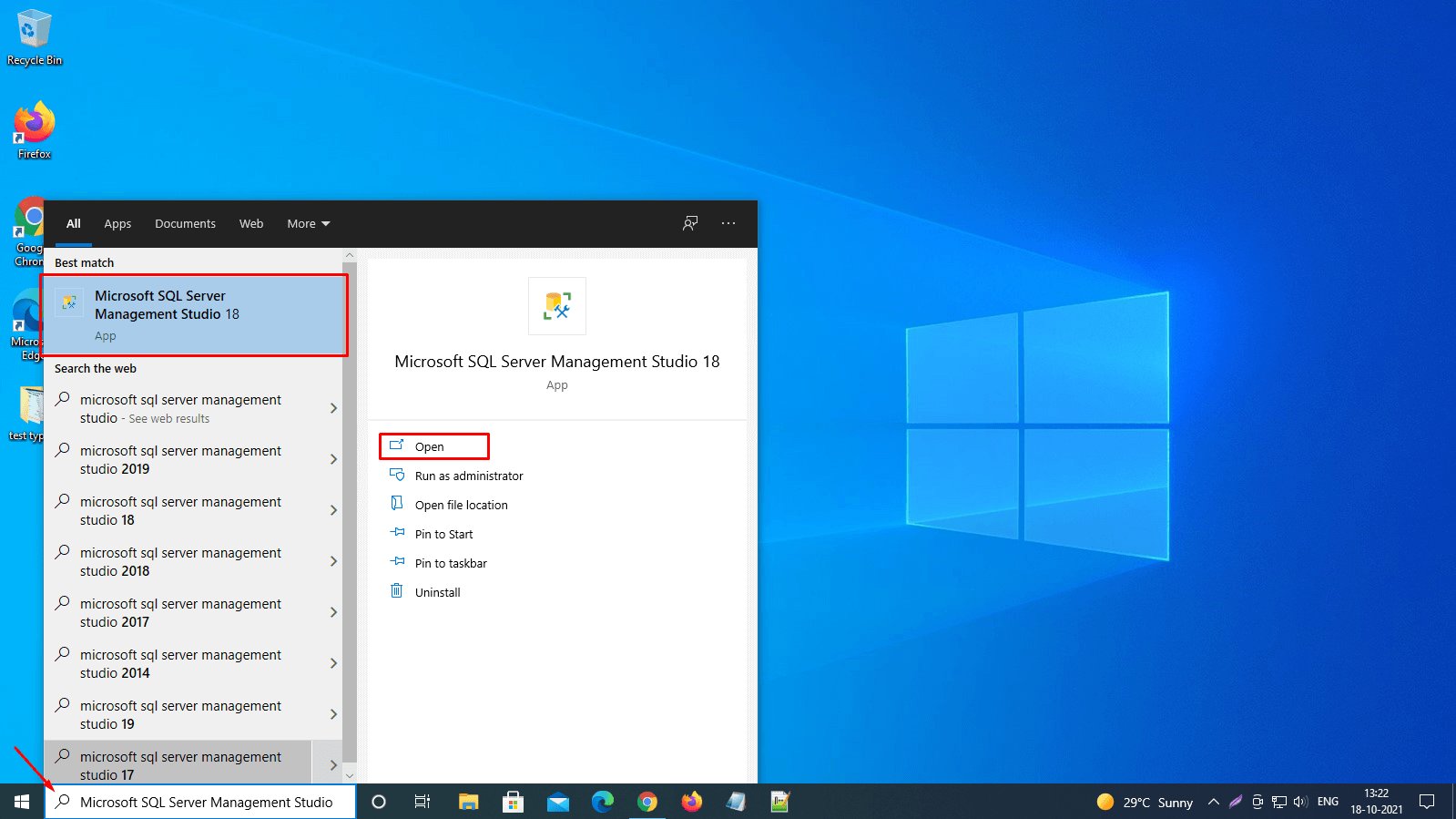
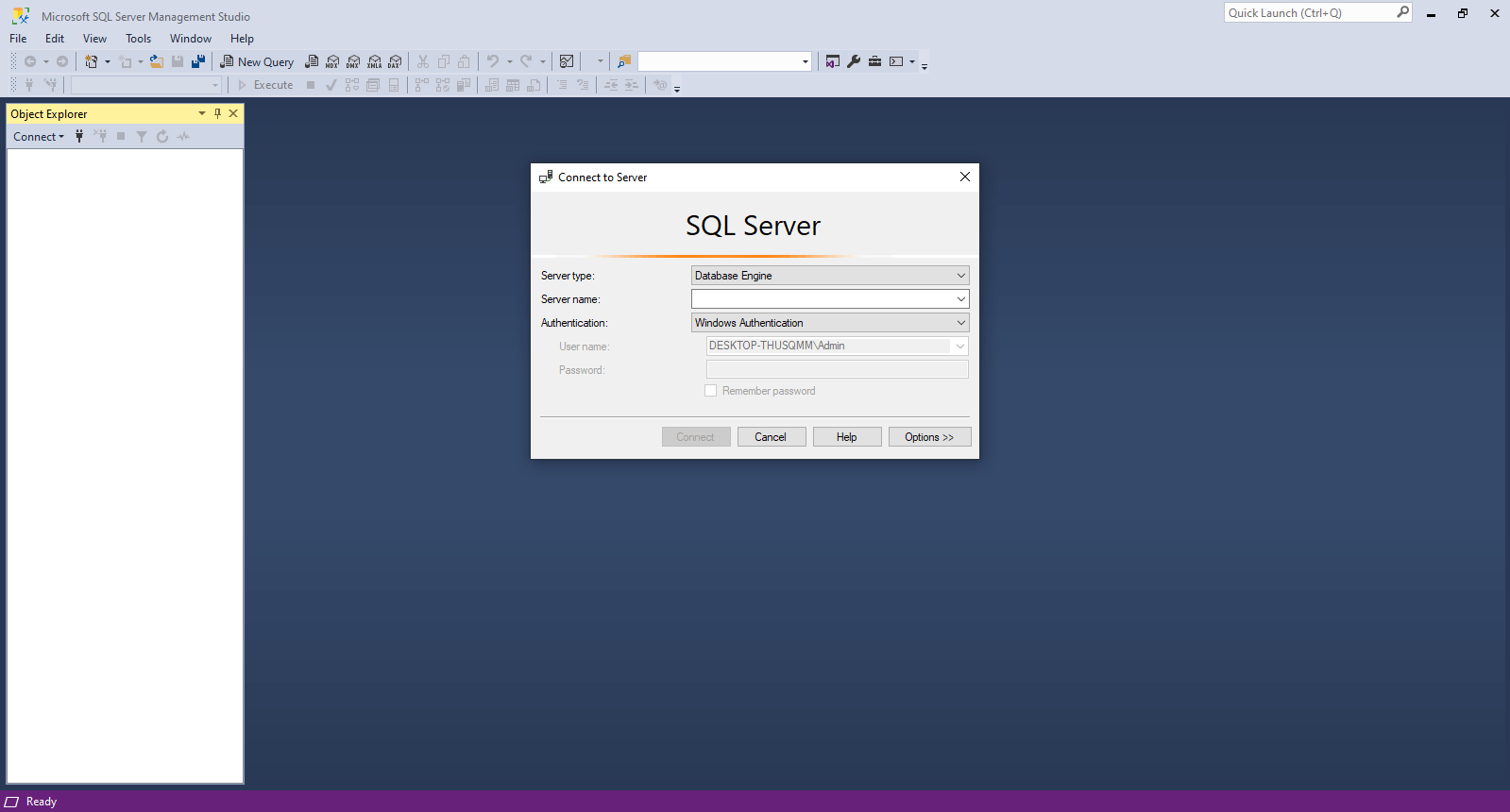
- Set Server type to Database Engine.
- In Server name, type the server name or IP address.
- If a port is given, add it after a comma, like
203.0.113.10,1433. Port 1433 is the usual door number for SQL Server. - Set Authentication to SQL Server Authentication.
- Type your Login and Password.
- Tick Remember password if you want, but only on your own computer.
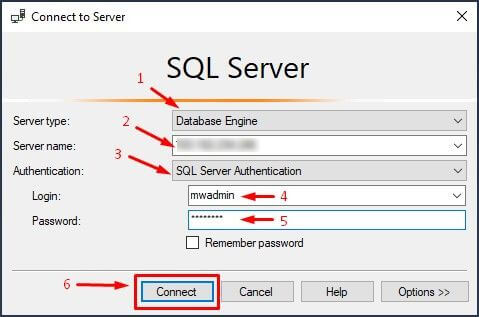
- Click Connect.
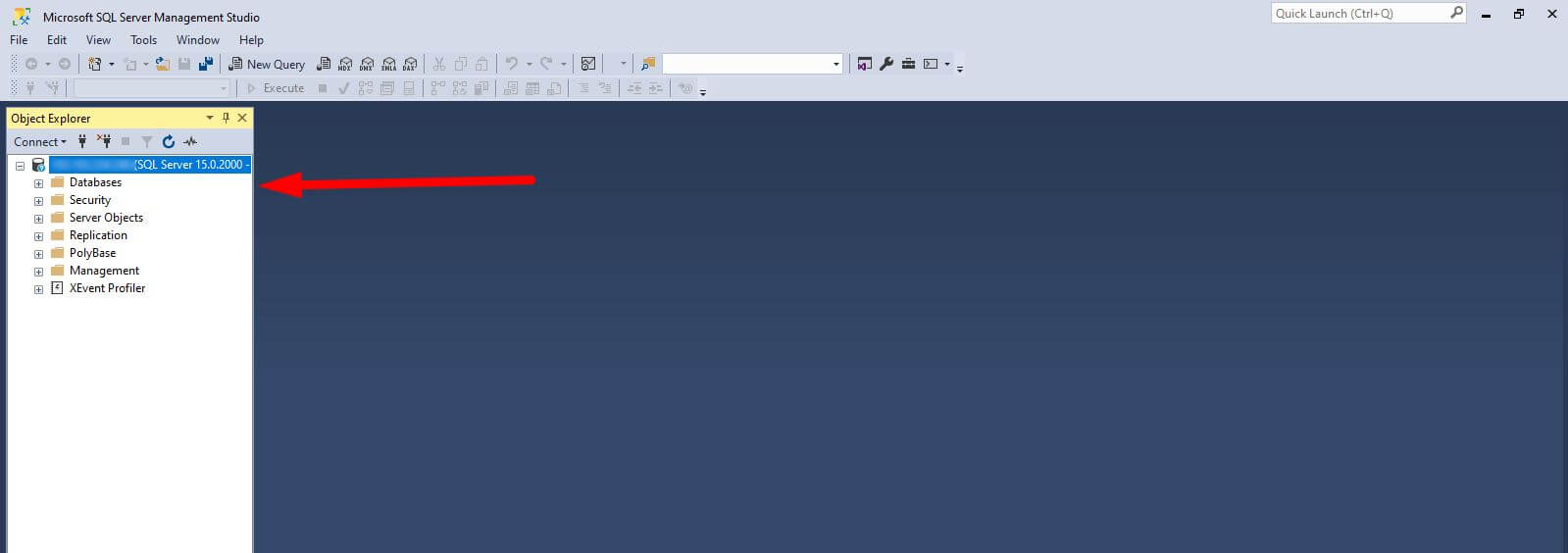
- When it works, the Object Explorer shows your server. Open the Databases folder to see yours.
The address 203.0.113.10 above is only an example. Use your own.
If it fails
- Check the server name, login and password for typing mistakes.
- Your IP address may not be allowed yet. It may also have changed.
- A firewall on your network may block port 1433. A firewall is a guard that blocks unknown traffic.
- Remote access may be switched off on the server.
Tip: If you still cannot connect, open a support ticket. Include the error text you see.
Quick recap
- SSMS is a free Microsoft tool for managing SQL Server.
- Gather the server address, login and password.
- Make sure your IP is allowed to connect.
- Use SQL Server Authentication and click Connect.
- Ask support if it does not work.