

What is a table?
A database is like a filing cabinet. A table is one drawer in it. It holds rows of data, like a spreadsheet. phpMyAdmin is a web tool for managing databases. You can open it from cPanel, your hosting control panel.
Copying a table is a good way to make a safe test version before you change things.
Steps
- Log in to your client area. Open your hosting service and log in to cPanel.
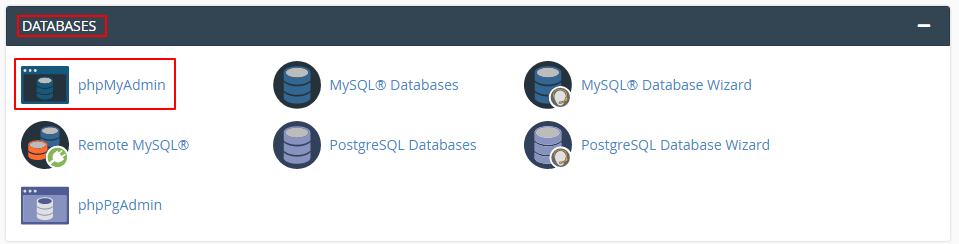
- Under Databases, click phpMyAdmin.
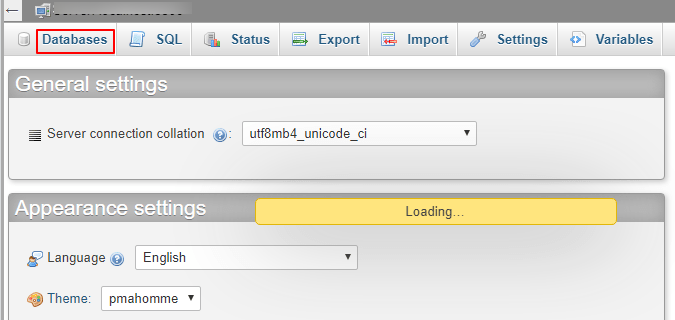
- On the left, click the database that holds your table.
- Click the table you want to copy.
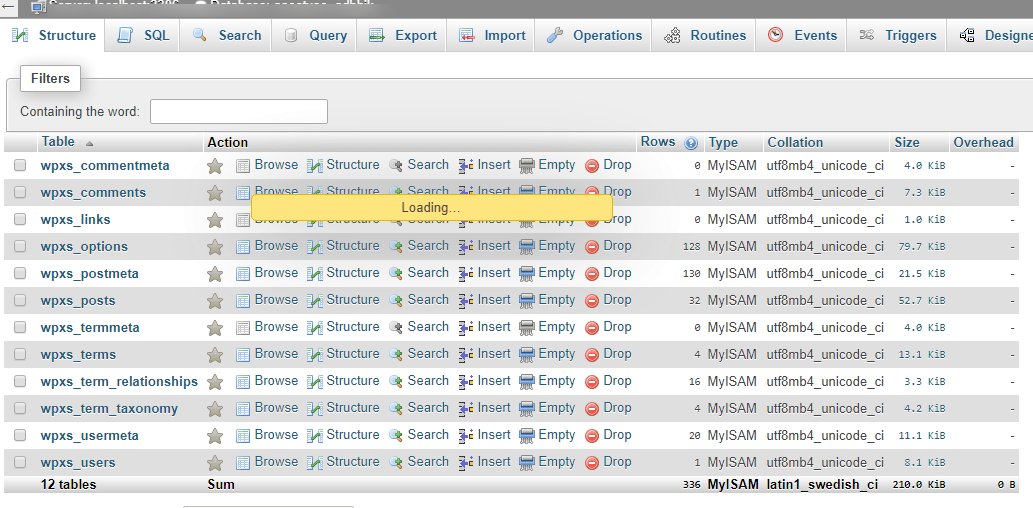
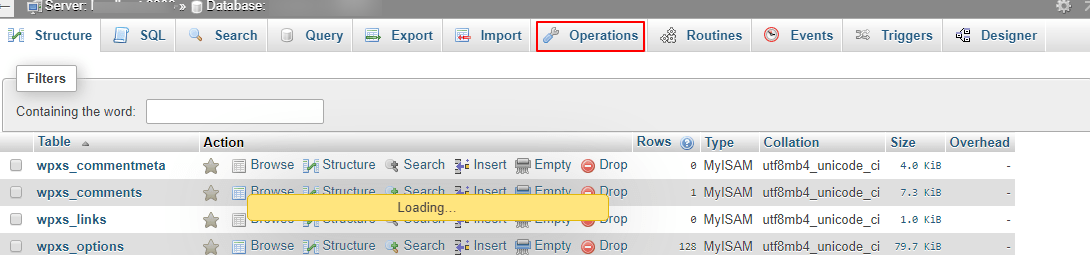
- At the top, click the Operations tab.
- Find the box named Copy table to (database.table).
- Choose the target database from the list. To copy within the same database, keep the current one.
- Type a new table name. It must be different from any table already in that database.
- Pick what to copy:
- Structure only: makes an empty table with the same columns.
- Structure and data: makes a full copy with all rows.
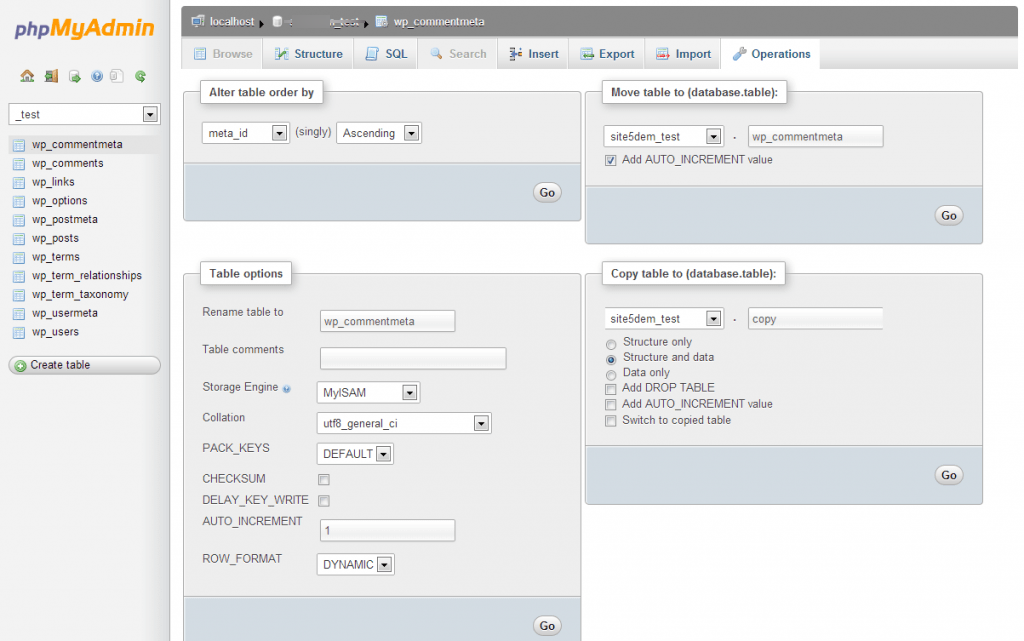
- Data only: copies rows into a table that already exists.
- Tick Add AUTO_INCREMENT value if the table numbers its rows automatically and you want the counter to carry over.
- Leave Switch to copied table unticked if you want to stay on the old table.
- Click Go.
A message tells you the table was copied. The new table now appears in the left list.
Warning: If you copy into a name that already exists, you can overwrite data. Always use a new name, or take a backup first.
Copy with SQL
You can also use the SQL tab:
CREATE TABLE new_table LIKE old_table;
INSERT INTO new_table SELECT * FROM old_table;
The first line copies the layout. The second copies all the rows.
Tip: Large tables can time out. If that happens, ask Hostvento support for help.
Quick recap
- Open phpMyAdmin from cPanel and pick your table.
- Use the Operations tab and the Copy table to box.
- Choose structure only, or structure and data.
- Use a new name, then click Go.