

What is a database?
A database is a place where your website stores data. Think of a filing cabinet for names, posts, orders and settings. Apps like WordPress need one to work. cPanel is the control panel for your hosting account. You can make databases there with a few clicks.
You need three things: a database, a user, and a link between them. The user is like a key. The link gives the key permission to open the cabinet.
Step 1: Create the database
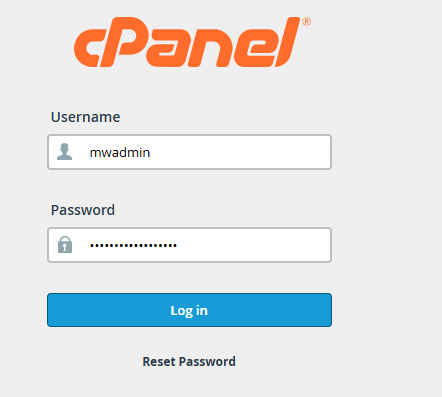
- Log in to your client area. Open your hosting service and log in to cPanel.
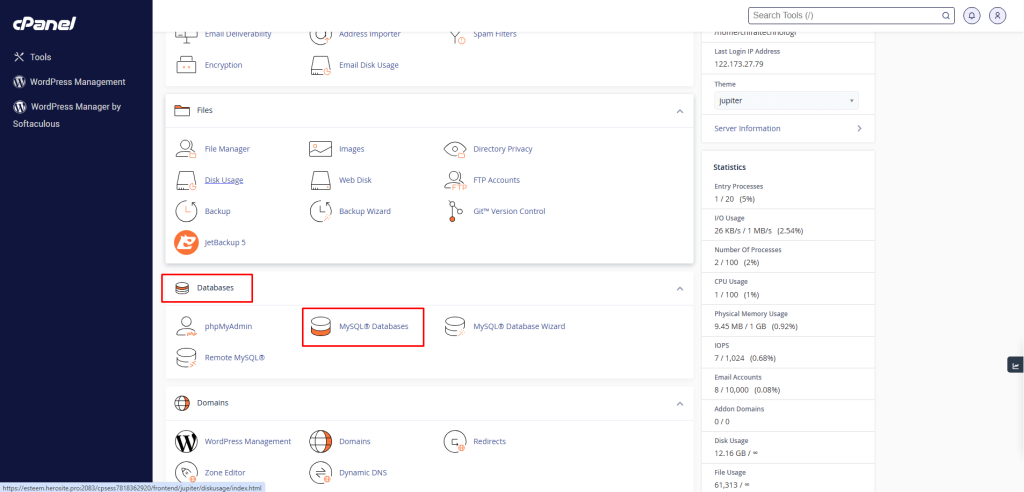
- Under Databases, click MySQL Databases. (Or try MySQL Database Wizard, which walks you through every step.)
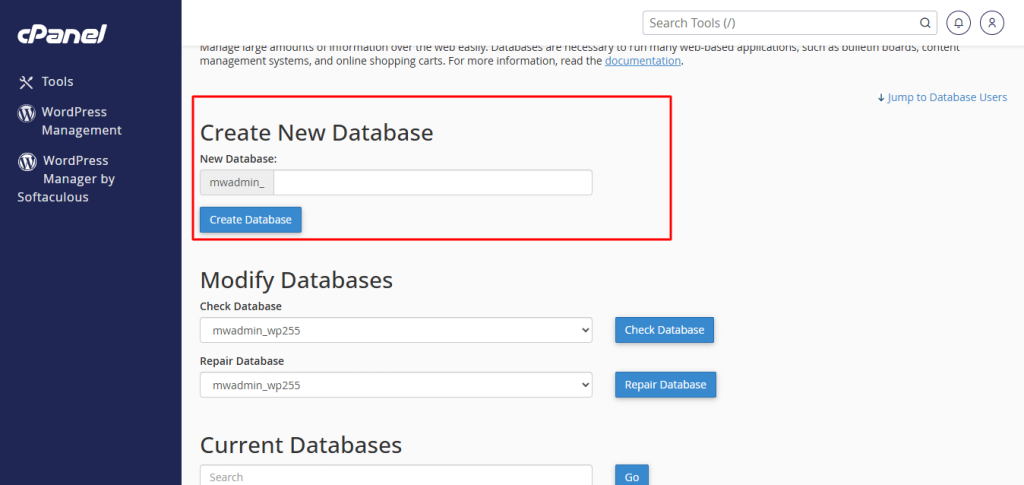
- Under Create New Database, type a name. Keep it short and simple.
- Click Create Database.
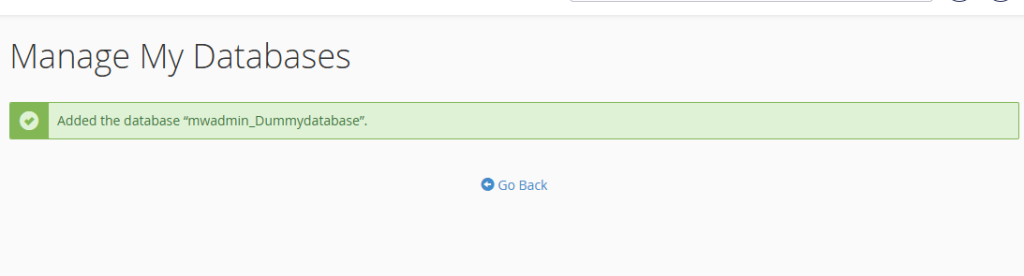
- Click Go Back.
cPanel adds your account name and an underscore in front of the name. So "shop" may become "account_shop". Note the full name.
Step 2: Create a user
- Scroll to MySQL Users, then Add New User.
- Type a user name.
- Type a strong password. Use the Password Generator if you like.
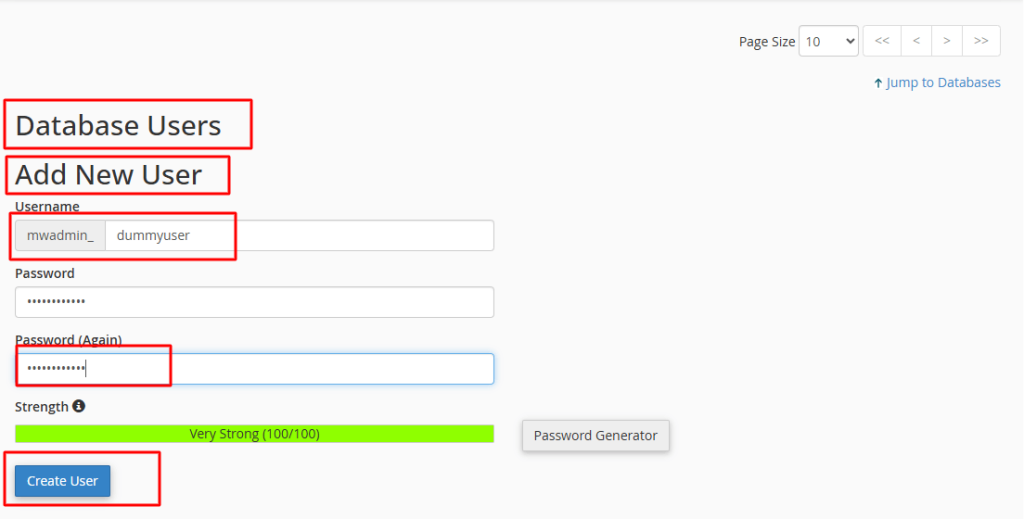
- Save the password somewhere safe. You will need it for your site.
- Click Create User.
Step 3: Link the user to the database
- Scroll to Add User To Database.
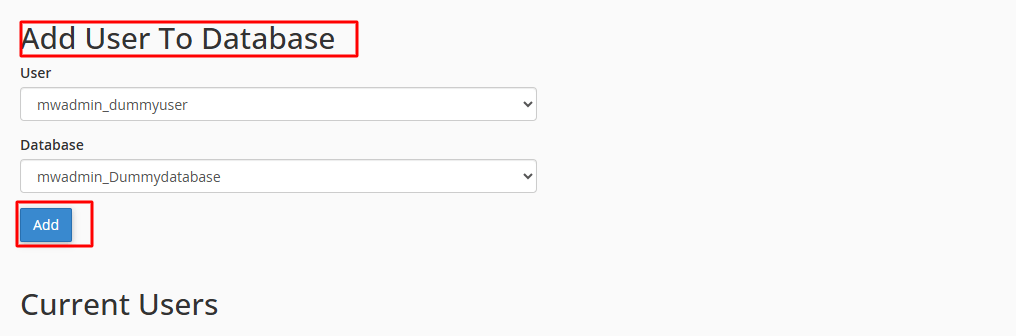
- Choose your user in the first list.
- Choose your database in the second list.
- Click Add.
- Tick ALL PRIVILEGES. Privileges are the actions the user may do.
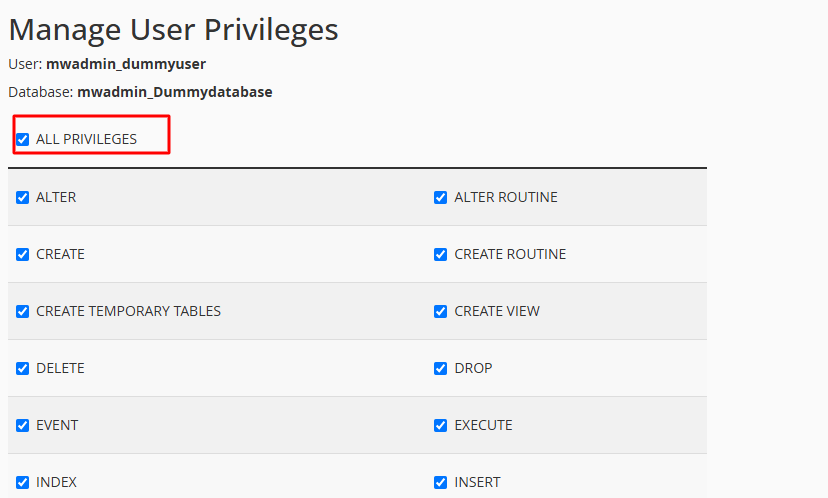
- Click Make Changes.
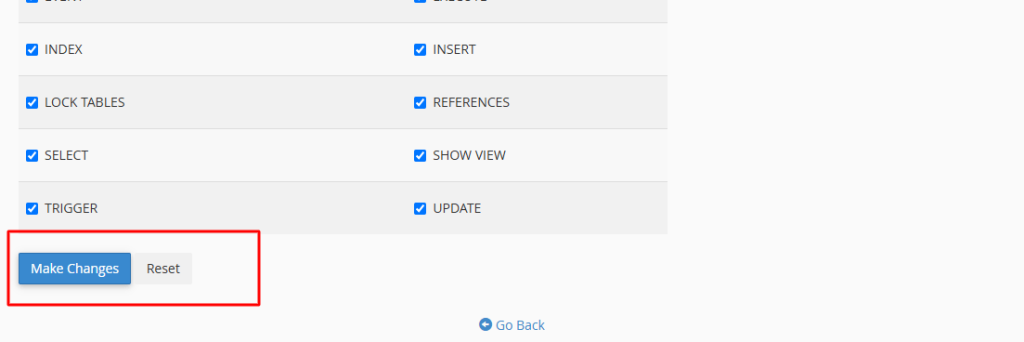
Your database is ready. Use the full database name, full user name and password in your app's settings. The host is usually localhost, which means "this same server".
Tip: If you cannot find the MySQL options, your plan may not include them. Open a support ticket to ask Hostvento support.
Quick recap
- You need a database, a user, and a link between them.
- Use MySQL Databases in cPanel.
- Note the full names, including the account prefix.
- Keep the password safe.
- The host is usually
localhost.