

This guide needs root access, so it fits VPS and dedicated server customers. Shared hosting customers cannot use WHM and should ask Hostvento support.
Why is there a limit?
When you import a database in phpMyAdmin, the file is uploaded through PHP. PHP is the language that runs many websites. It has settings that cap how large an upload can be and how long it may run. If your SQL file is bigger than the cap, the import fails.
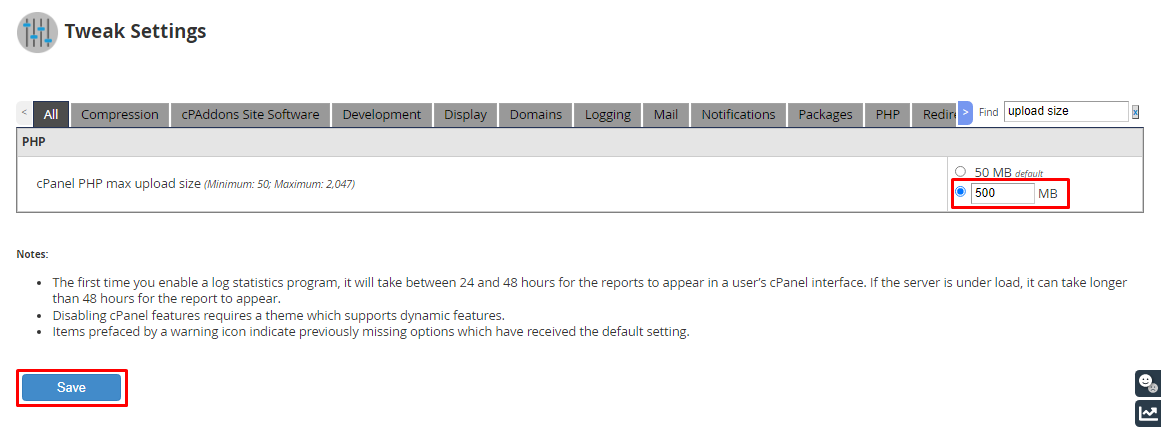
WHM is the admin panel for servers. It is the big brother of cPanel. The limits live in the MultiPHP INI Editor.
The settings
upload_max_filesize: the largest file you can upload.post_max_size: the largest amount of data in one request. Make it the same or bigger than the upload limit.max_execution_time: how many seconds a script can run.memory_limit: how much memory a script may use.
Steps
- Log in to WHM as root. The link and login are in your server welcome email.
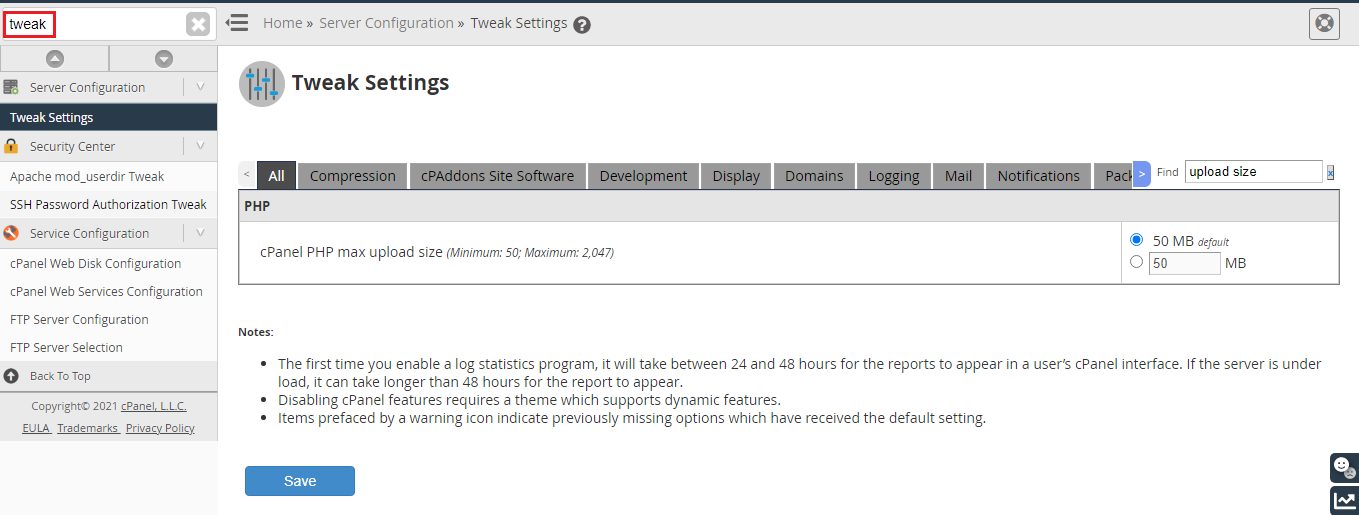
- In the search box at the top left, type MultiPHP INI Editor. Click it.
- Choose the Basic Mode tab.
- Pick the PHP version from the list. Pick the one that phpMyAdmin uses, or set each version.
- Find upload_max_filesize and type a new value, such as
256M. M means megabytes.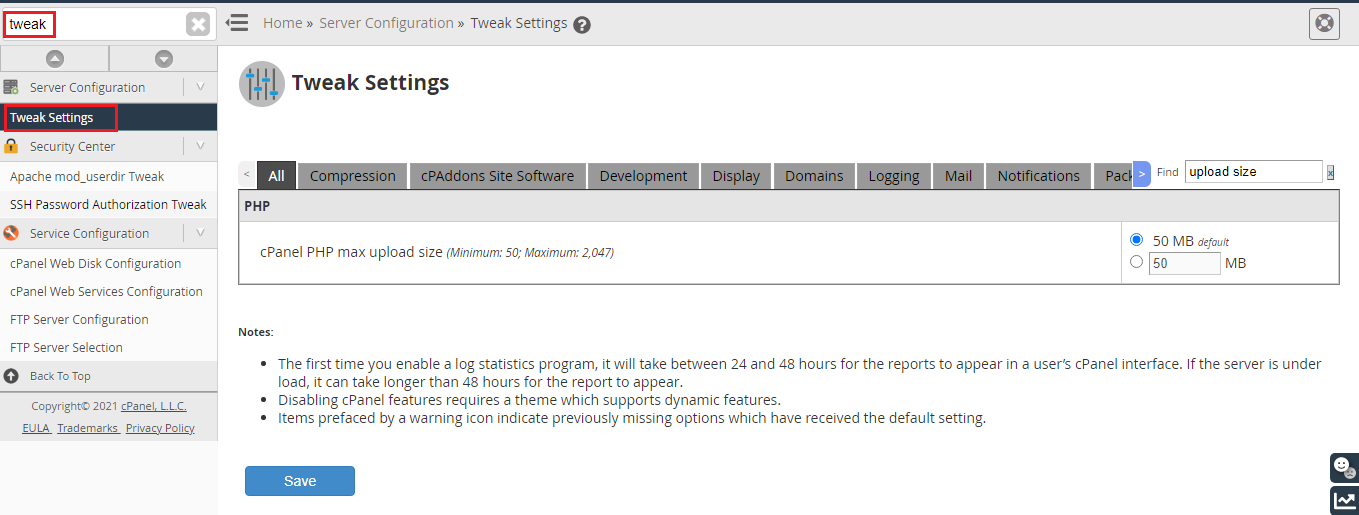
- Find post_max_size and set it to the same or higher value, such as
256M.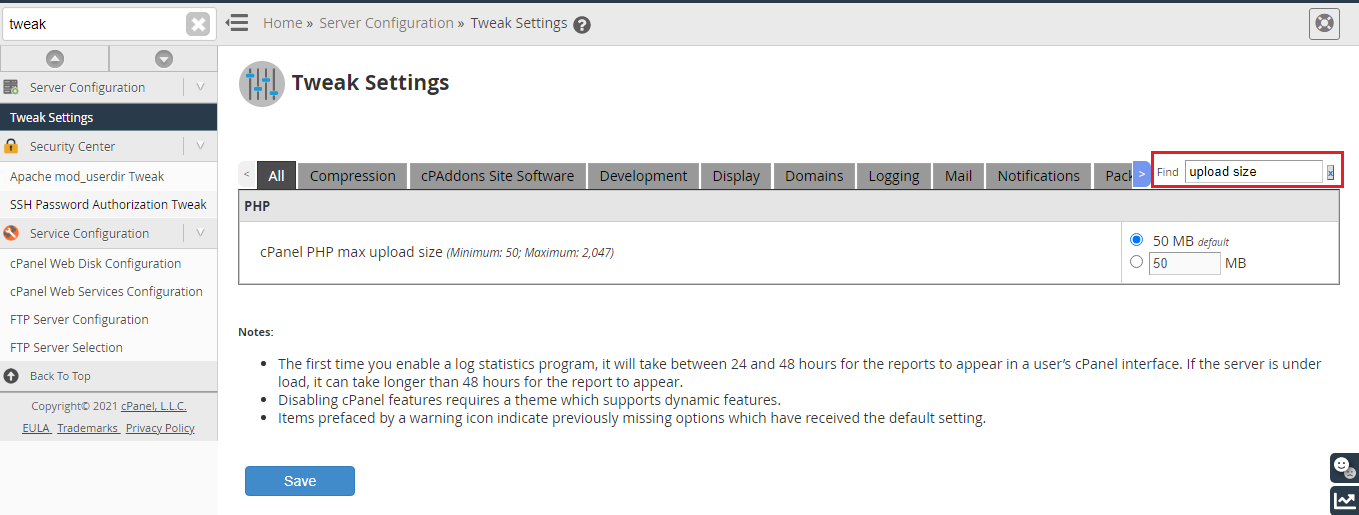
- Set max_execution_time to
300, which is five minutes. - Set memory_limit to
512Mor similar. - Click Apply.
Pick values that suit your file. Do not set them far larger than needed.
If it still fails
- phpMyAdmin in WHM can use its own settings. Look in the Editor Mode tab, or restart PHP-FPM or Apache if your setup needs it.
- Try again in a new browser tab.
- For very large files, import with SSH instead.
Warning: Very high limits use more server memory and can slow other sites. Raise them only as much as you need.
Tip: Need help? Open a support ticket.
Quick recap
- PHP limits cap the size of imports in phpMyAdmin.
- Use MultiPHP INI Editor in WHM.
- Raise
upload_max_filesizeandpost_max_sizetogether. - Also raise time and memory, then click Apply.