

What is R1Soft?
R1Soft is a backup tool used by some hosting companies. It copies your server's data again and again, all day long. Each copy is called a recovery point. Think of a recovery point as a photo of your files at one moment in time.
A backup is a spare copy of your data. If you delete something by mistake, you can bring it back from the spare copy.
Before you start
- Know which files or database you need back.
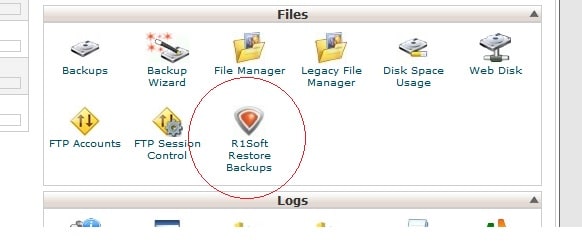
- Know roughly when they last worked well. This helps you pick the right recovery point.
- Take a fresh backup of your site as it is now. A restore can replace newer files.
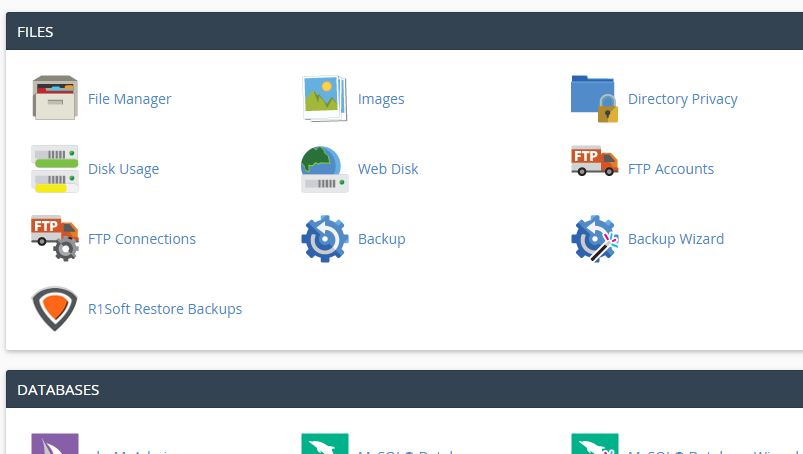
Restore files
- Log in to the R1Soft backup page. Use the link and login from your welcome email, or ask support.
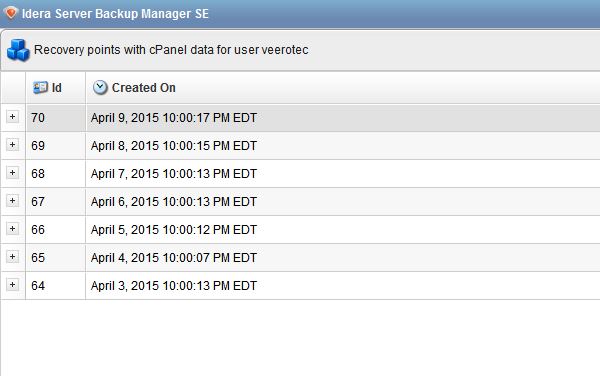
- Find your server or account in the list.
- Open the list of Recovery Points.
- Pick the date from before the problem started.
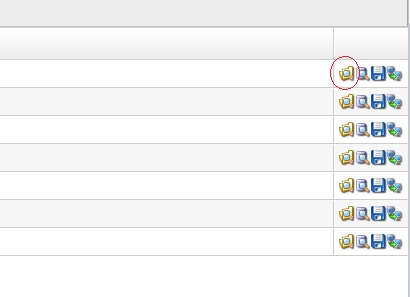
- Browse the folders. Tick the files or folders you want back.
- Choose to restore to the original place, or to a different folder.
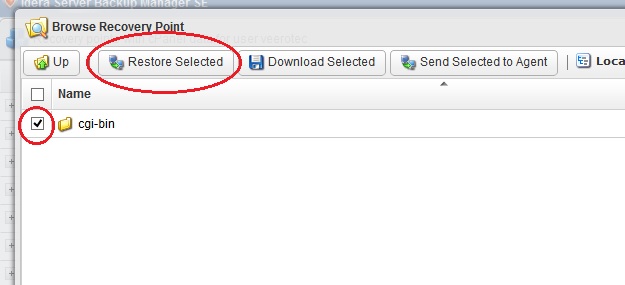
- Start the restore and wait until it says it is finished.
Restore a database
A database is where your website keeps its content, such as posts, users and orders. MySQL is a common kind of database. R1Soft saves database files as part of the server copy.
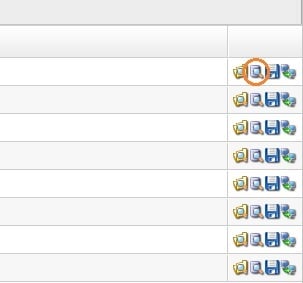
- Open your recovery points as shown above.
- Pick the date you want.
- Look for the MySQL data folder. It is often found at
/var/lib/mysql. - Choose your database folder only. Do not pick the whole folder.
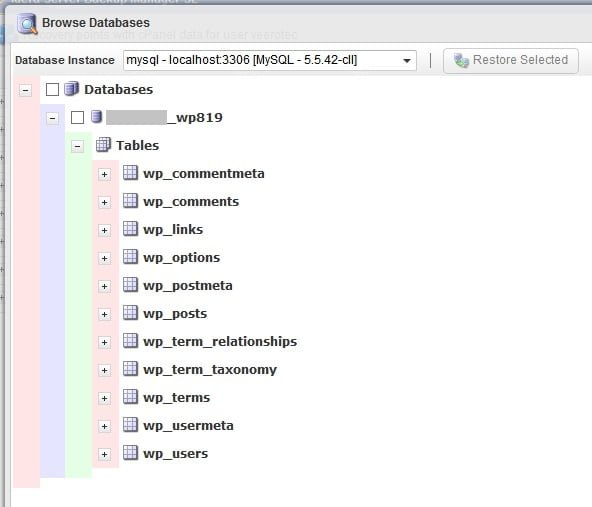
- Restore it to a safe, temporary folder.
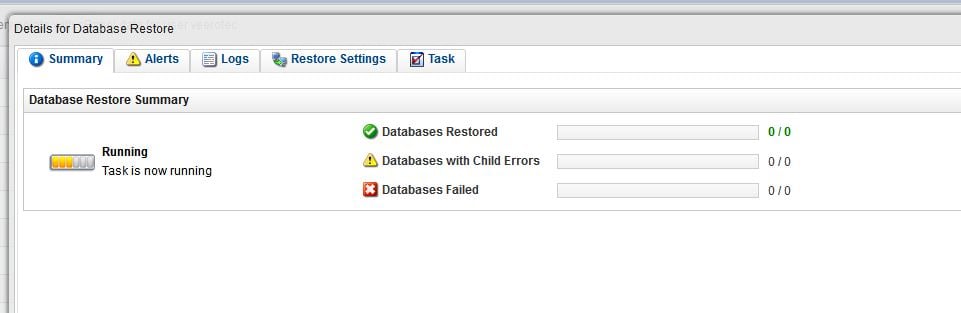
- Ask Hostvento support to move it into place. They can also import it for you.
Warning: Copying database files over a working database can break it. Take a backup of the current database first.
If you cannot log in
Many shared hosting customers cannot reach R1Soft themselves. In that case, open a ticket. Tell support the name of your site, what you lost and the date you want. You can open a support ticket here.
Quick recap
- R1Soft keeps many recovery points, like photos of your data over time.
- Back up your current site before you restore anything.
- Pick a recovery point from before the problem began.
- Restore to a separate folder first when you can.
- For databases, restore the one database folder and ask support for help.