

What is a database user?
A database stores your website's data. A database user is like a key holder. It is a name and password that let your website open the database. You cannot read an old password back. You can only set a new one.
Warning: After you change the password, your website will stop working until you put the new password in its settings file. Do both steps in a row.
Steps in cPanel
- Log in to your hosting control panel (cPanel).
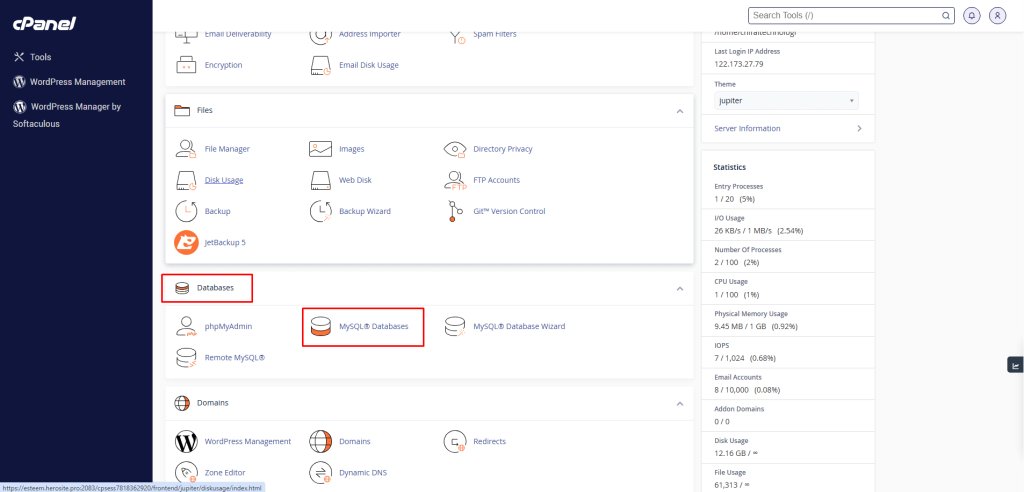
- Open MySQL Databases.
- Scroll down to Current Users.
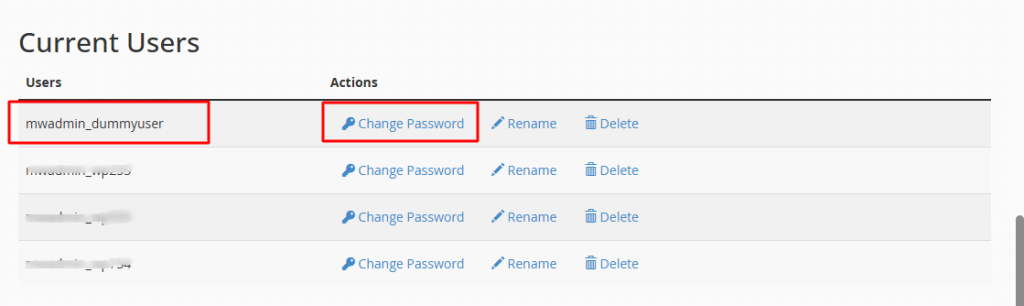
- Find your user. Click Change Password next to it.
- Type a new password twice. Or click Password Generator for a strong one.
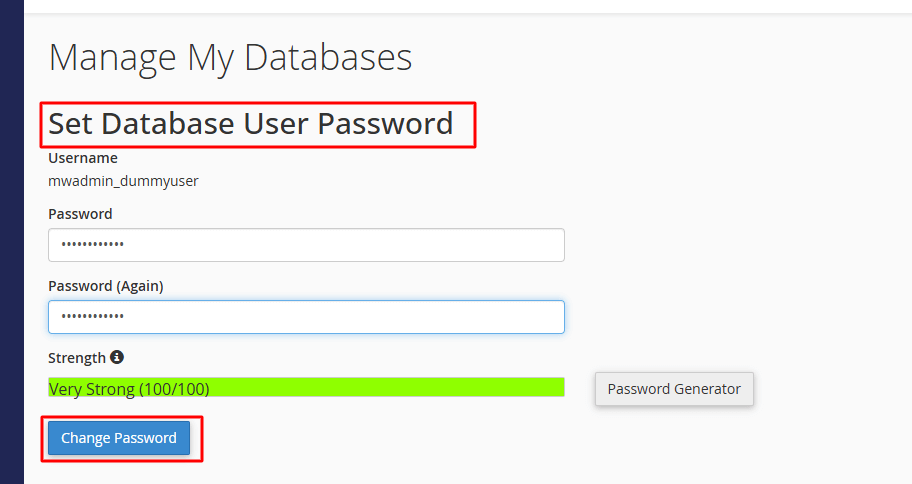
- Copy the password and keep it in a safe place.
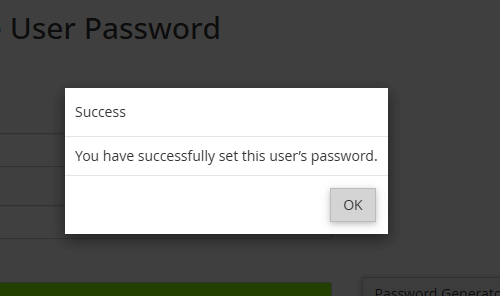
- Click Change Password to save.
Tip: A strong password is long and mixed. It uses letters, numbers and symbols. Avoid words someone could guess.
Update your website
Your website keeps the database password in a configuration file. This is a small file of settings.
- Open File Manager in your control panel.
- Go to the folder of your website. This is often
public_html. - Find the settings file for your software. Here are some common names.
| Software | File | Setting |
|---|---|---|
| WordPress | wp-config.php | DB_PASSWORD |
| Joomla | configuration.php | $password |
| Laravel | .env | DB_PASSWORD |
- Right-click the file and choose Edit.
- Replace the old password with the new one. Keep the quote marks.
- Click Save Changes.
- Open your website to check that it loads.
If you see "Error establishing a database connection"
The password in the file probably does not match. Check for typos or extra spaces. If you use special symbols, make sure you copied them exactly.
If you still need help, open a support ticket.
Quick recap
- Old database passwords cannot be shown. Set a new one.
- In cPanel, use MySQL Databases and then Change Password.
- Update the same password in your website's config file.
- Use a strong password and store it safely.