

What does import mean?
A database is where your website keeps its data. An export is a copy of a database saved as a file, usually ending in .sql. Import means loading that file into a database. You do this when you move a site from another host or restore a backup.
Importing has three parts. First make an empty database. Then make a user. Last, load the file.
Step 1: Create the database
- Log in to cPanel.
- Open MySQL Databases.
- Under Create New Database, type a name and click Create Database.
Step 2: Create a user
- On the same page, go to MySQL Users.
- Type a user name and a strong password. Click Create User.
- Under Add User To Database, pick the user and the database. Click Add.
- Tick ALL PRIVILEGES and click Make Changes.
cPanel adds your account name before the names. Write down the full names and the password. Your website's settings will need them.
Step 3: Import the file
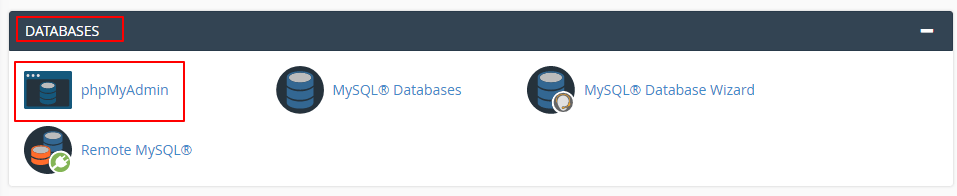
- Go back to the cPanel home page and open phpMyAdmin.
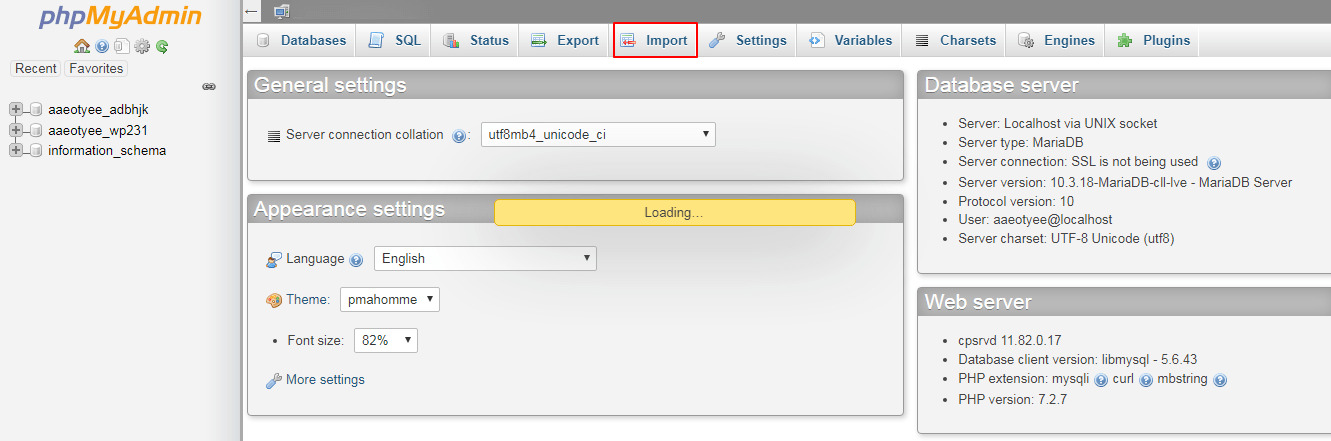
- Click your new database on the left.
- Click the Import tab.
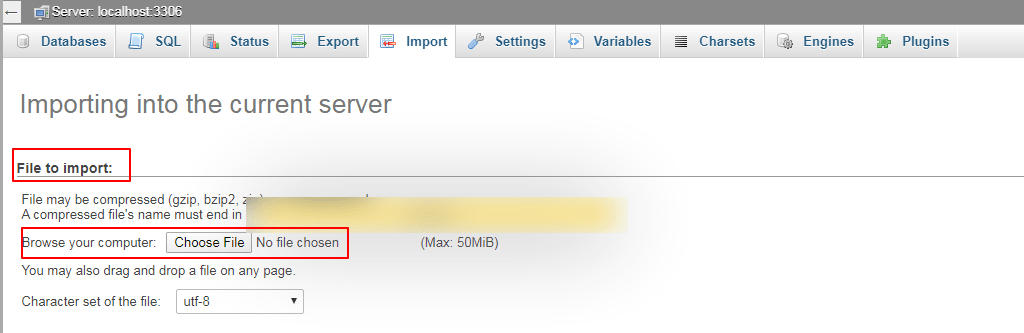
- Click Choose File and select your
.sqlfile. A zipped or gzipped file also works. - Leave the defaults. Click Go.
A green message means it worked. Your tables show on the left.
Warning: If you import into a database that already has data, tables with the same name may be overwritten. Export a backup first.
Step 4: Connect your website
Edit your site's settings file so it uses the new database name, user and password. For WordPress, this is wp-config.php.
Problems
- File too big: compress it into a zip file. Or ask Hostvento support to raise the limit or import it.
- Timeout: split the file into parts.
- Error in the file: check it was made by MySQL, with a name that ends in
.sql.
Need help? Open a support ticket.
Quick recap
- Create a database and a user, then link them.
- Import the
.sqlfile in phpMyAdmin with the Import tab. - Update your site's settings with the new names.
- Back up before importing into a database with data.