

What do repair and optimize mean?
A database stores your website's data in tables. A table is like a spreadsheet page.
- Repair fixes a table whose file has been damaged. A crash or a full disk can cause this.
- Optimize tidies a table. When you delete rows, empty gaps are left behind. Optimize closes the gaps. The table becomes smaller and can run faster.
Think of repair as mending a torn page. Optimize is like tidying a messy bookshelf.
Warning: Take a backup first. Open the Export tab and save your database.
Optimize tables
- Log in to your control panel and open phpMyAdmin.
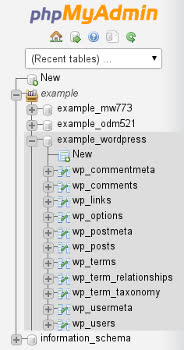
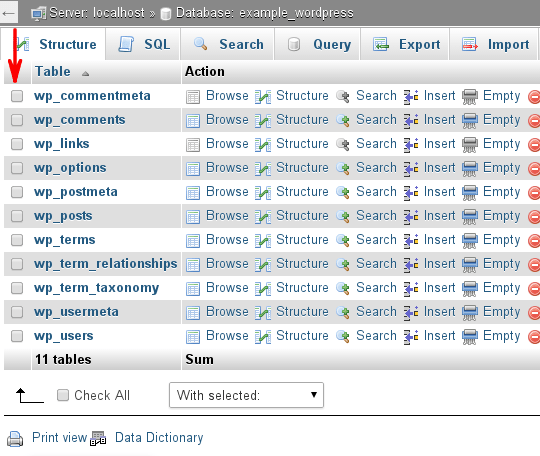
- Click your database name on the left.
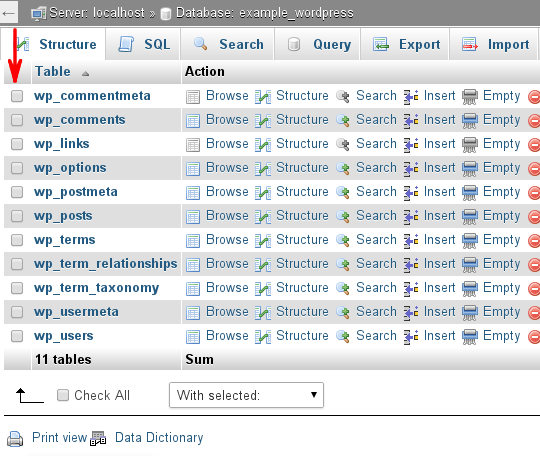
- You will see a list of tables. Click Check all at the bottom to tick every table.
- Open the With selected menu.
- Choose Optimize table.
phpMyAdmin shows a result for each table. "OK" or "Table is already up to date" are good signs.
Repair tables
- Follow steps 1 to 3 above. Tick only the broken tables if you know them.
- In the With selected menu, choose Check table first.
- Read the result. If a table shows an error, tick it again.
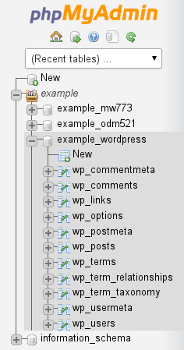
- Choose Repair table from the same menu.
Tip: You can also use the Analyze table choice. It updates the notes MySQL uses to run searches quickly.
Good to know
- The Repair table choice works on MyISAM tables. These are an older table type.
- Newer InnoDB tables do not support repair this way. For those, restore a backup or ask Hostvento support.
- The cPanel MySQL Databases page also has a Repair DB button.
- Run optimize now and then, such as once a month, on busy sites.
Still seeing errors? Open a support ticket.
Quick recap
- Repair fixes damaged tables. Optimize tidies and shrinks them.
- Tick tables, then use the With selected menu.
- Repair works for MyISAM tables only.
- Always back up first.