

Why copy a database?
A database stores your website's data in tables. A table is like a spreadsheet page. A copy is useful in many cases. You can test a change on the copy and keep the original safe. You can also build a second version of a site. Or you can keep a quick backup.
phpMyAdmin is a web tool that lets you do this with clicks.
Method 1: The copy button
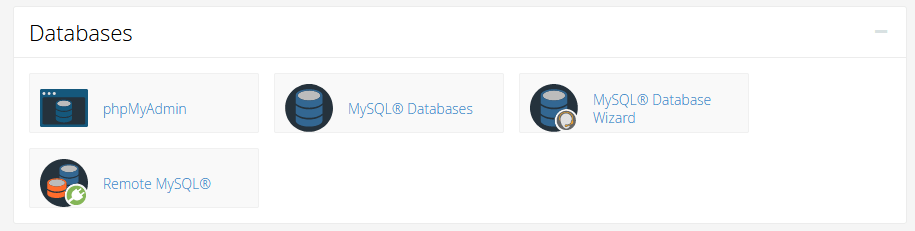
- Log in to your control panel and open phpMyAdmin.
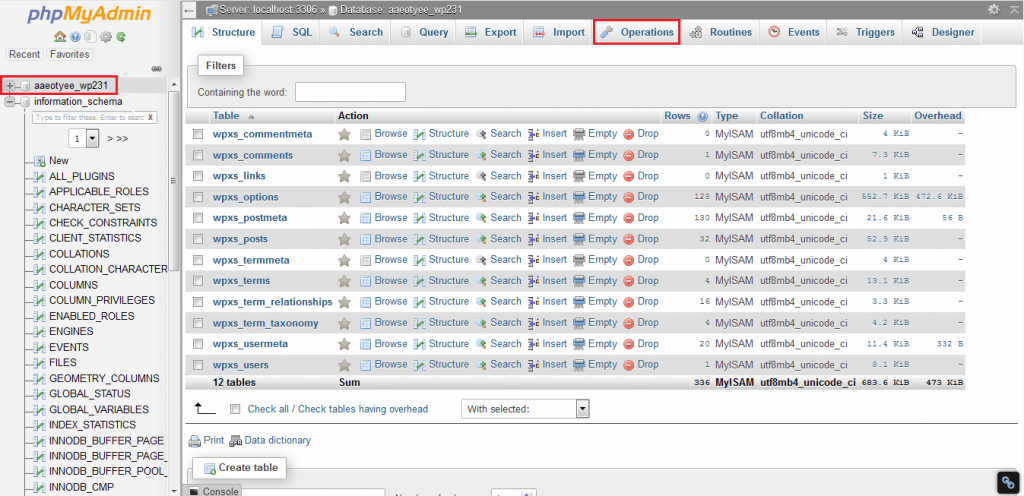
- Click the database you want to copy in the left list.
- Click the Operations tab.
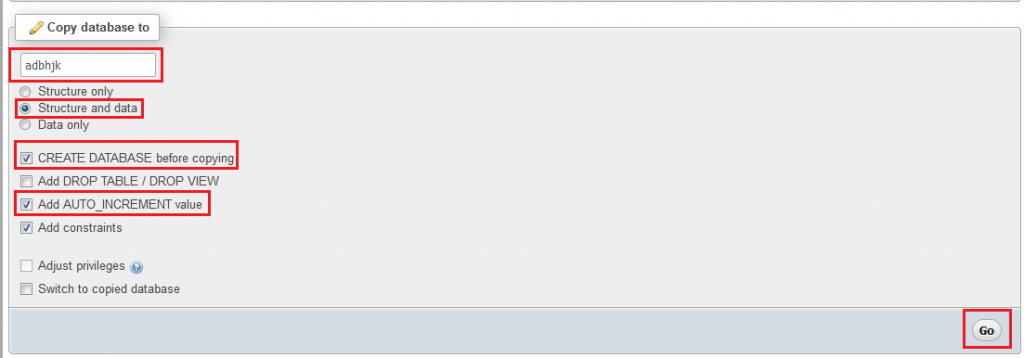
- Find the box Copy database to.
- Type a new name for the copy.
- Choose Structure and data. This copies the tables and the rows inside them.
- Tick CREATE DATABASE before copying.
- Click Go.
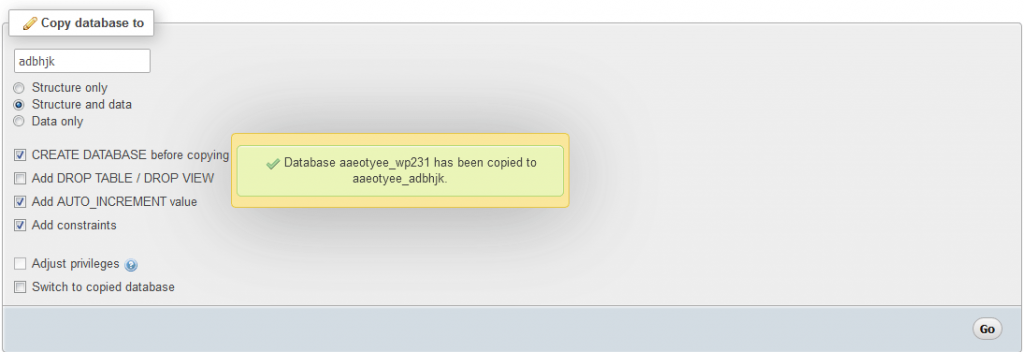
The new database shows up in the left list.
On shared hosting, you may not be allowed to create databases from phpMyAdmin. If you see an error, use Method 2.
Method 2: Export and import
- In cPanel, open MySQL Databases. Create a new empty database and a user. Link them with all privileges.
- In phpMyAdmin, click the original database.
- Click the Export tab, keep Quick and SQL, then click Go.
- Click the new empty database on the left.
- Click the Import tab.
- Choose the file you just saved and click Go.
Warning: Do not import into a database that holds data you want to keep. Importing may overwrite tables.
Use the copy with a website
A copy does not change your live site. To make a site use it, edit the site's settings file. Put in the new database name, user and password. For WordPress, the file is wp-config.php.
Copy one table only
- Click the table name.
- Click Operations.
- Use Copy table to and type a new table name.
- Click Go.
Quick recap
- Use Operations then Copy database to for a quick copy.
- If that is blocked, export and import into a new empty database.
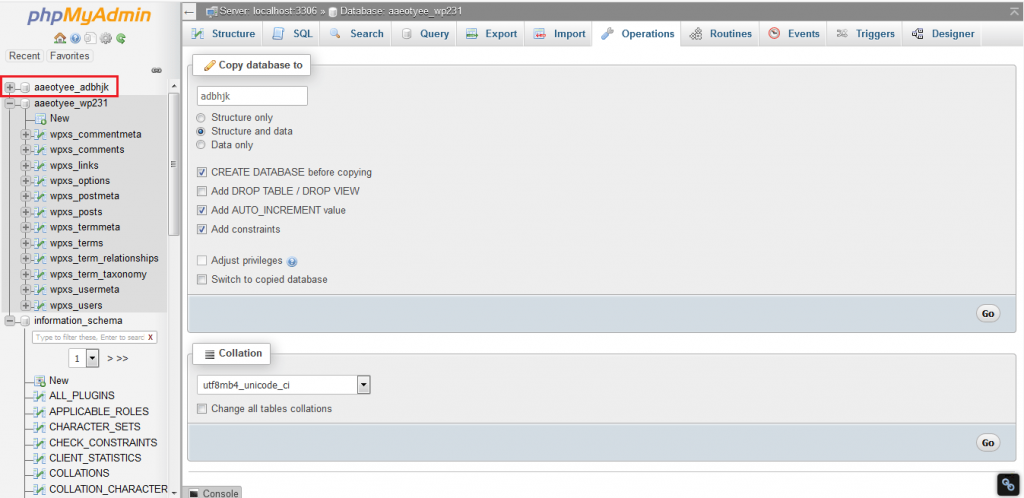
- Pick Structure and data to copy everything.
- Update your site's settings to use the copy.