

What is a privilege?
A database is a store where your website keeps its data. A database user is a login that connects to it. A privilege is a permission. It says what that user is allowed to do. It is like a library card that may allow reading only, or reading and writing.
Common privileges are:
| Privilege | What it lets the user do |
|---|---|
| SELECT | Read data |
| INSERT | Add new data |
| UPDATE | Change data |
| DELETE | Remove data |
| CREATE | Make new tables |
| DROP | Delete whole tables |
| ALTER | Change the shape of tables |
| INDEX | Make lookups faster |
Most apps, such as WordPress, need all of these to work and to update themselves.
Warning: Removing a privilege can break your site. Take a backup of the database first.
Steps
- Log in to DirectAdmin. Your login details are in your welcome email.
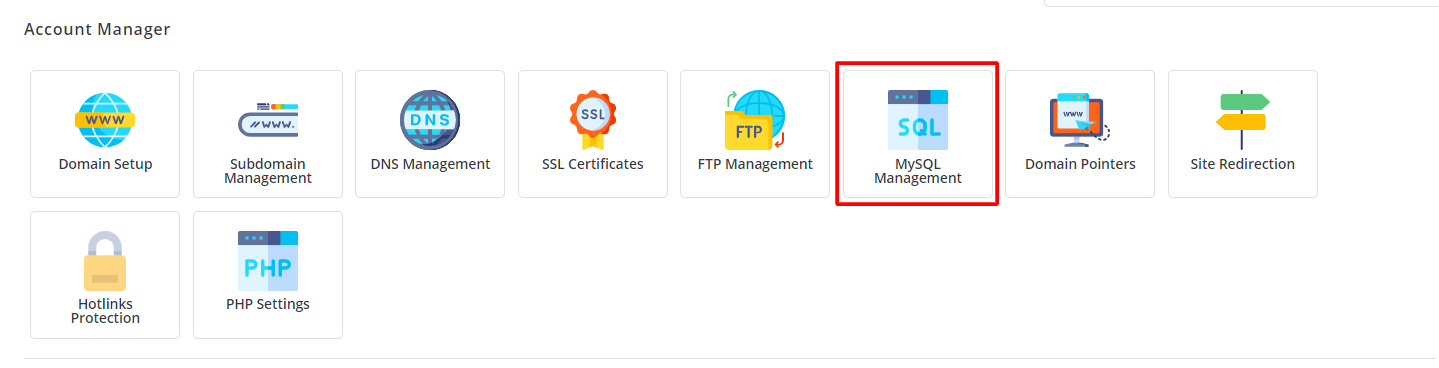
- In the Account Manager area, click MySQL Management.
- Click the name of the database you want to change.
- You will see the list of users for this database. Find the user.
- Click Modify or the user name. The privilege options appear.
- Tick the privileges the user should have.
- Untick the ones it should not have.
- Click Save.
- Visit your website and test it.
Menu names can differ a little by DirectAdmin theme and version. If you cannot find the option, look for the database user's settings page.
Add an existing user to another database
Newer DirectAdmin versions let one user work with several databases. Open MySQL Management and look at the user list. Follow the on-screen option to add the user to another database. If your version does not show it, create a new user for that database.
Change the password
- Open the user in MySQL Management.
- Type a new password and click Save.
- Update the same password in your app's settings file, such as
wp-config.php.
Quick recap
- Privileges decide what a database user may do.
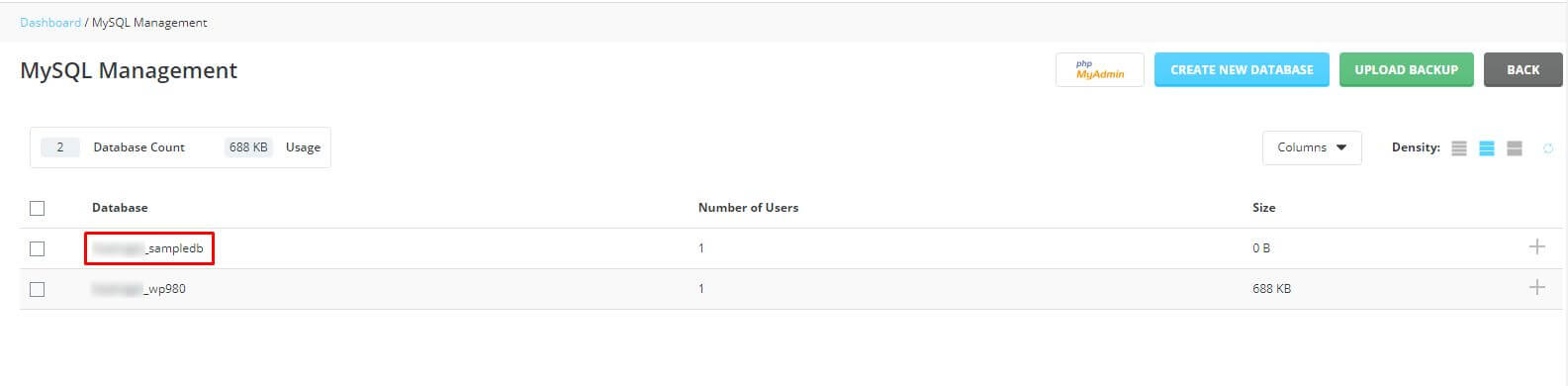

- Open MySQL Management, pick the database, then the user.
- Tick or untick privileges and click Save.
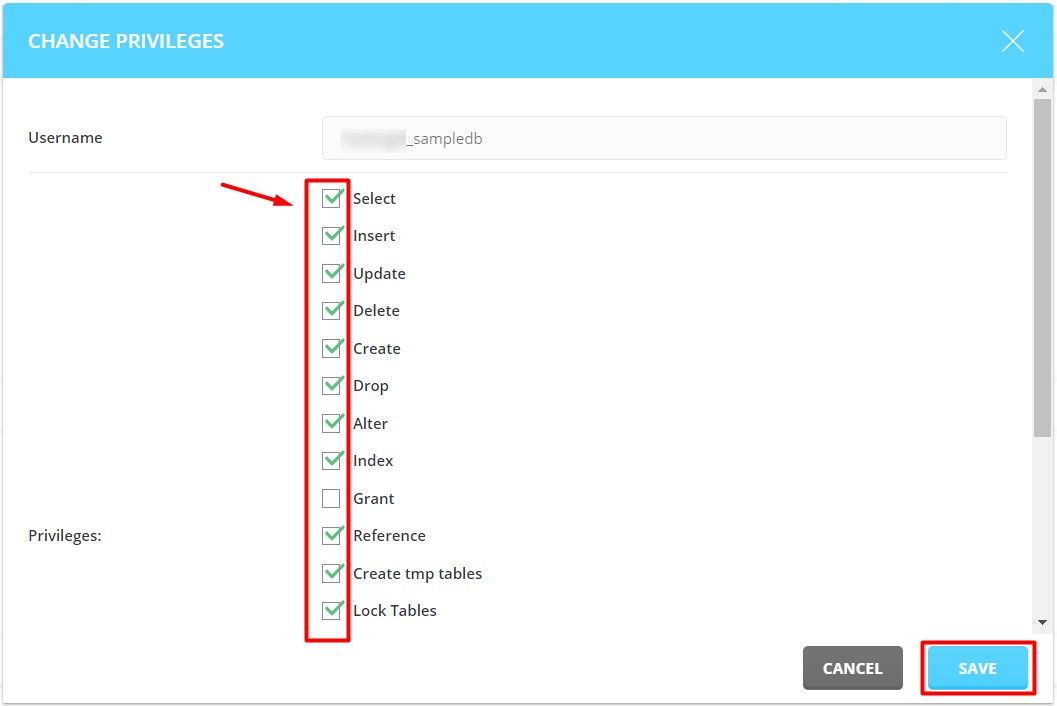
- Most apps need full privileges to work.
- Back up first and test your site after.