

Why repair a database?
A database is a store for your website's information, kept in tables. Sometimes a table gets damaged. This can happen after a server crash, a full disk or a sudden power cut. Your site may then show errors like "table is marked as crashed".
A repair tries to fix the table so MySQL can read it again. Take a backup first if you can. A repair works on the table in place, and it can sometimes lose rows that were already broken.
Method 1: cPanel
- Log in to cPanel.
- Open MySQL Databases in the Databases section.

- Find Modify Databases.
- Under Check Database, pick your database and click Check Database. Read the result.
- Under Repair Database, pick the database and click Repair Database.
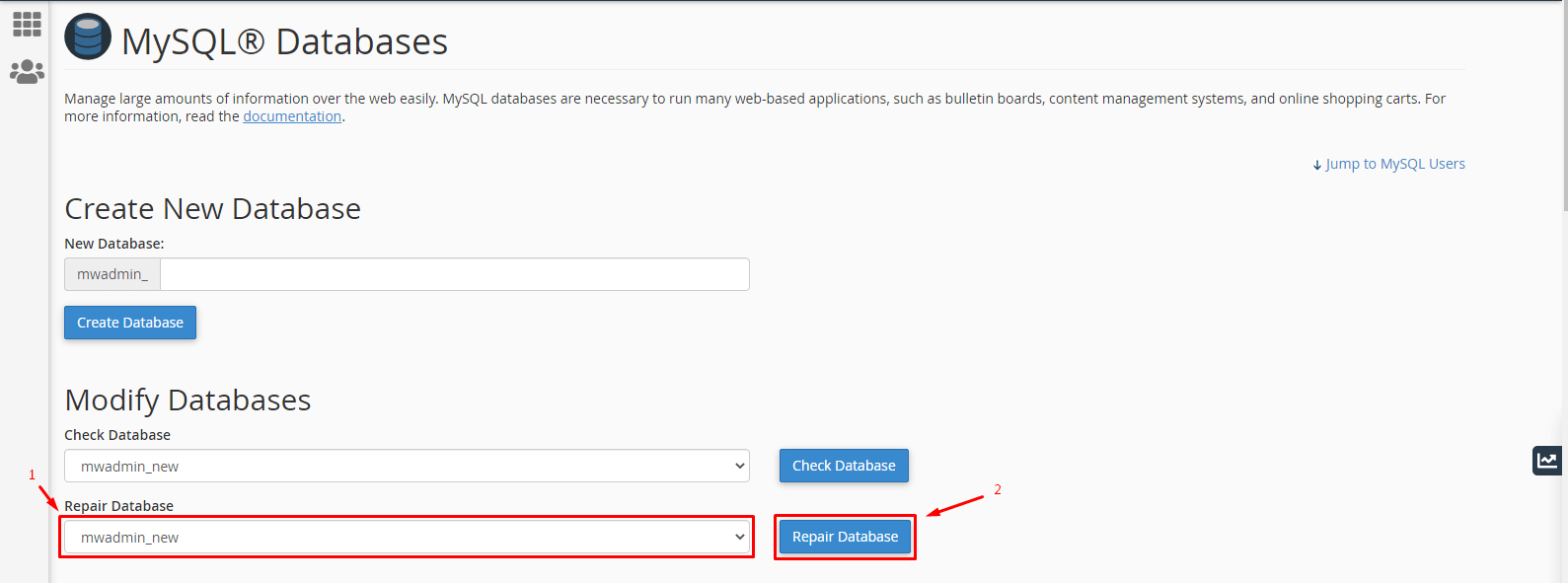
- Wait for the "OK" messages, then test your site.
Method 2: phpMyAdmin
phpMyAdmin is a web tool for working with databases.
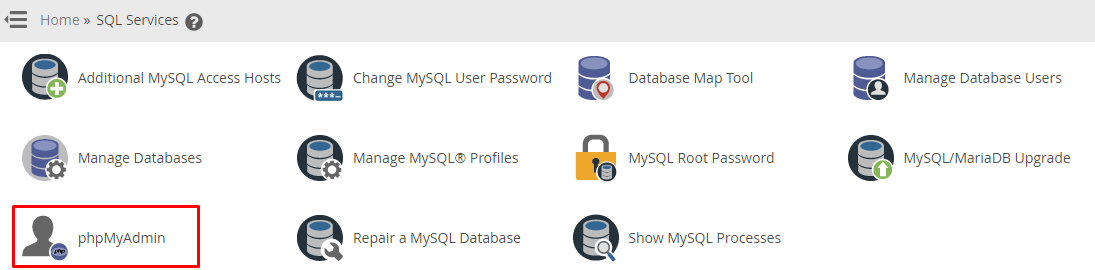
- Open phpMyAdmin from cPanel.
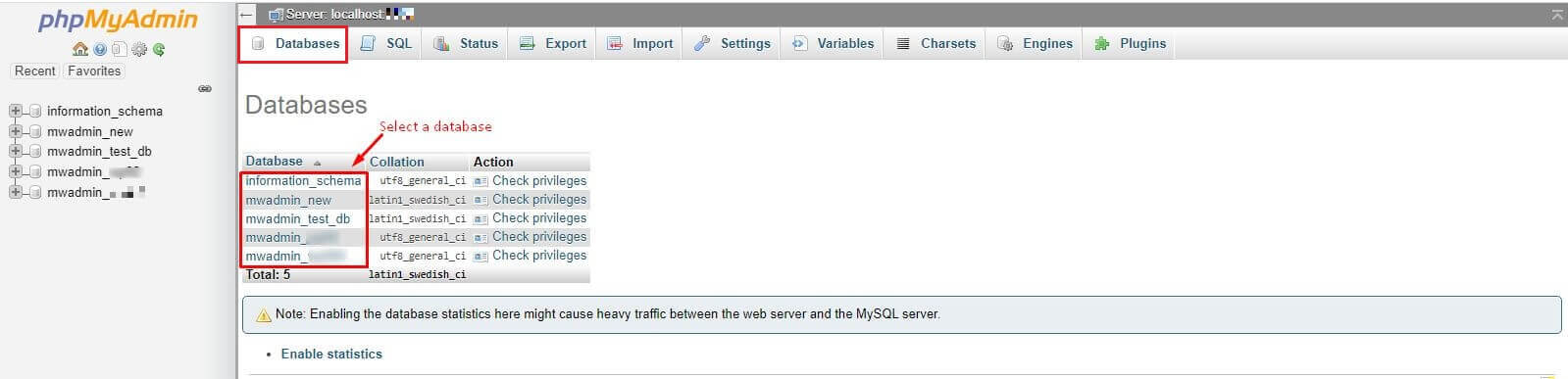
- Click your database in the left list.
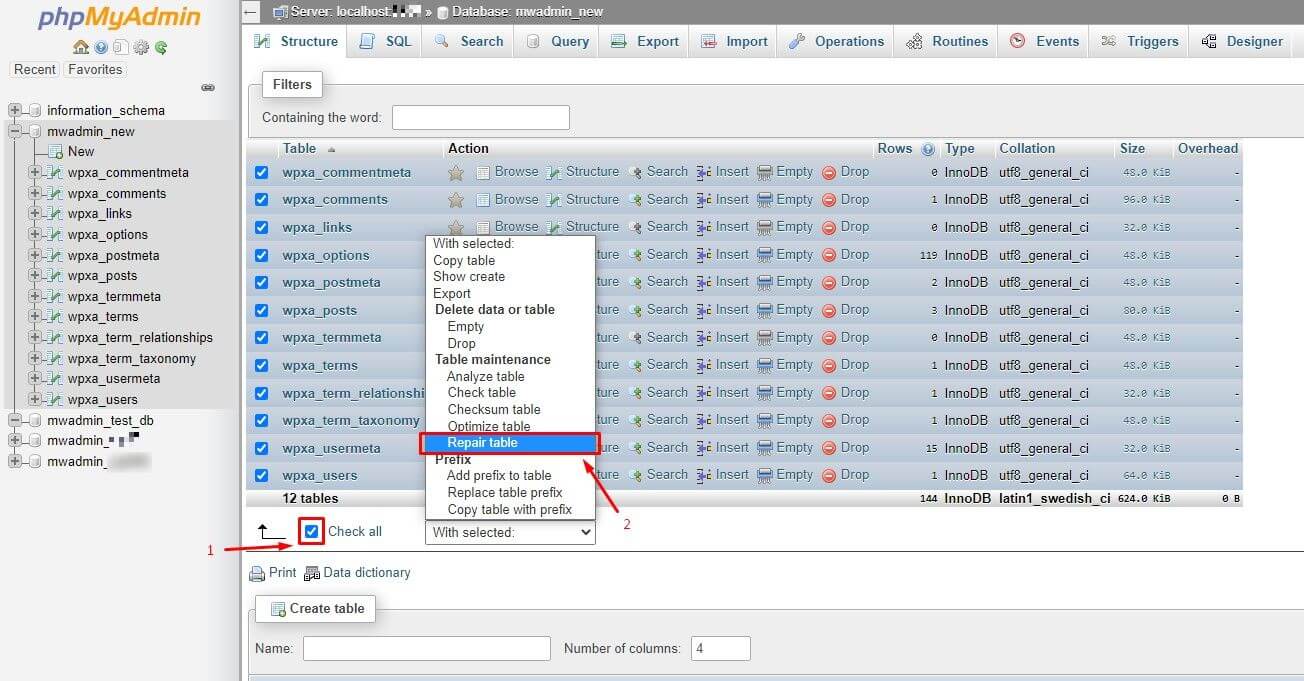
- Tick the boxes beside the broken tables. Use Check all to select every table.
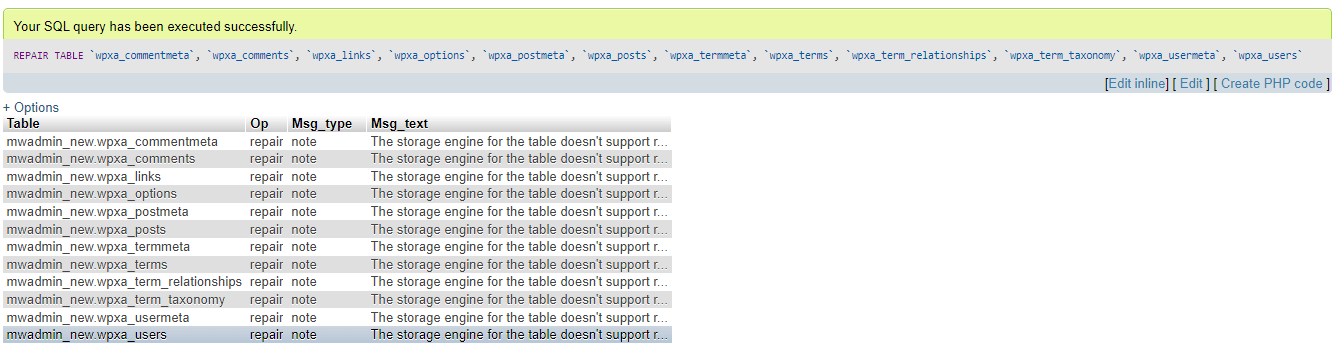
- In the With selected drop-down, choose Repair table.
- Read the results.
Repair works for MyISAM tables. For InnoDB tables, phpMyAdmin may say the engine does not support it. InnoDB usually fixes itself when MySQL restarts.
Method 3: WHM
WHM is the admin panel for server owners. You need a VPS or dedicated server with WHM.
- Log in to WHM as root.
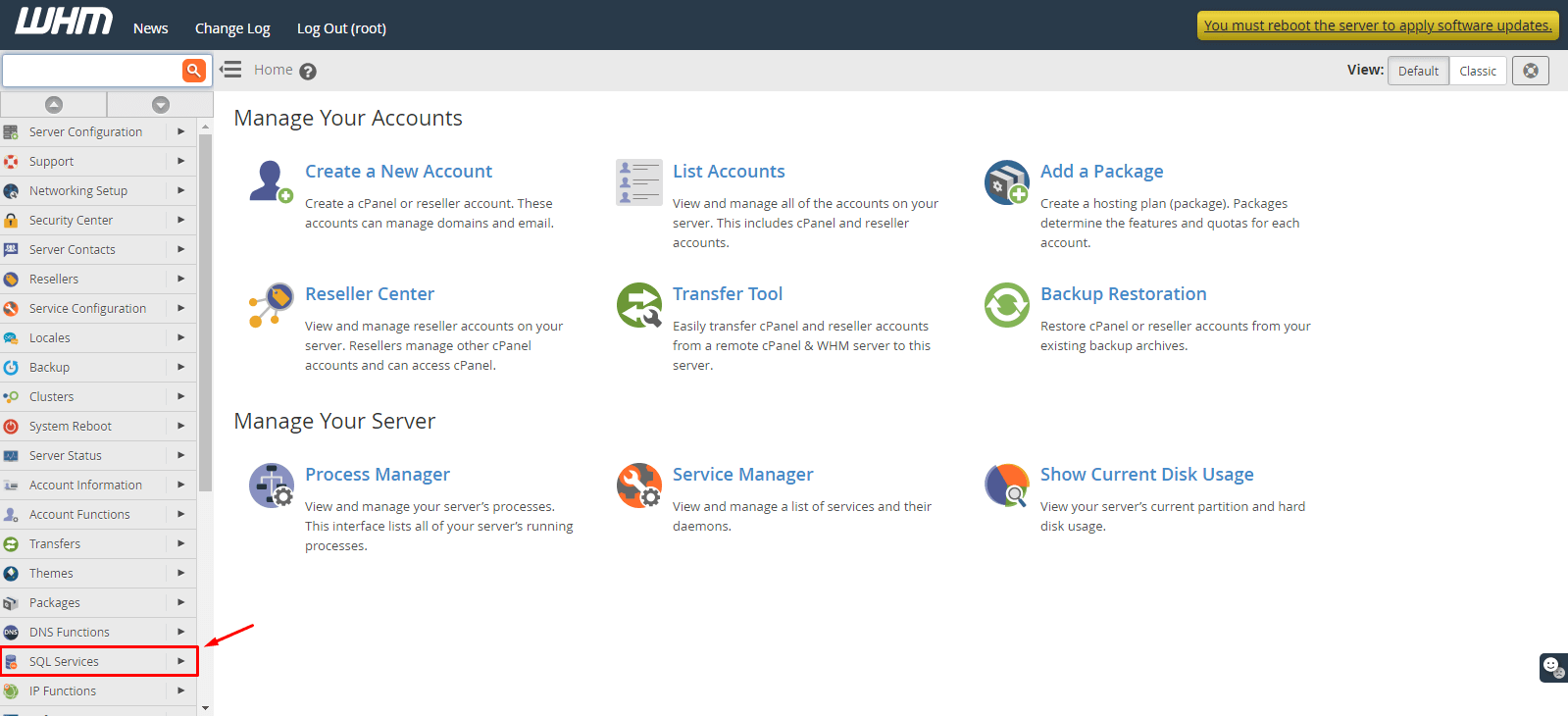
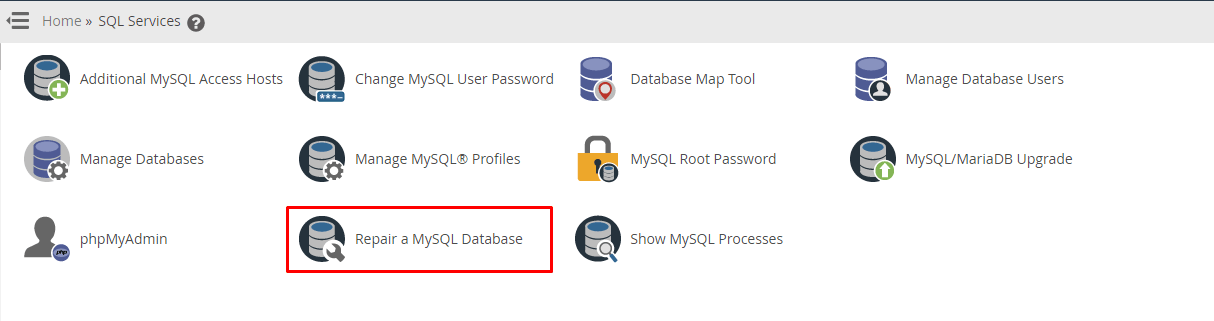
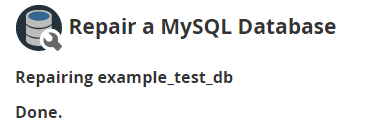
- Search for Repair a MySQL Database in the search box on the left. The exact name can differ slightly between versions.
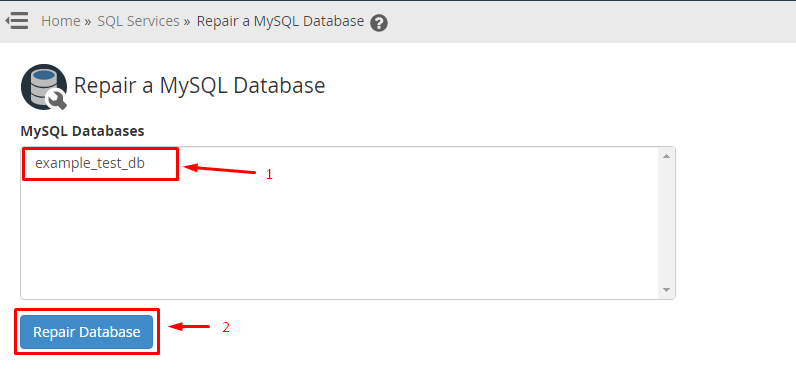
- Choose the database from the list.
- Click Repair Database.
Command line option
With SSH and root access, you can repair all databases at once:

mysqlcheck -u root -p --auto-repair --all-databasesThis checks every table and fixes the ones it can. It asks for the MySQL root password.
If repair does not work
- Restore the database from your latest backup.
- Check that the disk is not full.
- Open a ticket at https://secure.hostvento.com/submitticket.php and describe the error.
Quick recap
- Repair fixes damaged tables.
- cPanel has Check Database and Repair Database.
- phpMyAdmin has Repair table under With selected.
- WHM and
mysqlcheckwork for the whole server. - Back up first, and restore if repair fails.