

What is a database backup?
A database is a store for your website's information. A backup is a saved copy of it, like a photo of the data at one moment. Restoring means putting that copy back in place. People restore after a mistake, a hack or a bad update.
Warning: restoring can overwrite the current data. If your site still has data you want, export a fresh backup first.
Method 1: Restore with phpMyAdmin
You need a .sql file, or a .sql.gz or .zip version of it. This is the usual backup format.
- Log in to cPanel.
- Open phpMyAdmin in the Databases section.
- Click the database name on the left. If the database does not exist yet, create it first in MySQL Databases.
- Click the Import tab.
- Click Choose File and pick your backup file.
- Leave the other settings as they are.
- Click Go at the bottom.
- Wait for the green success message.
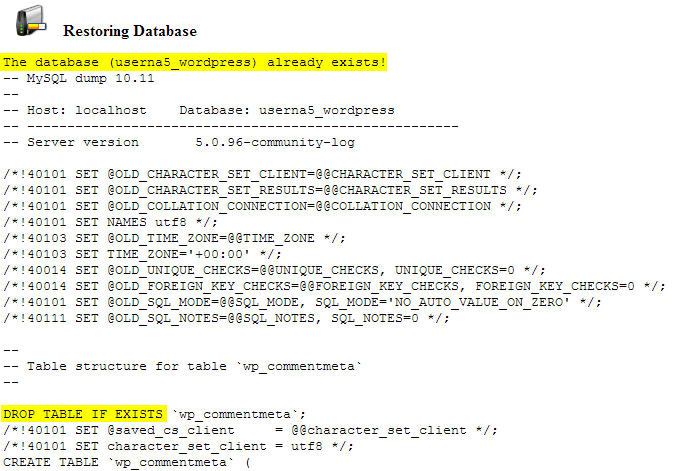
If your database already has tables with the same names, you may see "table already exists" errors. Empty the database first. In phpMyAdmin, tick all tables, choose Drop from the With selected menu, and confirm. That deletes data for good, so export a backup before you do it.
If the file is too big, the upload will fail. Compress it as .zip or ask Hostvento support for help.
Method 2: Restore from a full cPanel backup
If your hosting plan offers cPanel backups, you may restore a database only.
- In cPanel, open Backup in the Files section.

- Scroll to Restore a MySQL Database Backup. Click Choose File and pick the backup file.
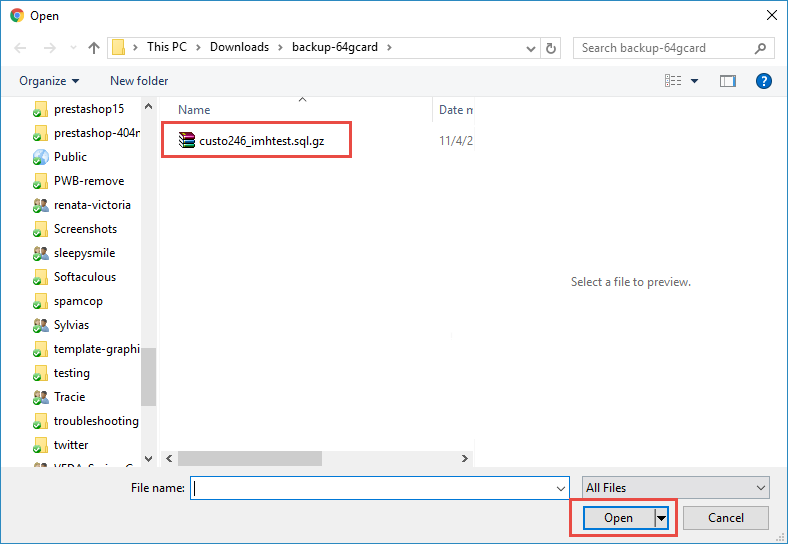
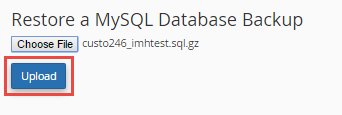
- Click Upload.
- Wait until it finishes.
The file needs to be a database backup that was downloaded from cPanel. The database must already exist with the same name.
Backup tools and schedules depend on your plan. Ask Hostvento support what is available.
Check that it worked
- In phpMyAdmin, open the database and check that the tables are listed.
- Click one table and look at its rows.
- Open your website and test the pages.
- Clear any caching plugin on the site.
Quick recap
- Export a fresh backup before you restore.
- Use phpMyAdmin, then Import, and choose your .sql file.
- Drop old tables first if you see "already exists" errors.
- cPanel's Backup page can also restore a database file.
- Test your website afterwards.