

What is a .bak file?
MS SQL Server is a database program from Microsoft. A database is a store for an app's information. A .bak file is a saved copy of a database. Restoring means loading that copy back into the server, like putting a photo album back on the shelf.
Warning: restoring over an existing database replaces its data. Take a fresh backup of the current database first if it holds anything you want to keep.
Before you start
- Copy the .bak file to the server, in a folder that SQL Server can read. For example,
C:\Backups. - Install SQL Server Management Studio (SSMS), the free tool for managing SQL Server, if you do not have it.
- Use a login with admin rights.
Steps with the graphical tool
- Open SSMS and connect to your server.
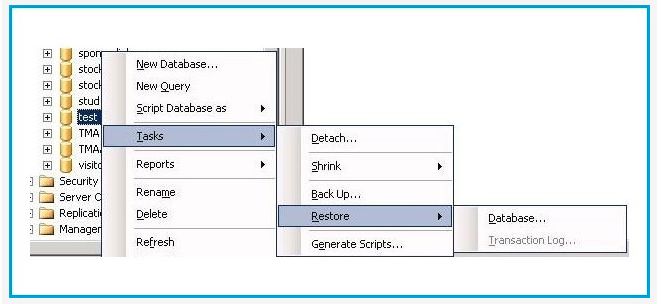
- In Object Explorer on the left, right-click Databases.
- Click Restore Database.
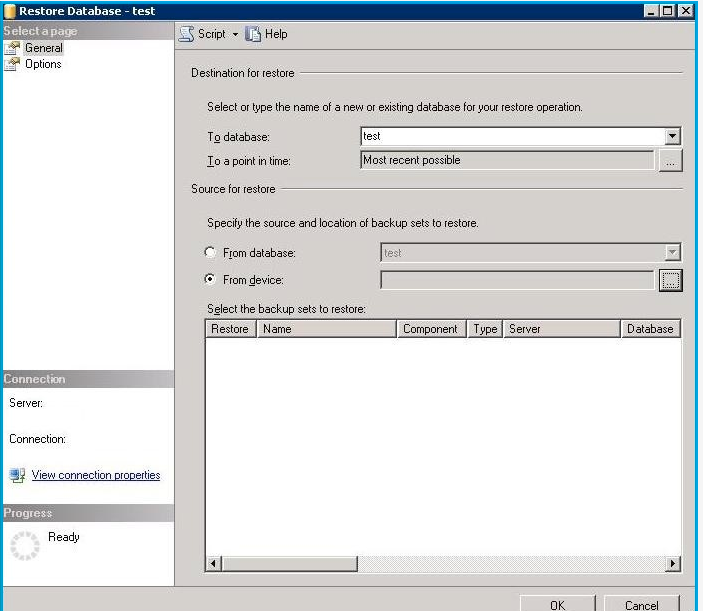
- Choose Device as the source.
- Click the three dots (...) button.
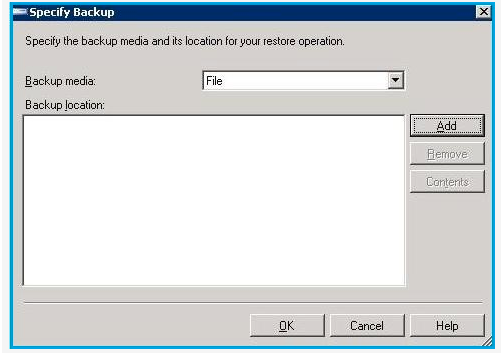
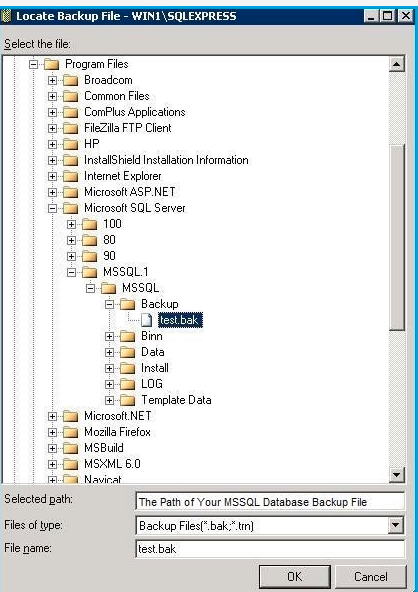
- Click Add and pick your .bak file. Click OK.
- In Destination, type the database name. Use a new name to avoid replacing an existing one.
- Check the box in the Restore column for the backup set.
- Open the Files page on the left. Check the folder paths for the data and log files. Change them if the folder does not exist on this server.
- Open the Options page. Tick Overwrite the existing database only if you mean to replace one.
- Click OK.
- Wait for the message that the restore finished.
Steps with a query
Open a new query window and run:
RESTORE DATABASE MyShop
FROM DISK = 'C:\Backups\MyShop.bak'
WITH MOVE 'MyShop' TO 'C:\Data\MyShop.mdf',
     MOVE 'MyShop_log' TO 'C:\Data\MyShop_log.ldf',
     REPLACE;
This loads the backup into a database named MyShop. MOVE sets where the files go. REPLACE overwrites an existing database with that name, so use it with care. Use RESTORE FILELISTONLY FROM DISK = '...' to see the correct logical file names.
Common problems
- Operating system error 5, access denied: the SQL Server service account cannot read the folder. Move the file to a folder it can read.
- Database in use: close other connections, or set the database to single-user mode.
- Backup from a newer version: you cannot restore it on an older SQL Server. Install the same or newer version.
Tip: After restoring, refresh Databases in Object Explorer and open a table to check that the data is there.
Quick recap
- Copy the .bak file to the server.
- Right-click Databases and choose Restore Database.
- Pick the device, check the file paths, and click OK.
- You can also use the
RESTORE DATABASEcommand. - Back up the current database first.