

What is the WordPress database?
WordPress keeps your posts, pages, comments, users and settings in a database. A database is a store of information made of tables. Your theme and image files are not inside it, only the text and settings.
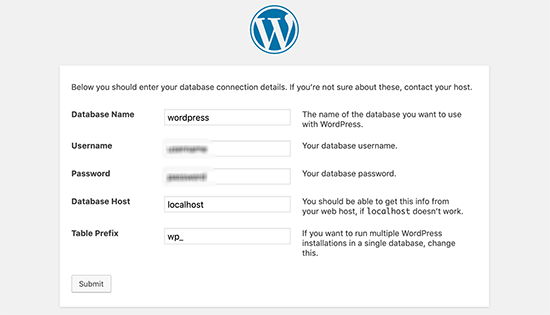
phpMyAdmin is a web tool for looking inside a database. Take a backup before you change anything here, because a wrong edit can break your site.
Find your database name
- Open File Manager in cPanel.
- Open the file
wp-config.phpin your WordPress folder. - Find the line with
DB_NAME. The name beside it is your database.
Open phpMyAdmin
- Log in to cPanel.
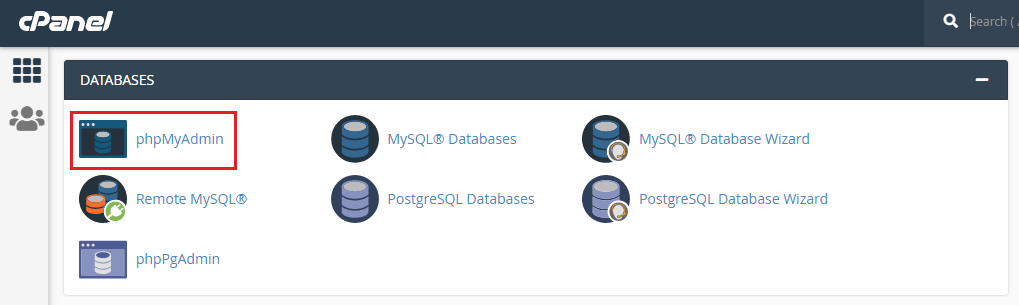
- In the Databases section, click phpMyAdmin.
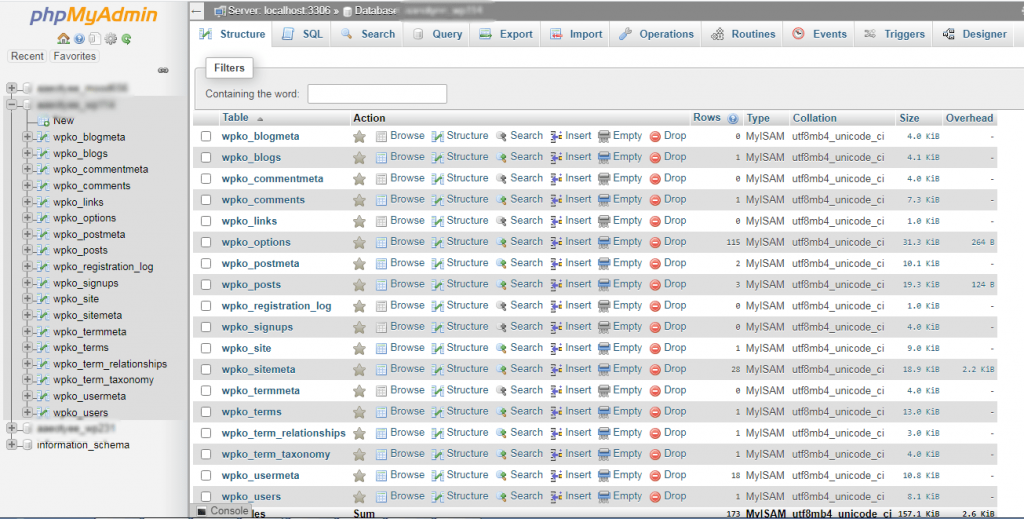
- Click your database name in the left list.
You will see tables such as wp_posts, wp_users and wp_options. The start of the name (wp_) is the table prefix and can differ on your site.
Back up the database
- With your database selected, click the Export tab.
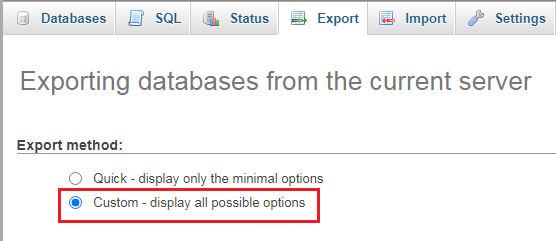
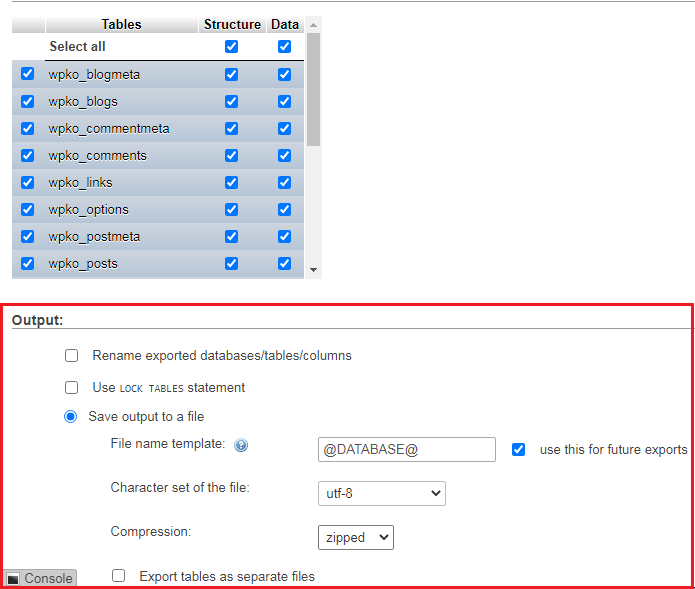
- Keep Quick and the SQL format.
- Click Export.
- Save the downloaded file in a safe place.
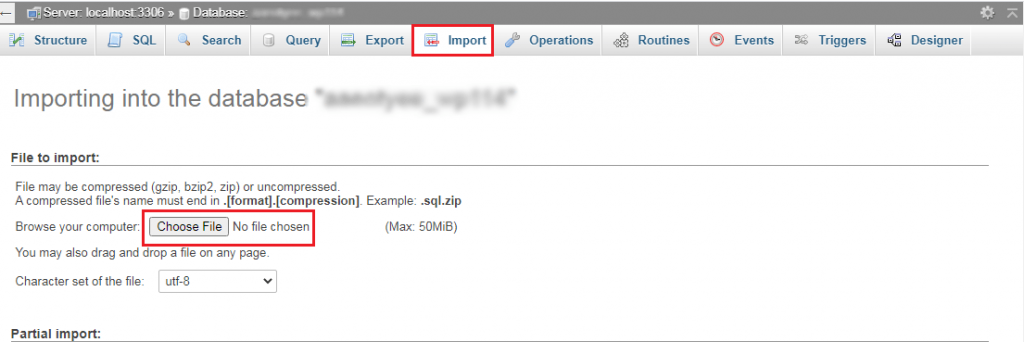
Reset a lost admin password
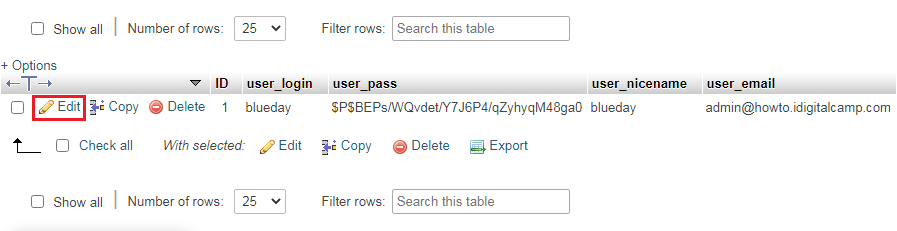
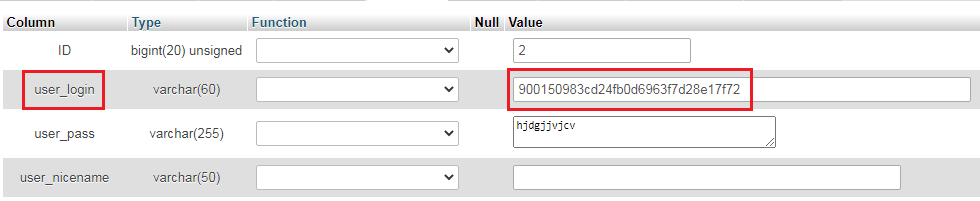
- Click the
wp_userstable.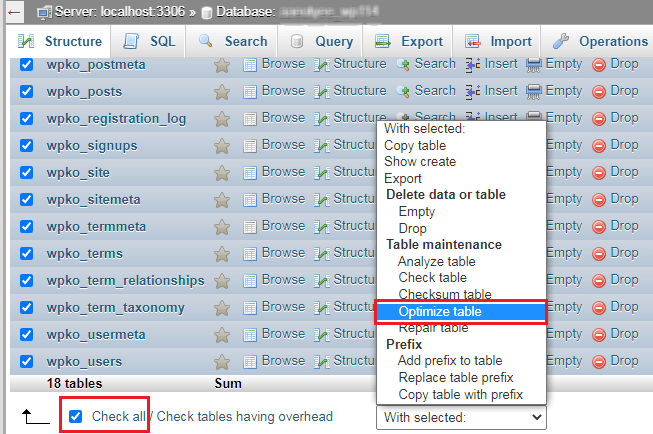
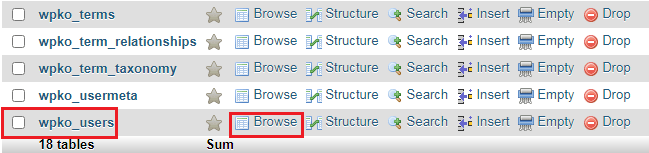
- Click Edit beside your admin user.
- In the
user_passrow, open the Function drop-down and choose MD5.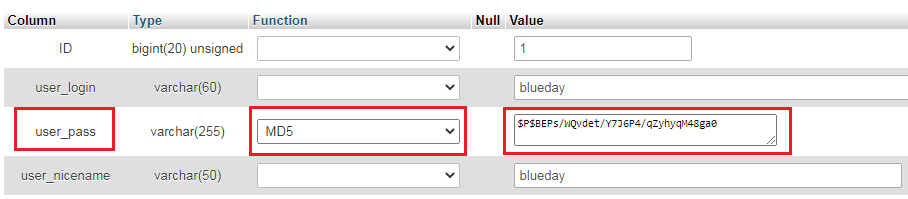
- Type your new password in the Value box.
- Click Go.
WordPress will then convert it to a stronger form the first time you log in.
Fix a wrong site address
- Open the
wp_optionstable. - Find the rows
siteurlandhome.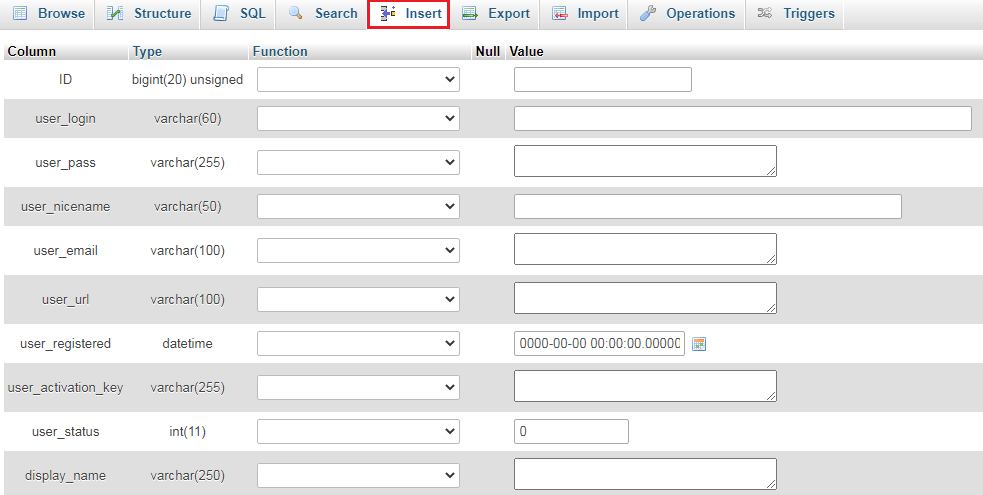
- Click Edit, fix the address, and click Go.
Clean up and speed up
- Tick the tables on the main database page.
- In the With selected menu, choose Optimize table.
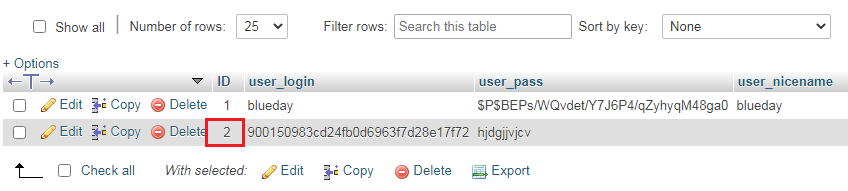
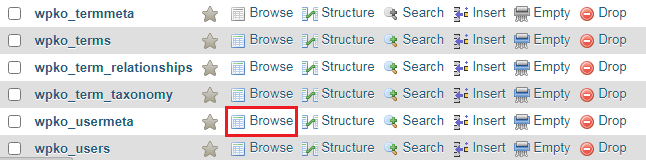
This tidies the tables and recovers wasted space. You can also use a WordPress plugin to delete old revisions and spam comments.
Repair tables
If WordPress shows database errors, tick the tables and choose Repair table in the same menu.
Quick recap
- WordPress stores posts and settings in a database.
- Find the name in
wp-config.phpand open phpMyAdmin from cPanel. - Use Export to back up first.
- Common tasks: reset a password in
wp_users, fix addresses inwp_options. - Use Optimize and Repair for upkeep. Avoid Drop and Empty.