

What is WHM?
WHM stands for Web Host Manager. It is the admin panel for a server. You use it to manage the whole server, not just one website. You need the root login to open it.
A reboot is like turning your computer off and on again. All websites, emails and other services go offline for a short time.
Before you start
Warn your visitors if you can. Save any work in progress. A reboot at a busy time can cut off people who are using your sites.
Steps
- Log in to WHM with your root username and password. Your welcome email or Hostvento support can tell you the login address.
- In the search box at the top left, type Reboot.
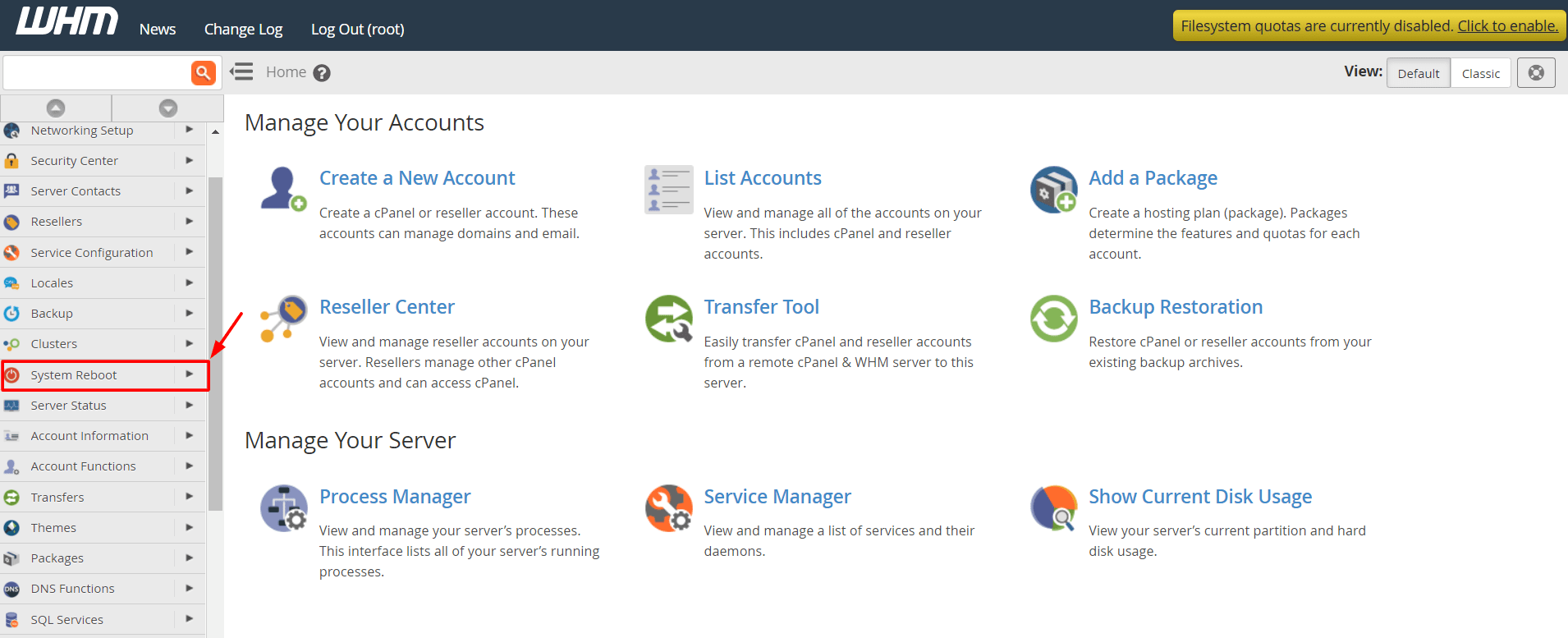
- Click Graceful Server Reboot. It is under Server Configuration.
- Read the warning on the page.
- Click the button to confirm the reboot, such as Proceed.
- Wait a few minutes. The page will stop answering while the server restarts.
- Try to open WHM again. When the login page returns, the reboot is done.
- Open one of your websites to check it works.
Graceful or forceful?
A graceful reboot asks services to close down properly first. This is the safe choice and the one you should use.
A forceful reboot cuts the power style stop with no warning. It can damage files or databases. Use it only if the graceful one does not work. WHM also has a Forceful Server Reboot page for this.
If the server does not come back
- Wait at least ten minutes.
- Check your client area to see if the service shows as active.
- Open a ticket at the support page and tell us the time of the reboot.
Tip: Rebooting once in a while after big updates is normal. If you must reboot often, something is wrong, so ask support to look at it.
Quick recap
- A reboot restarts the whole server and briefly takes sites offline.
- In WHM search for Reboot and choose Graceful Server Reboot.
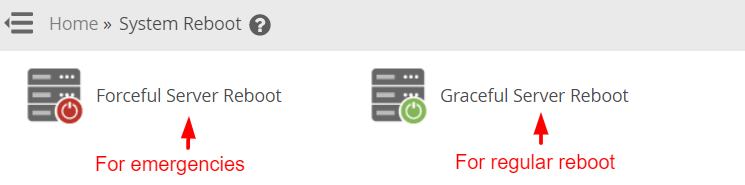

- Use Forceful only as a last option.
- If the server stays down, open a support ticket.