

How SSH keys work
An SSH key is a pair of two files.
- The public key goes to the service, such as GitHub or GitLab.
- The private key stays on your computer. Never share it.
Before you start, install Git and Visual Studio Code on your computer.
Step 1: Create the key
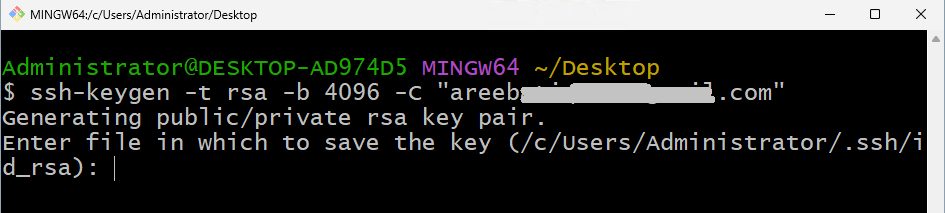
Windows: open Git Bash from the Start menu. Linux and macOS: open Terminal. Run:
ssh-keygen -t rsa -b 4096 -C "you@example.com"Replace the email with your own. Press Enter to accept the default file location. On Windows this is C:\Users\your_user_name\.ssh\id_rsa. You may add a passphrase for extra safety, or press Enter to skip it.

Step 2: Add the key to the SSH agent
The agent remembers your key for the session.
Windows (Git Bash):
eval $(ssh-agent -s)
ssh-add ~/.ssh/id_rsa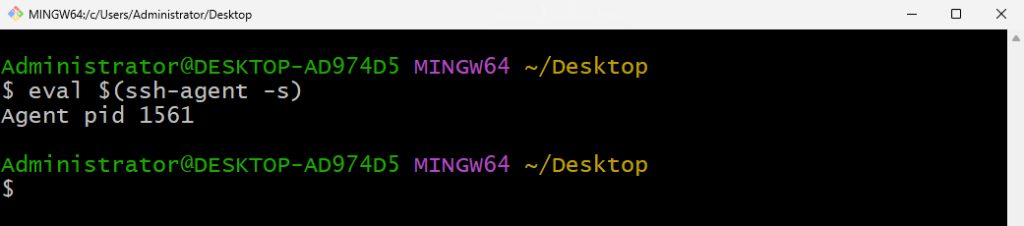

Linux and macOS:
eval "$(ssh-agent -s)"
ssh-add ~/.ssh/id_rsa
Step 3: Add the public key to your Git service
Show the public key and copy the whole output:
cat ~/.ssh/id_rsa.pub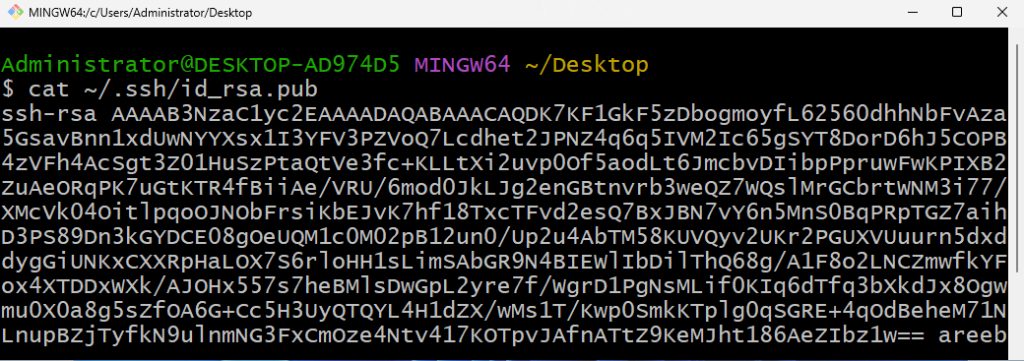
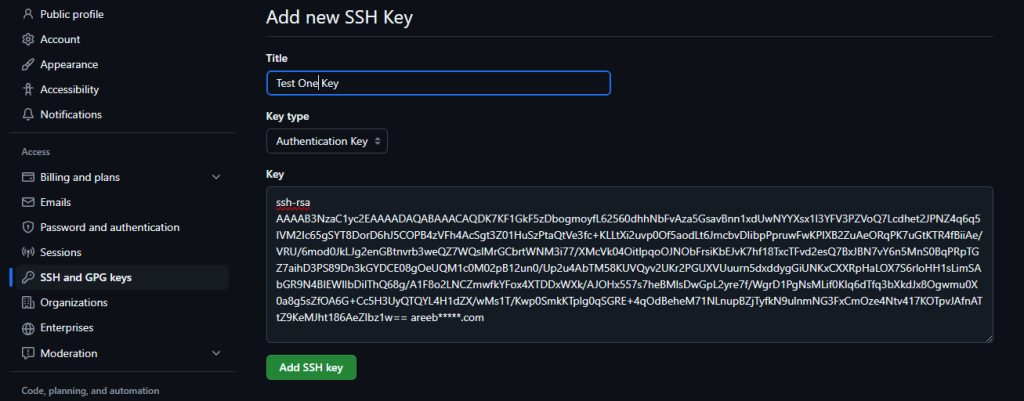
GitHub: click your picture, then Settings, then SSH and GPG keys. Click New SSH key, type a title, paste the key and click Add SSH key.
GitLab: click your picture, then Settings, then SSH Keys. Paste the key and click Add key.
Step 4: Clone a repository in VS Code
- Press
Ctrl + Shift + P(Cmd + Shift + Pon macOS) to open the Command Palette. - Type
Git: Cloneand choose it.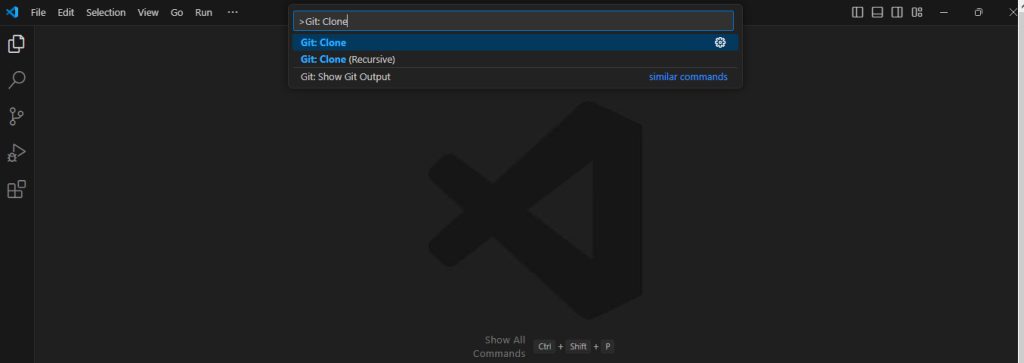
- Enter the SSH address of your repository, for example
git@github.com:username/repository.git, and pressEnter. - Pick a local folder for the project.
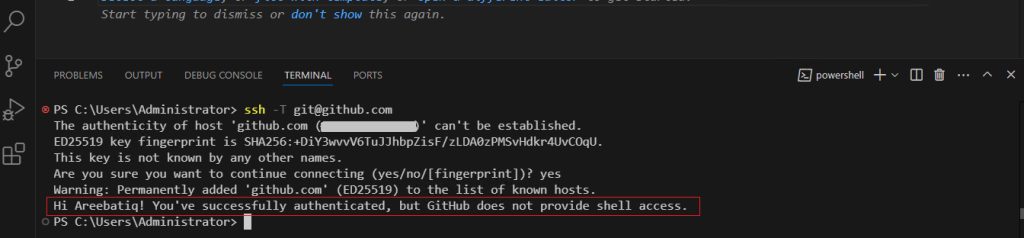
Step 5: Test the connection
ssh -T git@github.comYou should see a short welcome message with your user name.
If it does not work
- Fix the key permissions:
chmod 600 ~/.ssh/id_rsa - Start the agent again and re-add the key with the two commands from step 2.
- Check that the repository address is the SSH one, not the HTTPS one.
Quick recap
- Create a key pair, add the private key to the agent, and the public key to GitHub or GitLab.
- Use
Git: Clonewith the SSH address. - Test with
ssh -T git@github.com.