

Use the built-in tool
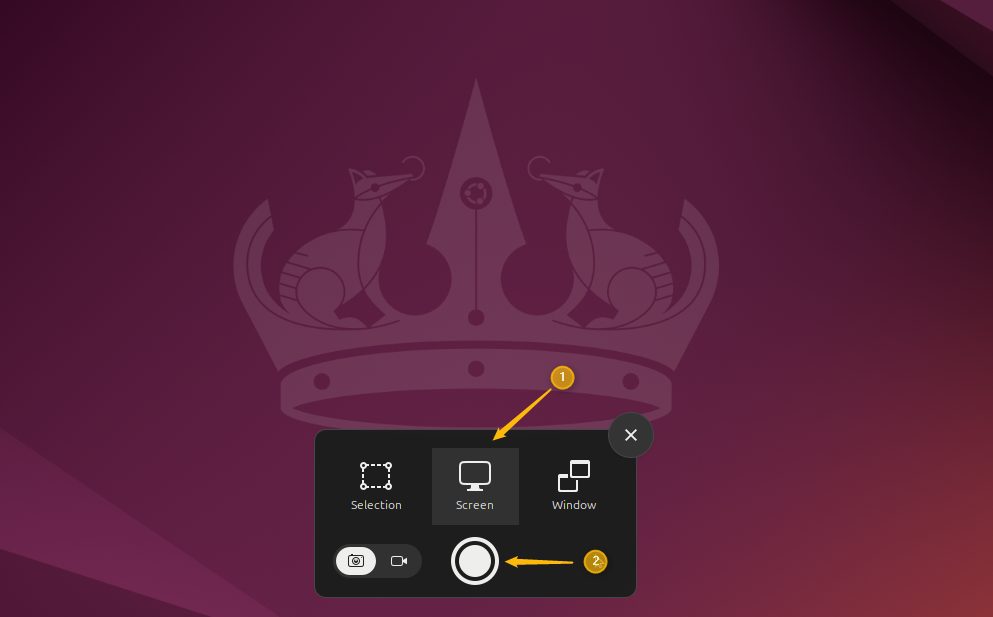
Ubuntu 24.04 has a screenshot and screen recording tool. It captures the whole screen, an area, or one window.
- Press
PrtSc, or open the tool from the system menu.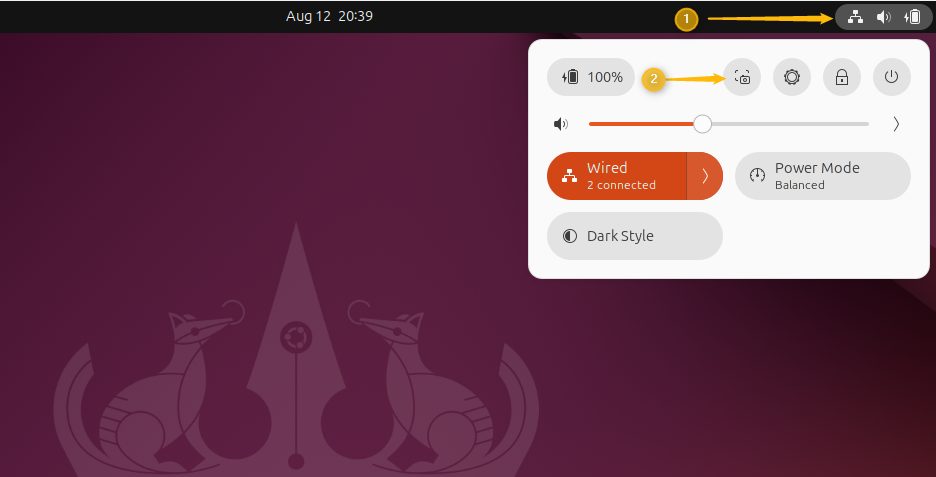
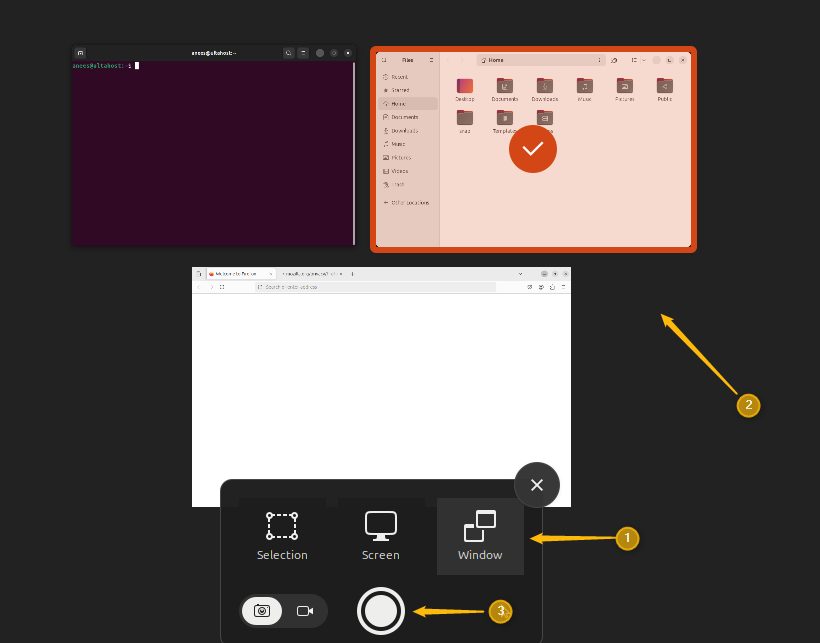
- Choose Selection, Screen or Window.
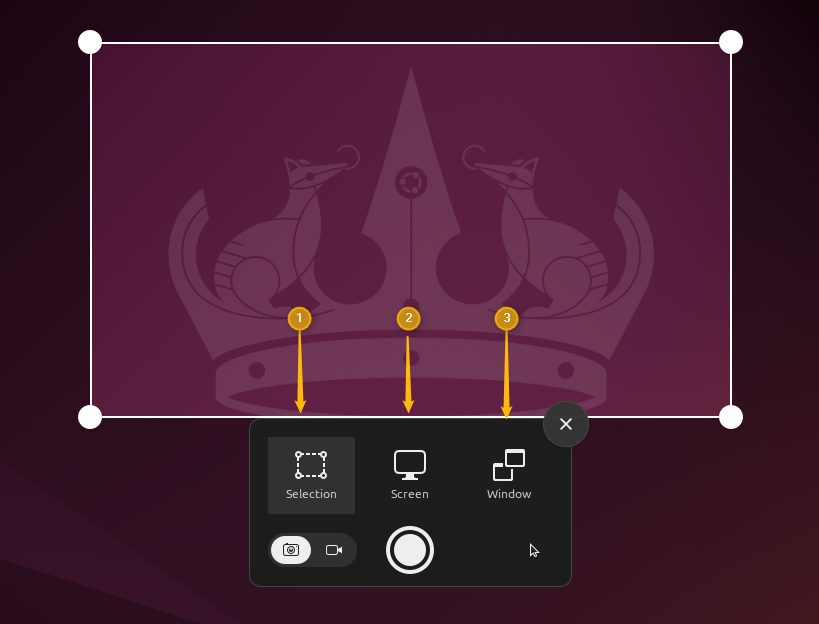
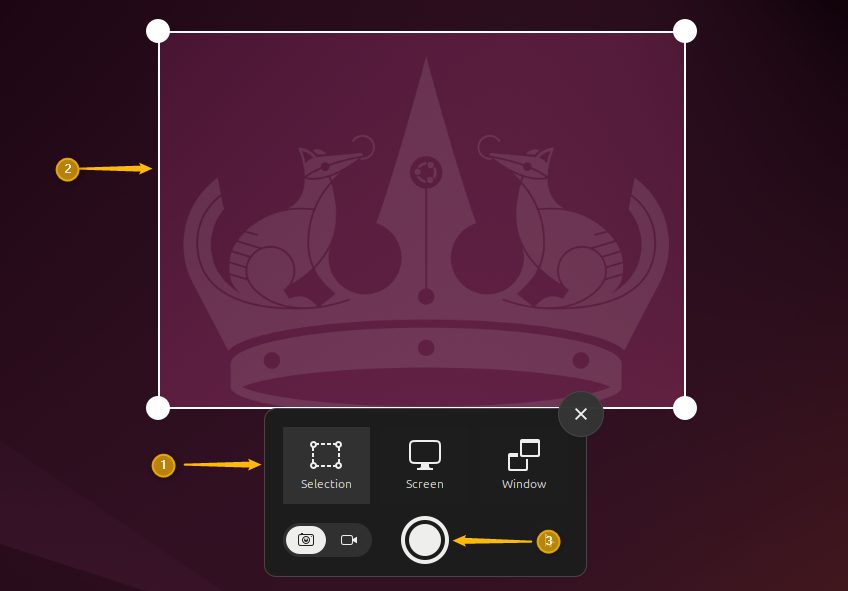
Selection: drag a frame around the area you want and click Capture.
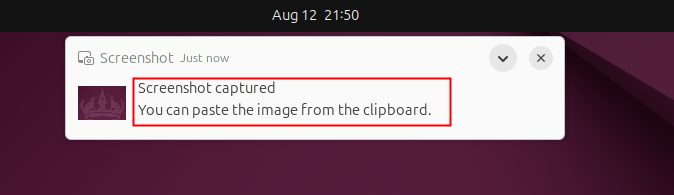
A message confirms the capture. The image is copied to the clipboard and saved in Pictures/Screenshots.
Screen: choose Screen and click Capture.
Window: choose Window, click the window and press Capture.
Keyboard shortcuts
| Keys | What it does |
|---|---|
PrtSc | Opens the screenshot tool |
Shift + PrtSc | Captures the whole screen |
Alt + PrtSc | Captures the active window |
On some laptops, add the Fn key.
Use GNOME Screenshot
Older Ubuntu versions had a separate app called GNOME Screenshot. You can still install it.
- Update the package list:
sudo apt update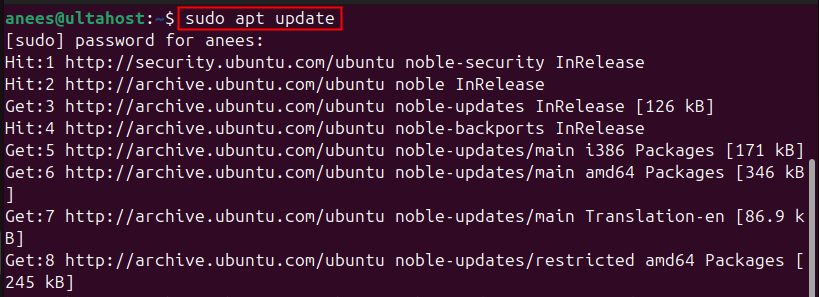
- Install the app:
sudo apt install gnome-screenshot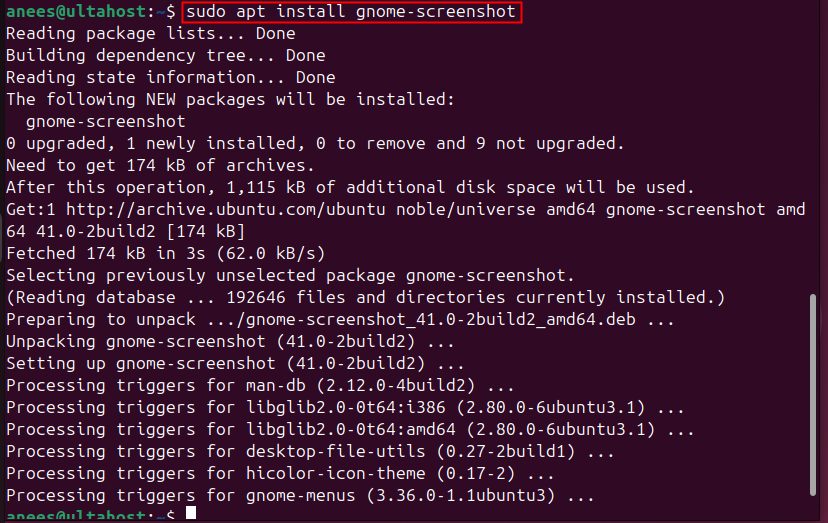
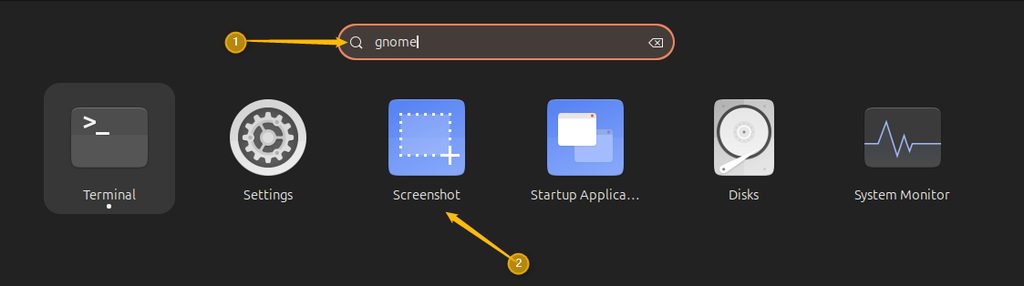
- Open it from the applications menu.
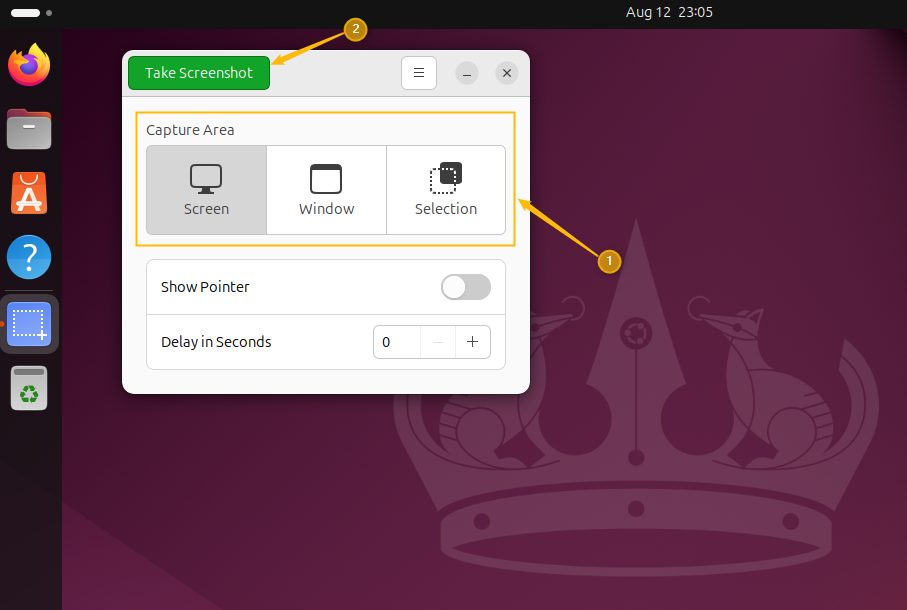
- Pick Screen, Window or Selection and click Take Screenshot.
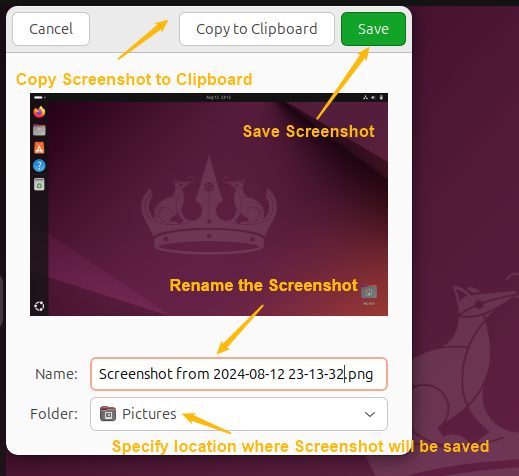
- Give the file a name, choose the folder and click Save.
From the terminal
gnome-screenshotThis captures the whole screen and saves it in Pictures/Screenshots.

Add -w for the active window or -a to select an area.
Other tools
- Kazam records the screen and takes screenshots:
sudo apt install kazam - Flameshot is easy to use and lets you draw on the image:
sudo apt install flameshot - Shutter has many capture modes and an editor:
sudo apt install shutter
Quick recap
- Press
PrtScfor the built-in tool. Shift + PrtScis the whole screen andAlt + PrtScis one window.- Screenshots go to
Pictures/Screenshots.