

The two tools
Docker packages an app and everything it needs into a container.
- An image is a read-only template.
- A container is a running copy of an image.
- A Dockerfile is the script that builds an image.
Visual Studio Code is a light, popular editor with:
- An integrated terminal.
- Many extensions.
- A strong debugger.
- Git support.
Set up
Install Docker on your computer and check it:
docker --versionInstall Visual Studio Code if you have not done so.
Install the Docker extension
- In VS Code, click the Extensions icon in the Activity Bar.
- Search for
Docker.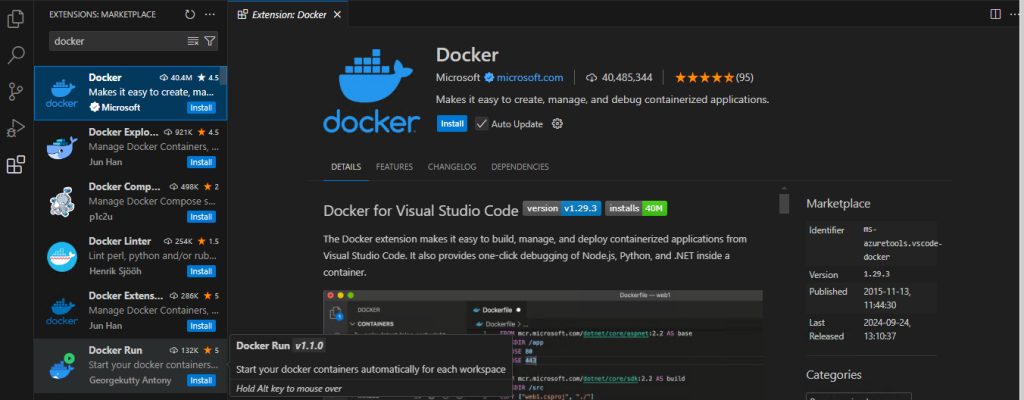
- Click Install next to the extension by Microsoft.
- Reload VS Code if it asks you.
A Docker icon now shows in the Activity Bar. You can see your images, containers and registries there.
Create a Docker app
- Make a new folder for the project and open it in VS Code (File, then Open Folder).
- Add a Node.js app (for example
app.jsandpackage.json). - Create a file named
Dockerfile(no extension) and add:
FROM node:14
WORKDIR /app
COPY package*.json ./
RUN npm install
COPY . .
EXPOSE 3000
CMD ["node", "app.js"]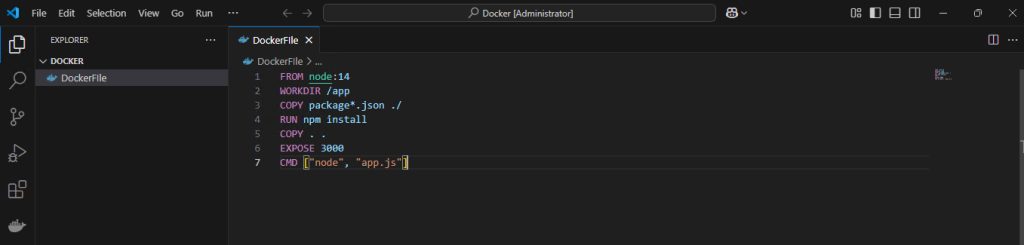
Node 14 is old. Use a current version such as node:20 for new work.
- Build the image. Right-click the Dockerfile and choose Build Image, or use the terminal:
docker build -t my-node-app .Run and debug
Start the container:
docker run -p 3000:3000 my-node-appTo debug, you attach VS Code to the Node.js process in the container.
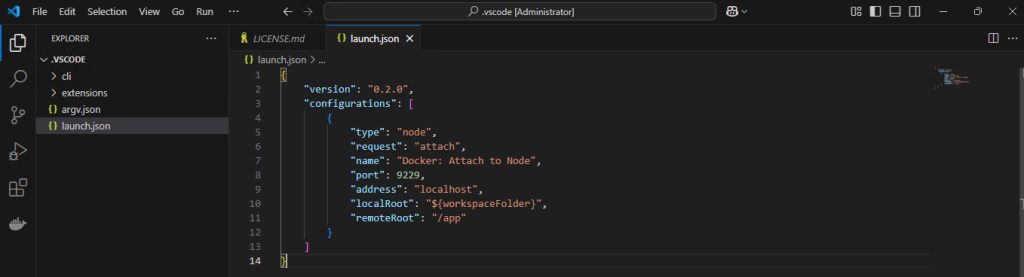
- Create
.vscode/launch.jsonwith an attach configuration for port 9229:
{
    "version": "0.2.0",
    "configurations": [
        {
            "type": "node",
            "request": "attach",
            "name": "Docker: Attach to Node",
            "remoteRoot": "/app",
            "port": 9229
        }
    ]
}
- Change the Dockerfile so Node starts with the inspector and opens the debug port:
FROM node:14
WORKDIR /app
COPY package*.json ./
RUN npm install
COPY . .
EXPOSE 3000 9229
CMD ["node", "--inspect=0.0.0.0:9229", "app.js"]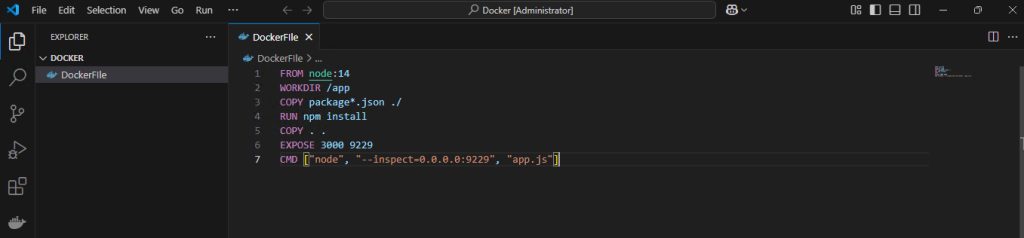
- Build the image again and run it with both ports:
docker build -t my-node-app .
docker run -p 3000:3000 -p 9229:9229 my-node-app- Set a breakpoint in your code, press
F5and pick Docker: Attach to Node.
Warning: Do not leave the debug port open in production.
Quick recap
- Install the Docker extension in VS Code.
- Build with a Dockerfile, run with
docker run. - Attach the debugger to port 9229.