

Why extract an APK
- Developers inspect the resources and structure of an app.
- Users take out images, media or settings files.
- You can learn how an app is built.
Note: Unpacking shows the resources only. The compiled code (DEX files) needs special tools such as
apktool or jadx to read. Only open APK files from sources you trust, and only inspect apps you are allowed to inspect.On Windows with an archive tool
Tools such as 7-Zip, WinRAR and WinZip can open an APK like a zip file.
- Find the APK file.
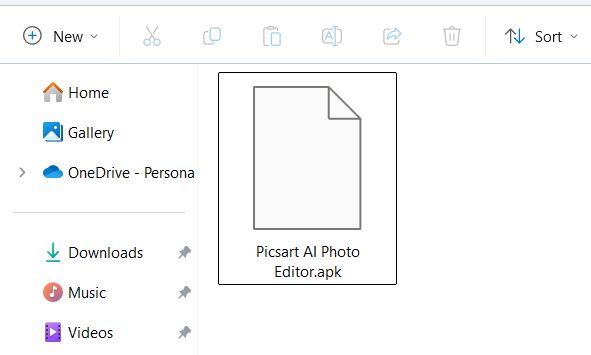
- Right-click it, choose Rename and change
.apkto.zip. PressEnter.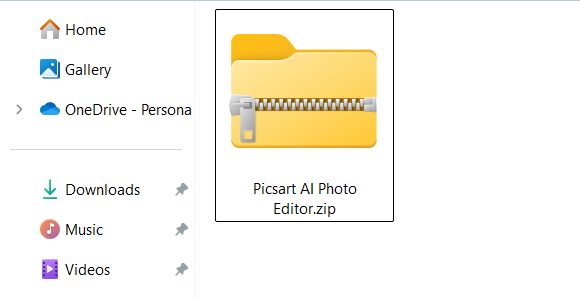
- Right-click the file again and choose Extract Here or Extract to ... in your tool.
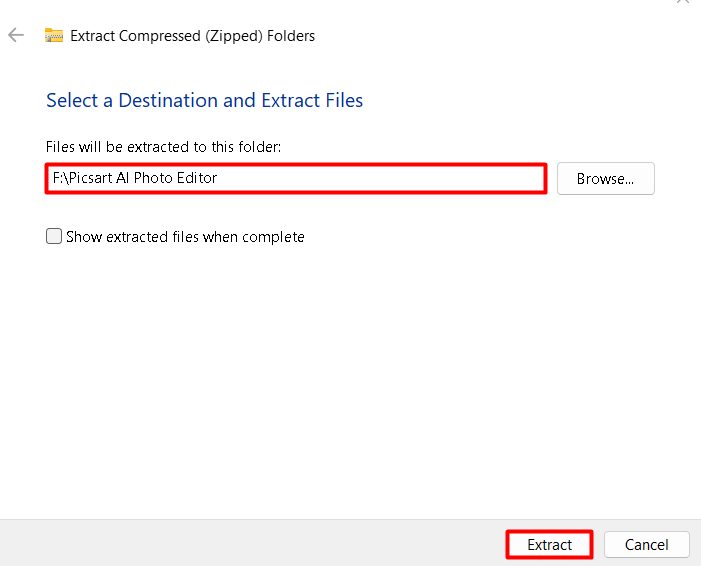
- Open the new folder to see the content: resources, XML files, images and assets.
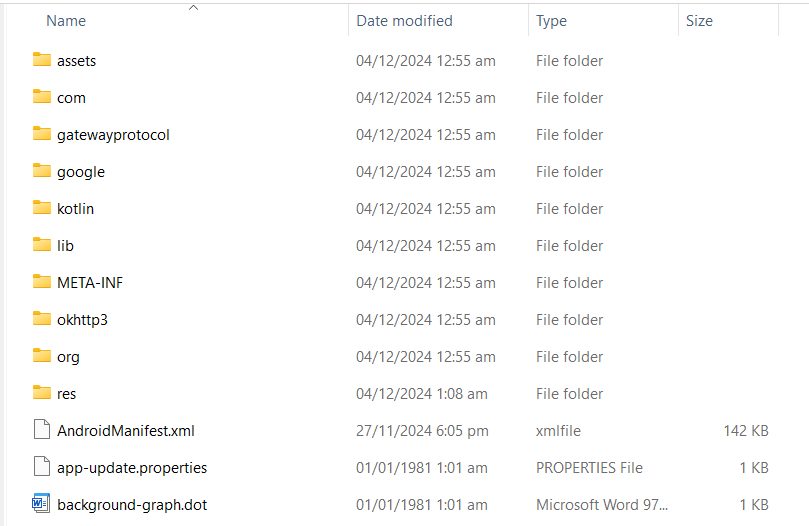
With 7-Zip you can skip the rename and right-click the APK, then choose 7-Zip, then Open archive.
On Windows with an online tool
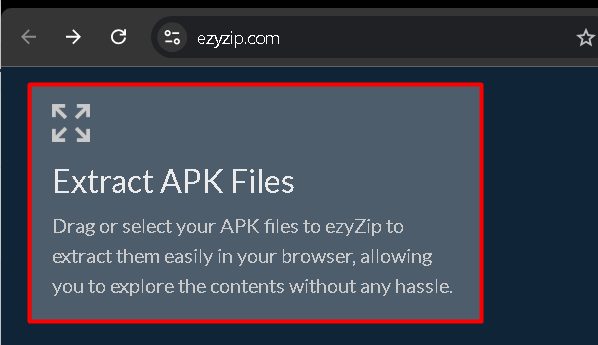
Online tools such as ezyZip need no installation.
- Open the ezyZip website and choose the APK extraction tool.
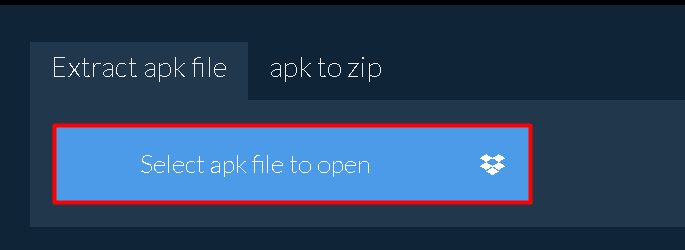
- Click the button to select your APK file and wait for the tool to open it.
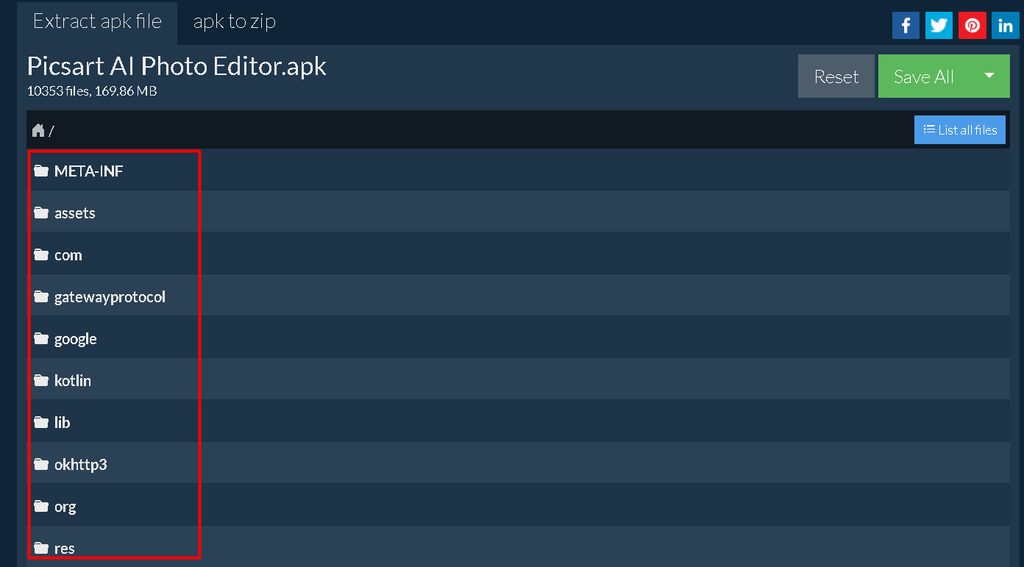
- Save the files you need.
Warning: When you use an online tool, you send your file to someone else's server. Do not upload private or paid apps.
On Linux
- Change the file extension to
.zip:
mv file.apk file.zip
- Unpack it:
unzip file.zip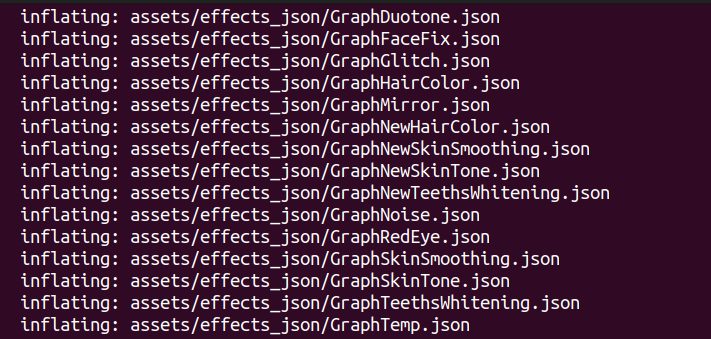
- List the content:
ls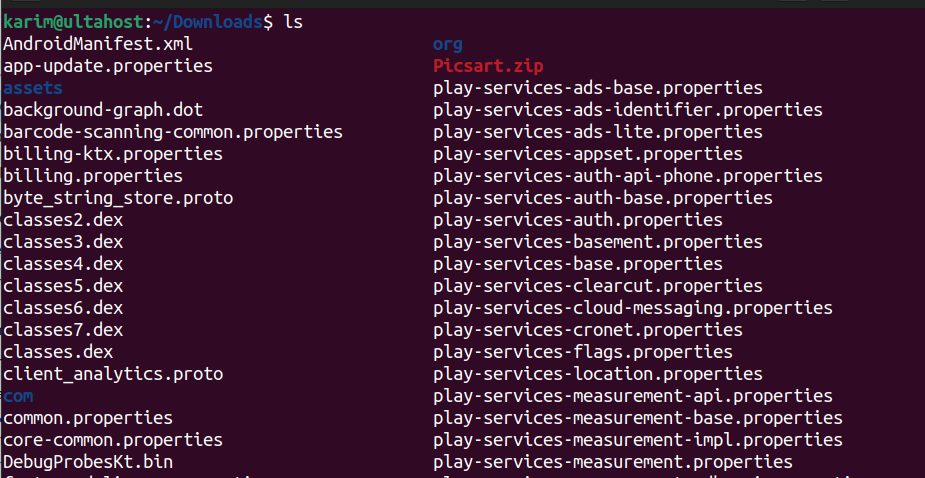
You can also skip the rename: unzip file.apk -d output_folder.
Stay safe
- Do not open APK files from unknown sources. They can contain malware.
- Be careful with online tools and files that hold private data.
- Use well-known software, and scan the file with an antivirus tool.
Quick recap
- An APK is a zip file. Rename it or open it with an archive tool.
- Extraction shows the resources, not readable code.
- Open only APK files that you trust.