

What it means
Error 1020 comes from Cloudflare, a service many sites use to protect themselves. It means the site owner has a firewall rule that matched your request, so access was denied.
Common causes
- A Cloudflare firewall rule matched your request.
- Your IP address is blocked or has a poor reputation.
- Browser problems or extensions that change requests.
- A VPN or proxy with an address that is often abused.
- A server or rule misconfiguration by the site owner.
Fixes for visitors
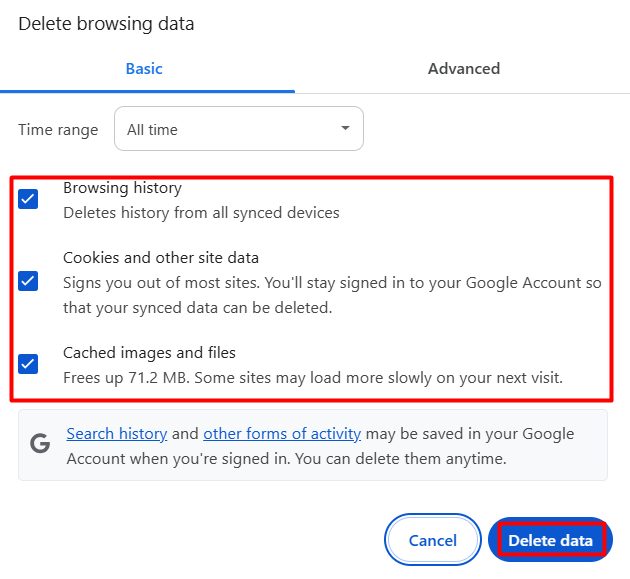
1. Clear the cache and cookies
Press Ctrl + Shift + Delete, choose cookies and cached files, and clear them. Then reload.
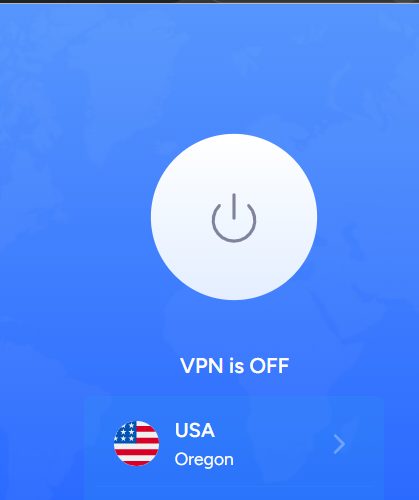
2. Turn off the VPN, proxy or anonymizer
Disconnect and try again. Shared VPN addresses are often blocked.
3. Try another browser or device. Also turn off extensions such as ad blockers for this site.
4. Check your IP address. Search for "what is my IP" and see if it changed. Restart your router for a new address, or try another network, such as mobile data.
5. Contact the site owner. Send them the Ray ID and your IP address from the error page. They can check their Cloudflare firewall events and allow you.
For site owners
If real visitors see this error:
- Open Cloudflare, then Security, then Events, and search for the Ray ID.
- See which rule blocked the request.
- Change or remove the rule, or allow the IP address.
- Check country, user agent and rate limit rules.
Quick recap
- Error 1020 is a Cloudflare firewall block.
- Visitors: clear the cache, turn off the VPN, try another network.
- Owners: find the Ray ID in the firewall events and adjust the rule.