

What it means
The browser shows "This site can't be reached. The server IP address could not be found" when DNS cannot find the address of a domain.
Common causes:
- A typo in the URL.
- An old or damaged DNS cache on your device, or a DNS server problem.
- A short problem with your internet connection or router.
- In rare cases, the website itself is down, or the domain has no DNS records.
Fixes
1. Basic checks
- Reload the page.
- Check the URL for typos.
- Restart your computer and your router.
2. Browser issues
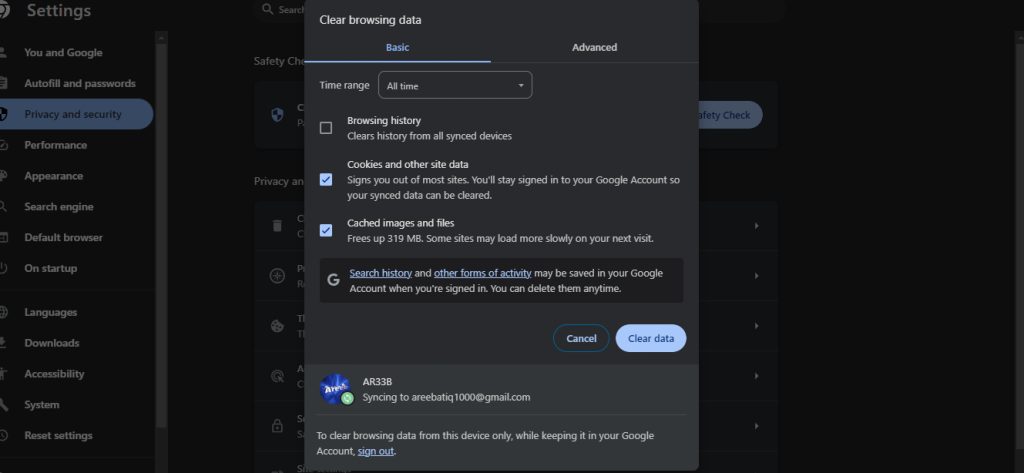
Clear the browsing data (cache and cookies). Press Ctrl + Shift + Delete, choose the options and click Clear data. Also try another browser.
3. Flush the DNS cache
Windows (Command Prompt as administrator):
ipconfig /flushdnsmacOS:
sudo dscacheutil -flushcacheLinux:
systemd-resolve --flush-caches(On newer systems: resolvectl flush-caches.)
4. Check the connection
- Make sure your internet works. Open other websites.
- Unplug your router and modem for a few seconds, then plug them in again.
- Try another network, such as a phone hotspot.
5. More steps on Windows
- Reset the network settings with
netsh winsock resetandnetsh int ip reset, then restart the PC. - Update the network adapter drivers.
- Check the firewall and security software. An overly strict setting can block DNS.
- Change your DNS server to a public one such as
8.8.8.8or1.1.1.1.
If you own the website
If you own the site, check that the domain is not expired, that the nameservers are right and that an A record points to your server. DNS changes can take up to 48 hours to spread.
Quick recap
- Check the URL, flush DNS and restart your router.
- Use a public DNS if the problem stays.
- Site owners: check the domain, nameservers and A record.