

Before you start
1. Back up your files
Copy documents, photos, browser data and project folders to an external drive or cloud storage. Note down your installed software and any important settings.
2. Check the hardware requirements
- Processor: 2 GHz dual core or faster for current releases (1 GHz is the old minimum).
- RAM: 4 GB recommended (2 GB at least for a light setup).
- Storage: at least 25 GB of free space.
- Internet to download updates during the install.
Step 1: Download the Ubuntu ISO
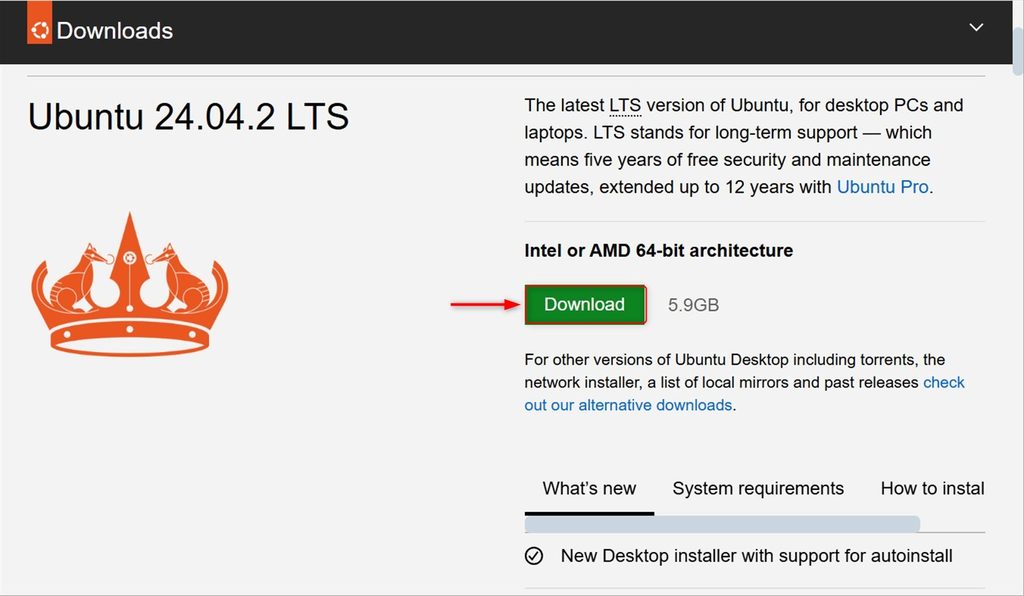
Download the ISO file from the official Ubuntu website. Choose the LTS release for stability.
Step 2: Make a bootable USB stick
You need a USB stick of 8 GB or more. It will be erased.
On Ubuntu
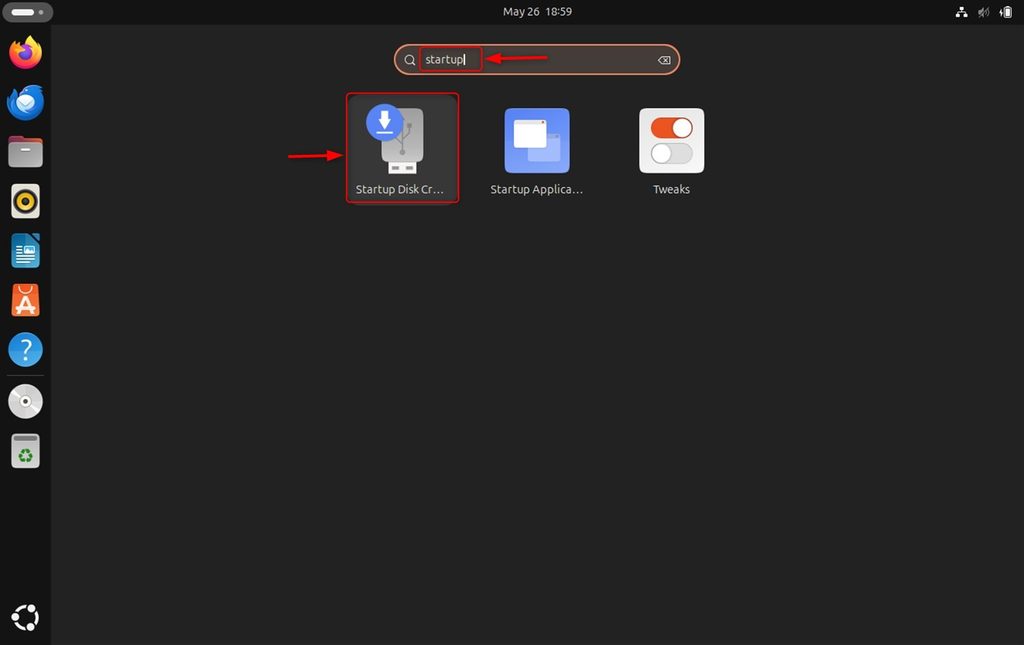
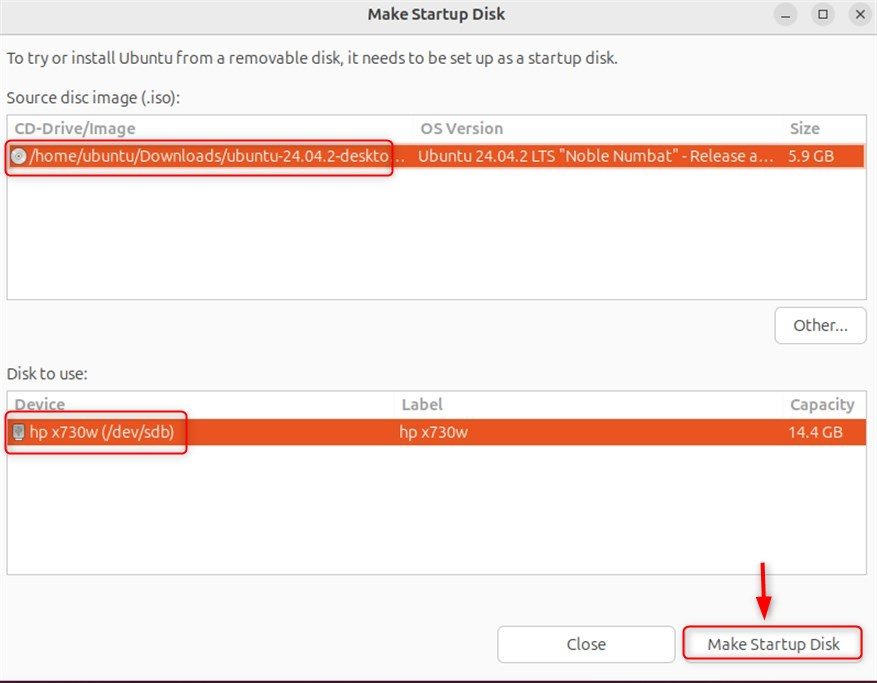
Open Startup Disk Creator, select the ISO and the USB drive, and click Make Startup Disk.
On Windows
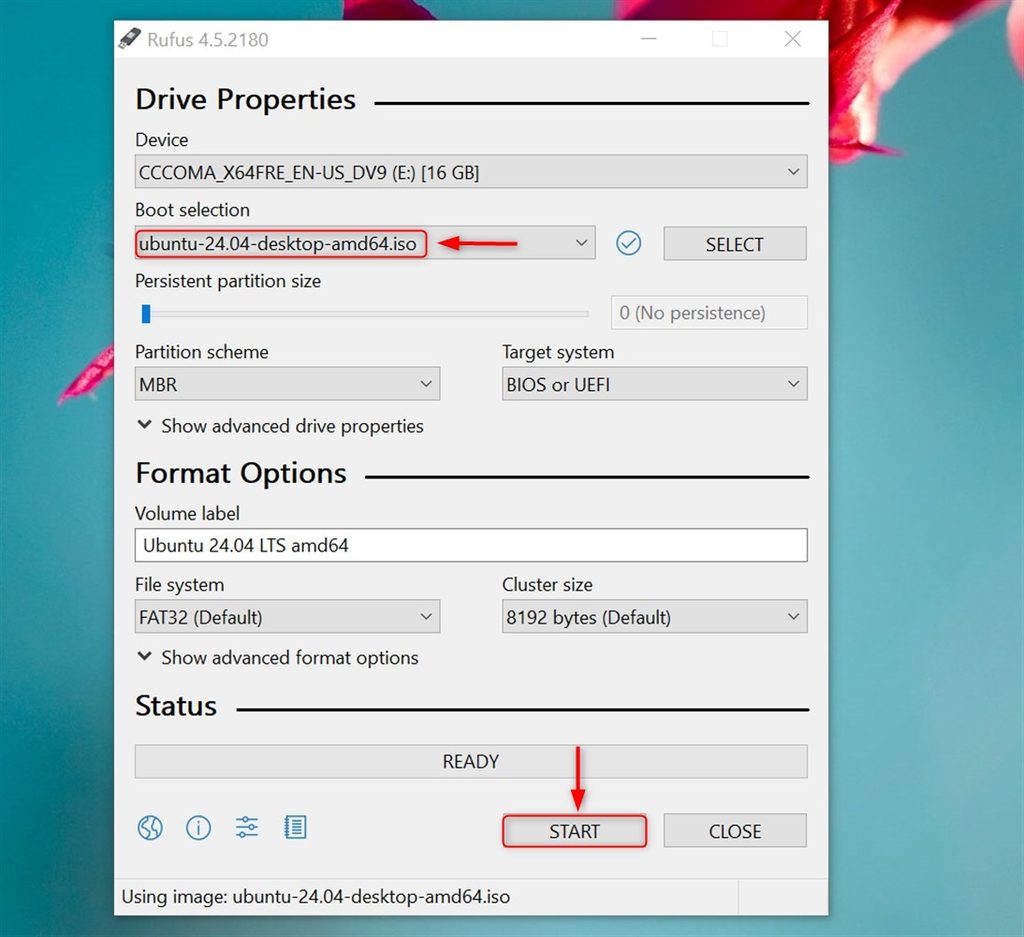
Use a tool such as Rufus or balenaEtcher to write the ISO to the USB stick.
Step 3: Boot from the USB drive
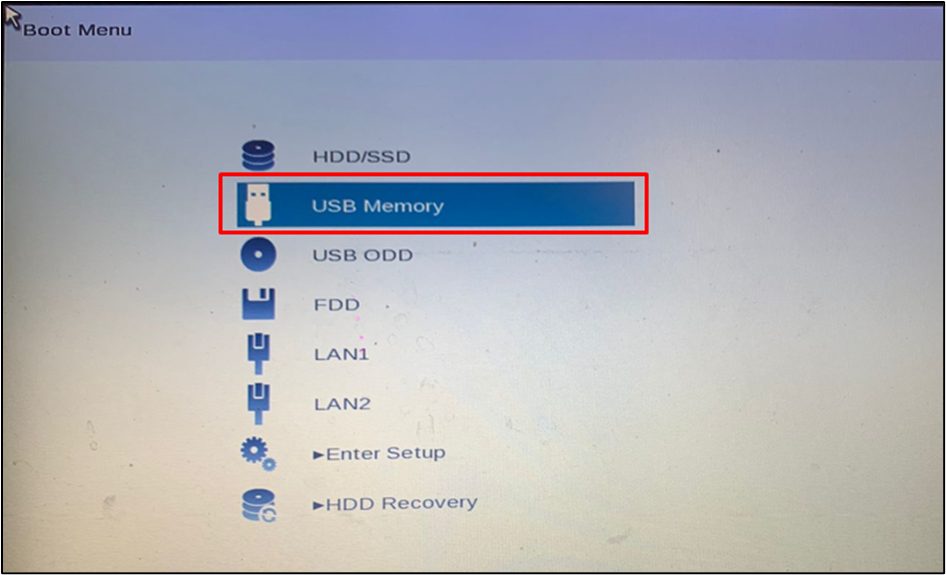
Restart the computer and press the boot menu key at startup. It is often F12, F10, F2, Esc or Del, depending on the maker. Select the USB drive.
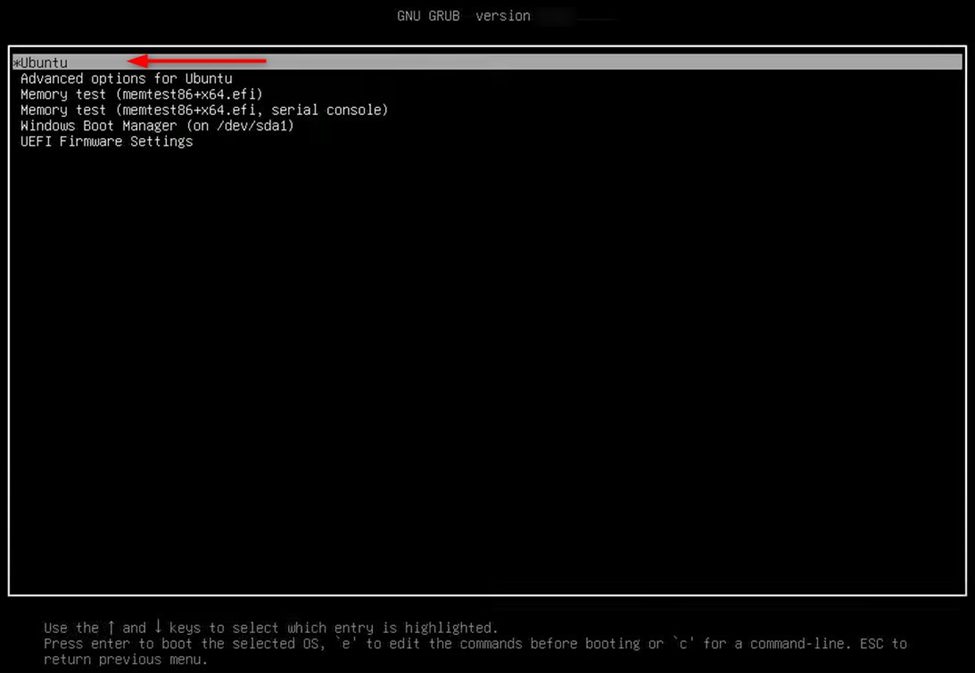
Choose Try or Install Ubuntu in the menu.
Step 4: Start the installation
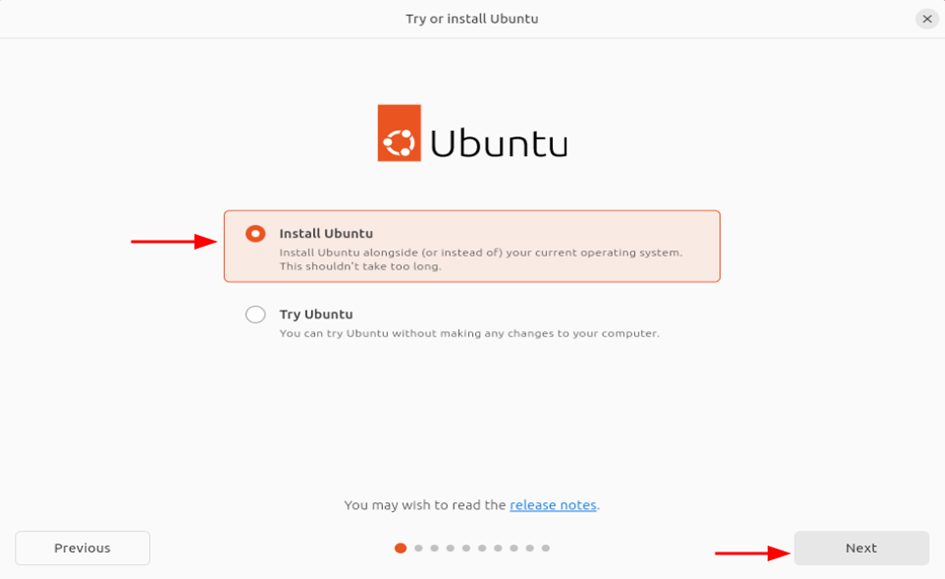
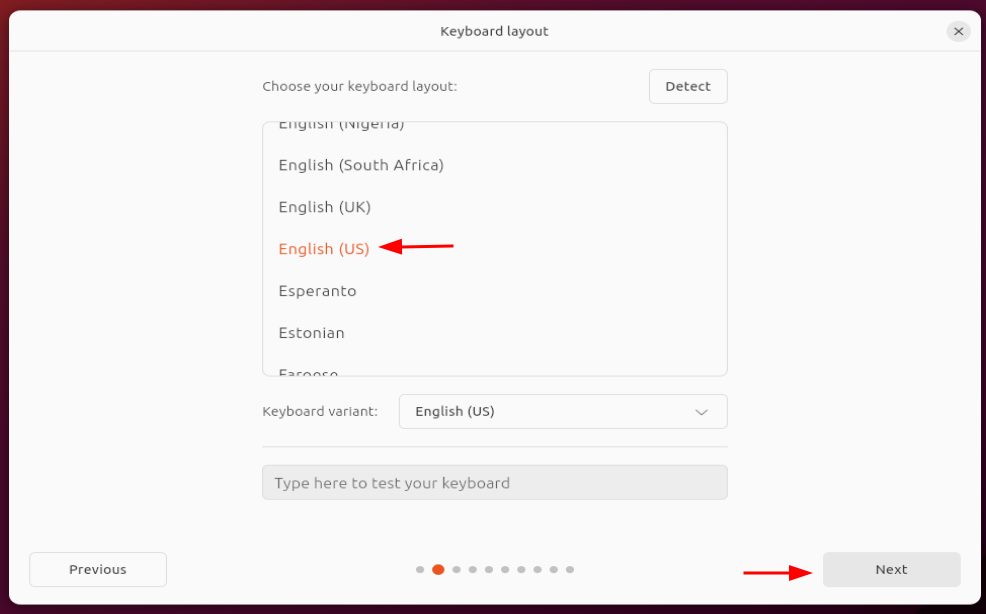
Choose Install Ubuntu, pick your language and keyboard layout.
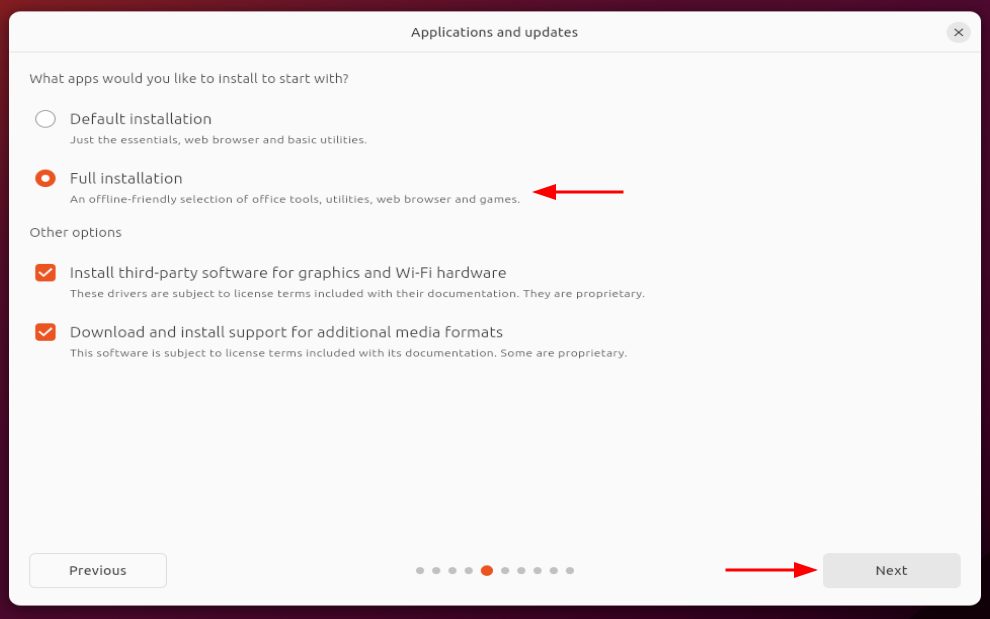
Choose the type of installation:
- Full (normal) installation includes a browser, office tools and media players.
- Minimal installation has a browser and basic tools only.
Tick Install third-party software if you want extra drivers and codecs.
Step 5: Choose how to install
- Erase disk and install Ubuntu removes everything on the disk and reinstalls. This is a clean reinstall.
- Manual partitioning lets you keep a separate
/homepartition and format only the system partition. Choose this to keep your personal files.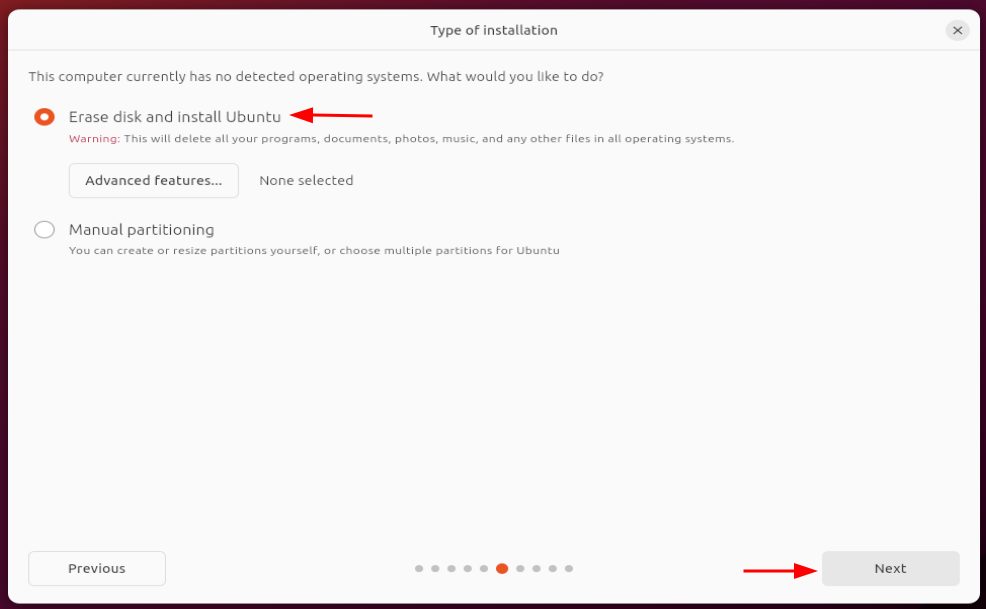
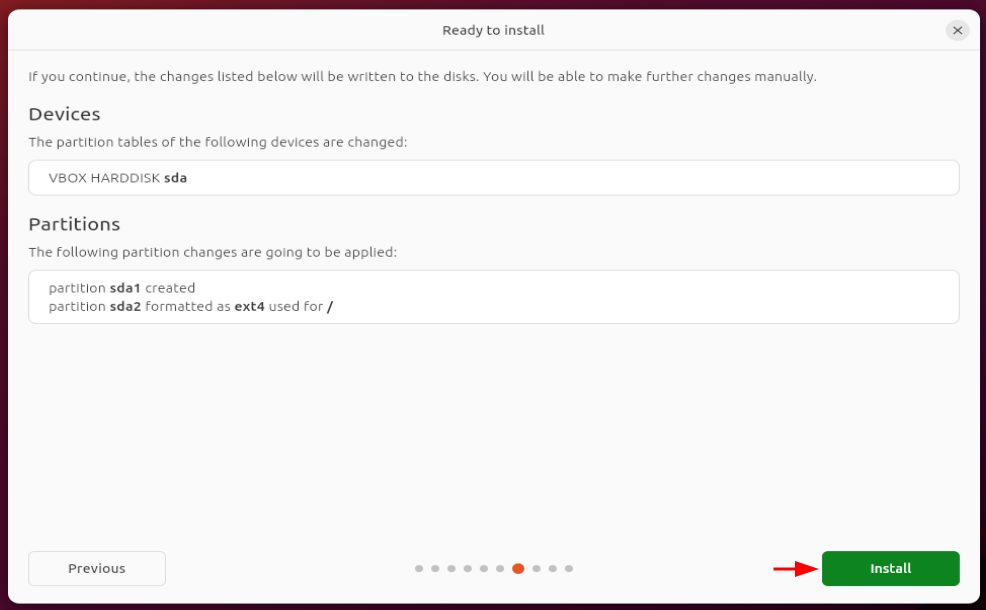
Check the summary and click Install.
Step 6: Finish the setup
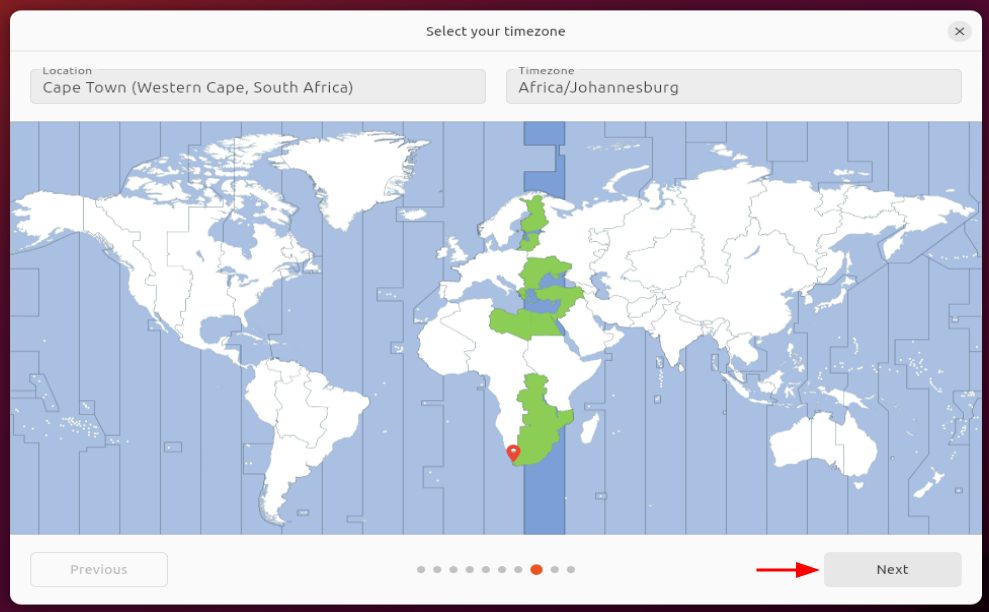
- Select your time zone.
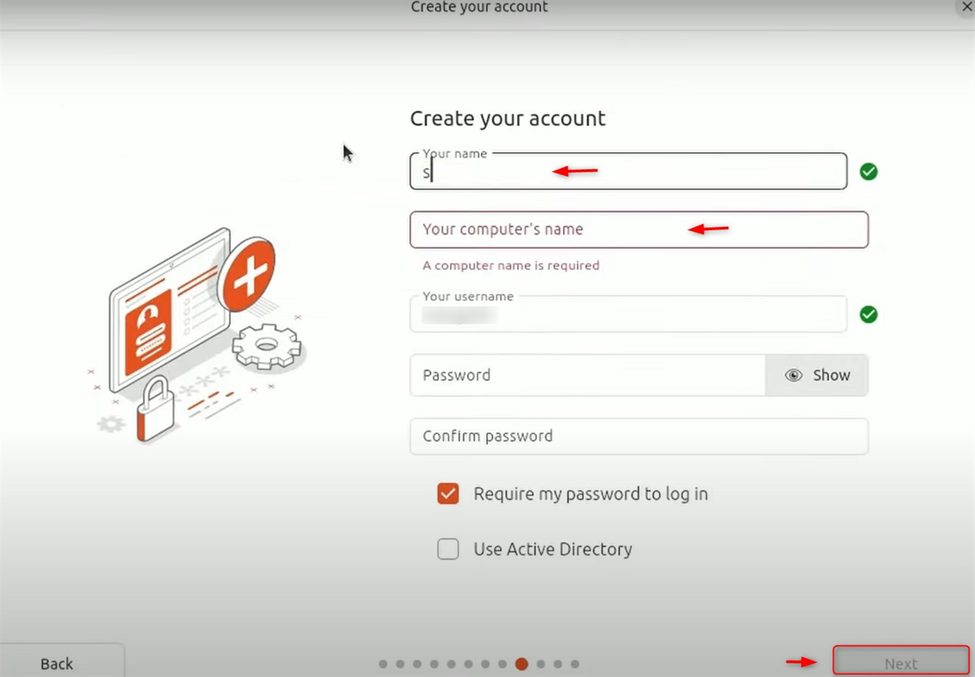
- Create your account. Enter your name, computer name, username and password.
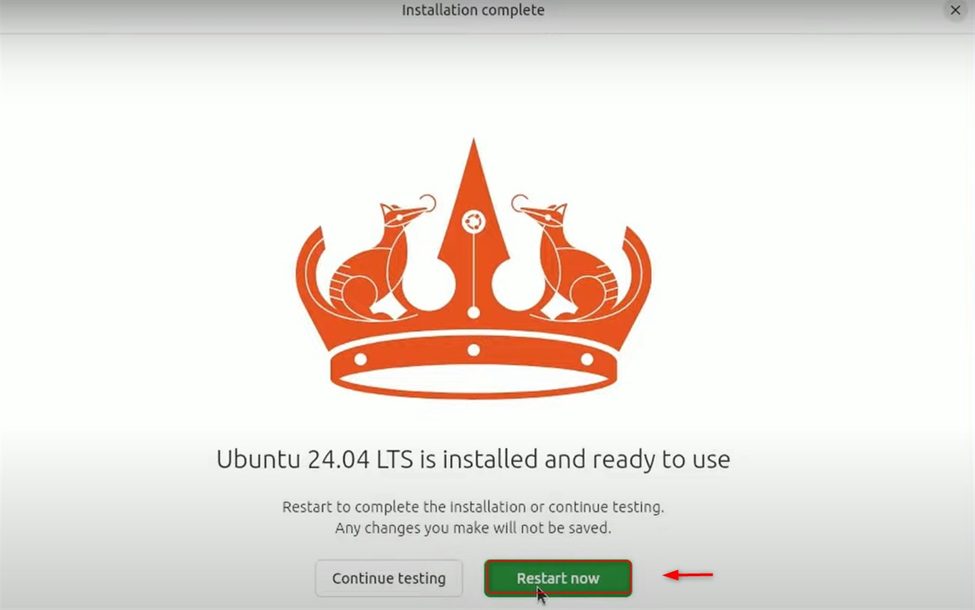
- Wait for the files to copy, then restart. Remove the USB stick when asked.
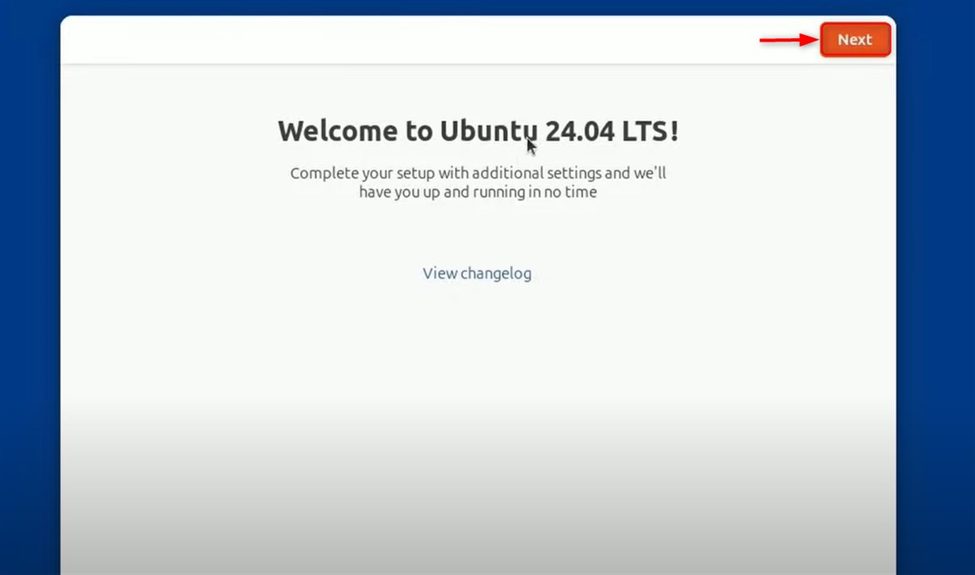
After the install
sudo apt update && sudo apt upgrade -yThen restore your files and install your software.
Quick recap
- Back up, make a USB stick, boot from it and follow the installer.
- "Erase disk" wipes the disk. Manual partitioning can keep
/home.