

Vim modes
Vim has modes. The same key does different things in each mode.
- Normal mode is for moving and running commands. Press
Escto return to it. Vim starts here. - Insert mode is for typing text. Enter it with
i. - Visual mode selects text. Enter it with
v(characters),V(lines) orCtrl+v(blocks). - Command-line mode runs commands such as save, quit and search. Enter it with
:.
Install Vim
sudo apt install vim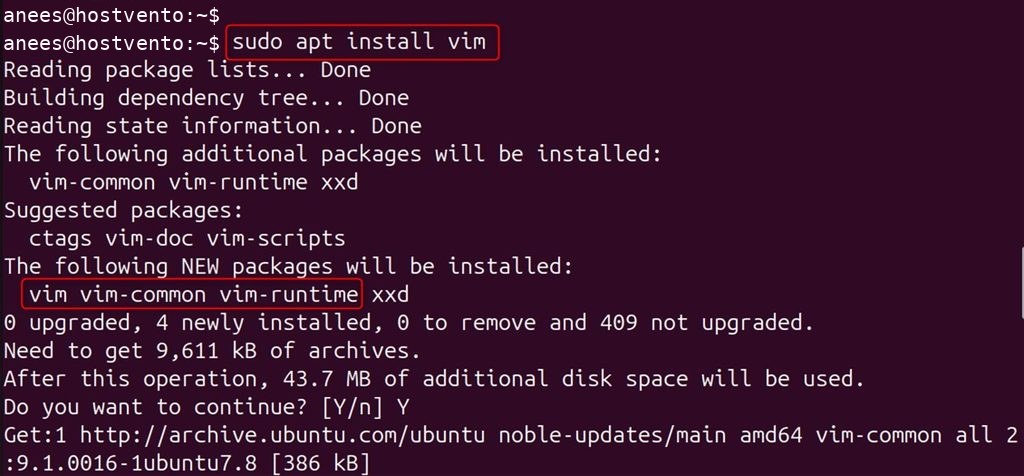
vim --version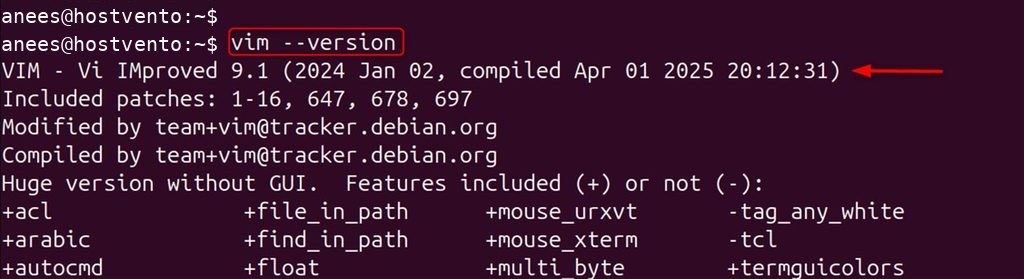
Start Vim
vim filename.txt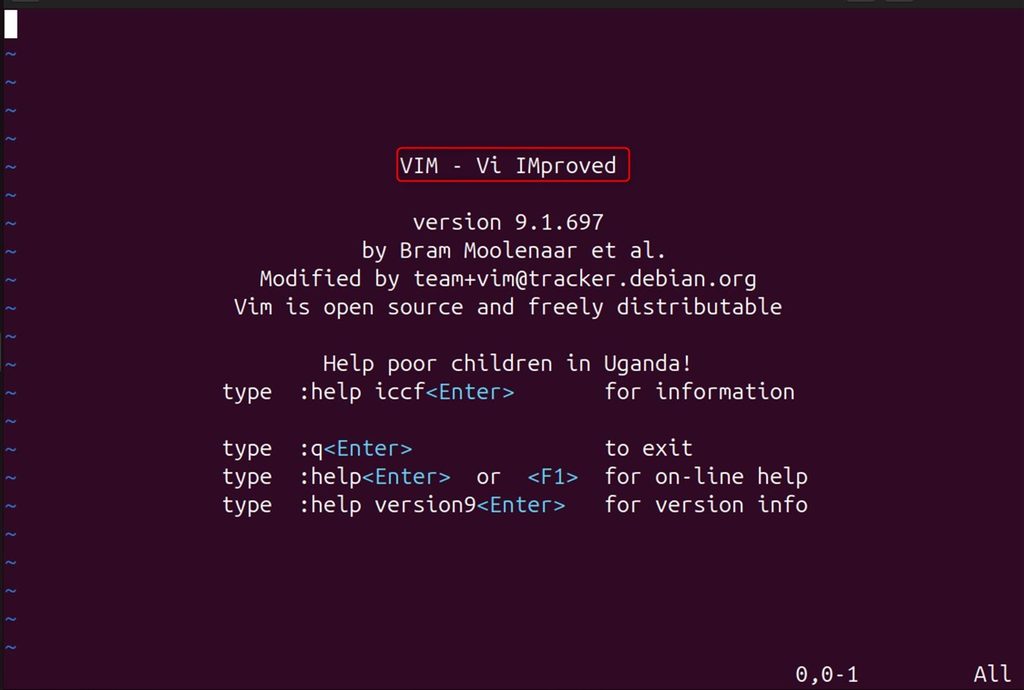
Press i to enter insert mode and type your text.
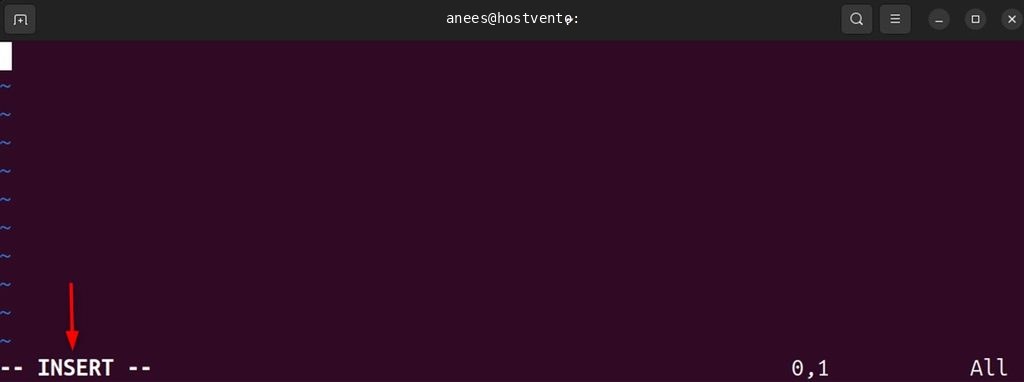
Press Esc to go back to normal mode.
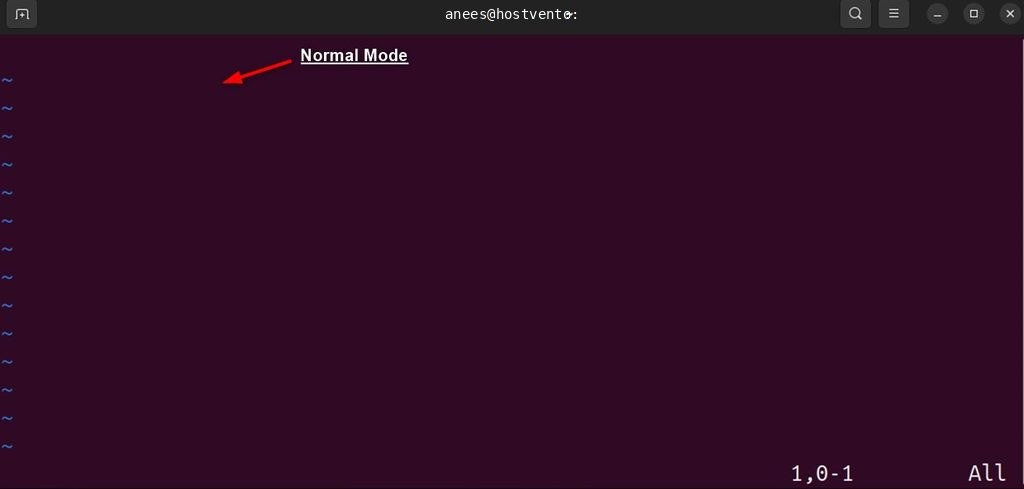
Move around (normal mode)
hleft,jdown,kup,lright.wto the start of the next word,bto the start of the previous word,eto the end of the word.0to the start of the line,^to the first non-blank character,$to the end of the line.ggto the first line,Gto the last line,42Gto line 42.Ctrl+fpage down,Ctrl+bpage up.
Insert text
iinsert before the cursor,aafter the cursor.Iat the start of the line,Aat the end.oopen a new line below,Oabove.
Edit
xdelete the character under the cursor.dddelete (cut) the line,dwdelete a word,d$delete to the end of the line.yycopy (yank) the line,ywcopy a word.ppaste after the cursor,Pbefore.uundo,Ctrl+rredo.rreplace one character,cwchange a word..repeat the last change.- A number before a command repeats it:
3dddeletes 3 lines.
Visual mode
- Press
vand move to select text. - Press
yto copy,dto cut, or>to indent.
Search and replace
/wordsearch forward,?wordsearch backward.nnext match,Nprevious match.- Replace in the whole file:
:%s/old/new/g - Confirm each change:
:%s/old/new/gc
Save and quit (command-line mode)
:wsave.:qquit.:wqorZZsave and quit.:q!quit without saving.:w newnamesave as a new file.
Tips
- If you are stuck, press
Esctwice, then type:q!to leave. - Type
vimtutorin the terminal for a free interactive lesson. - Change settings in
~/.vimrc, for exampleset numbershows line numbers.
Quick recap
ito type,Escto stop,:wqto save and quit.