

What chsh does
chsh means "change shell". The login shell is the program that starts when a user logs in. Shells differ in features, so people change them to match their work style.
Note: On most Linux systems
chsh changes only the login shell. Other account details are changed with usermod. The options below follow the -s use you will see on every system.Syntax
chsh [options] [username]Without a user name, chsh changes the shell of the current user. See the options with:
chsh -h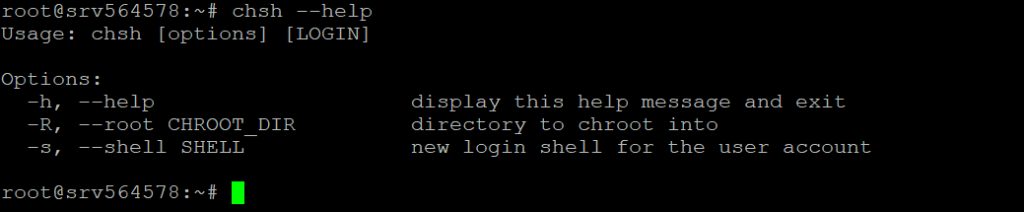
The most used option is -s (or --shell), which sets the login shell.
Change the shell
chsh -s /bin/bash username
This makes /bin/bash the login shell of username. The shell must be listed in the file /etc/shells. Show that list with:
cat /etc/shellsYou can switch your own shell, for example to zsh, with:
chsh -s /bin/zshThe change works from the next login.
Other account changes
The chsh command is for the shell. Use usermod for the home folder, the primary group and the user ID:
sudo usermod -d /home/new_directory -m username
sudo usermod -g groupname username
sudo usermod -u new_uid username
To create a user with a shell and a home folder at once:
sudo useradd -m -s /bin/bash newuserSecurity tips
- Normal users can change only their own shell. Root can change any.
- Do not give a user a shell that is not listed in
/etc/shells. - Take care with the primary group. Putting a user in a group like
sudogives strong rights. - A shell such as
/usr/sbin/nologinblocks interactive logins for service accounts.
Quick recap
chsh -s /path/to/shell usernamesets the login shell.- Check
/etc/shellsfor valid shells. - Use
usermodfor the home folder, groups and IDs.