

Syntax
date [OPTION]... [+FORMAT]OPTION changes how the command works. +FORMAT sets how the date and time are shown.
Show the date and time
date
Set the system date
Use -s to set the date by hand. You need root rights.
sudo date -s "2024-11-05 14:30:00"
On a server, it is better to let NTP or timedatectl keep the time right.
Show UTC time
date -u
Calculate dates
Use -d to see a date relative to now:
date -d "2 days ago"
Other examples: date -d "next Friday", date -d "tomorrow", date -d "1 month".
Custom format
date +"%Y-%m-%d %H:%M:%S"
| Code | Meaning |
|---|---|
%Y | Year with 4 digits |
%m | Month number |
%d | Day of the month |
%H | Hour (00-23) |
%M | Minute |
%S | Second |
%A | Full weekday name |
%B | Full month name |
%Z | Time zone name |
%s | Unix time stamp |
Weekday only
date +"%A"
Time zone
date +"%Z"
Unix timestamp (seconds since January 1, 1970)
date +"%s"
Dates from a file
The -f option reads dates from a file, one per line, and prints them:
date -f dates.txt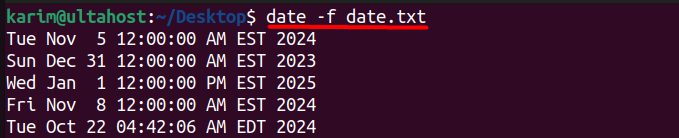
Date of a file
The -r option shows the last change time of a file:
date -r date.txt
Combine options
UTC with a custom format
date -u +"%Y-%m-%d %H:%M:%S UTC"
A file's modification date in a readable format
date -r /path/to/file +"%A, %d %B %Y %H:%M:%S"
A relative date in a custom format
date -d "2 days ago" +"%Y-%m-%d"
A relative date in UTC
date -u -d "2 days ago" +"%Y-%m-%d %H:%M:%S UTC"
Dates from a file in a custom format
date -f dates.txt +"%d/%m/%Y"
Quick recap
dateshows the time,date -ushows UTC.+FORMATcontrols how it looks.-dcalculates dates and-rreads a file's time.