

The three commands
- update refreshes the package list from the repositories:
sudo apt update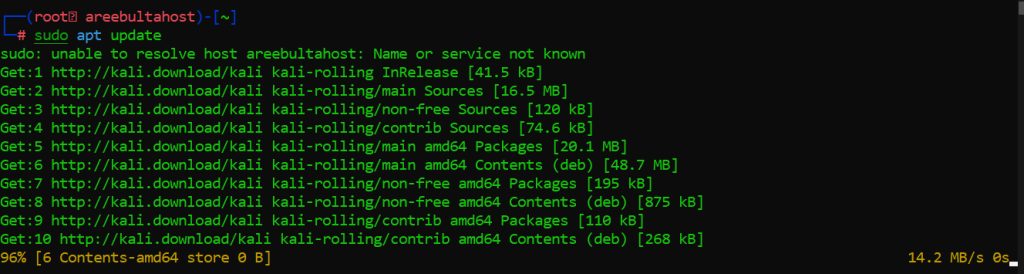
- upgrade installs newer versions of installed packages:
sudo apt upgrade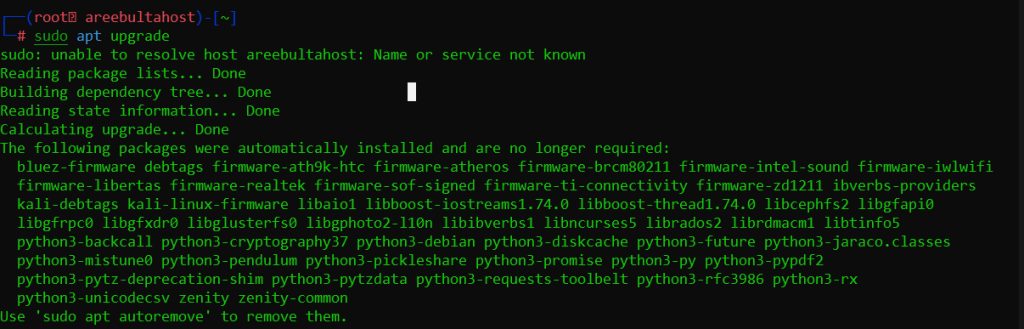
- dist-upgrade (or
full-upgrade) also adds and removes packages when needed. Kali needs it for many updates:
sudo apt dist-upgradeCommon problems and fixes
Wrong repository settings
Open the file:
sudo nano /etc/apt/sources.listFor Kali it should contain:
deb http://http.kali.org/kali kali-rolling main non-free contrib
deb-src http://http.kali.org/kali kali-rolling main non-free contrib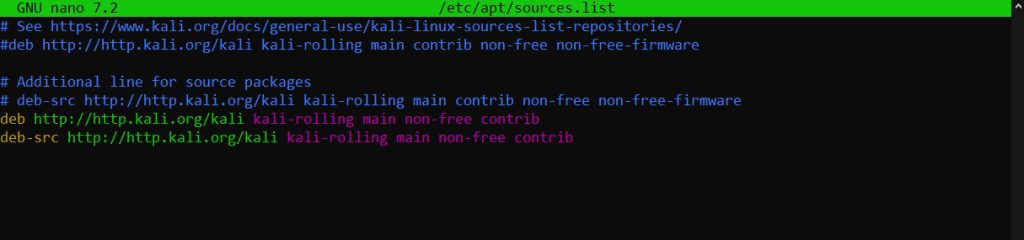
Network problems
ping -c 4 google.com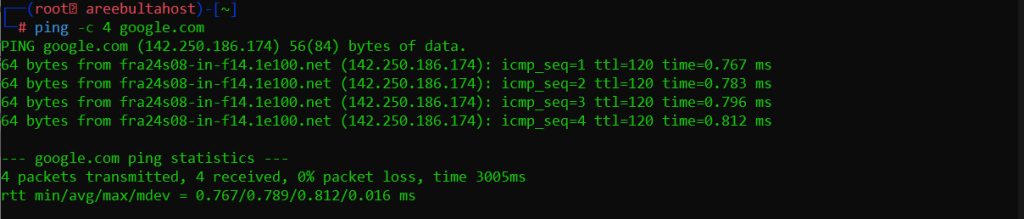
If it fails, fix your connection or DNS first.
Broken packages
sudo apt-get check
sudo apt-get install -f
GPG key errors
A message like "The following signatures couldn't be verified" means the archive key is old. Download the current key:
sudo wget https://archive.kali.org/archive-keyring.gpg -O /usr/share/keyrings/kali-archive-keyring.gpgNot enough disk space
df -hFree space with:
sudo apt-get clean && sudo apt-get autoremoveMore troubleshooting
Use another mirror. Edit sources.list and point to another official mirror.
Install a package by hand. Download the .deb file and install it:
sudo dpkg -i package_name.debBest practices
- Update often, so updates stay small.
- Back up important data before a big upgrade.
- Use only official Kali repositories.
- Keep an eye on disk space.
Quick recap
- Check
sources.list, network, keys and disk space. - Use
apt-get install -ffor broken packages. - Update often.