

FreeRADIUS is an open-source RADIUS server. It handles network login (AAA: authentication, authorization and accounting) for VPNs, Wi-Fi, hotspots and ISPs. Storing users in MySQL makes it easy to manage many of them.
Why use MySQL with FreeRADIUS
- Scalable and fast for many users and logins.
- Reliable, with transactions and data integrity.
- Flexible. Many tools and web panels can manage a MySQL user table.
Requirements
- A server or virtual machine with at least a dual-core CPU, 4 GB RAM and 20 GB of disk.
- Ubuntu with root or sudo access.
Step 1: Install Ubuntu and update it
Download Ubuntu Server from the official site (releases.ubuntu.com), install it, and update:
sudo apt update
sudo apt upgrade -y
Step 2: Install the packages
sudo apt install freeradius freeradius-mysql freeradius-utils mysql-server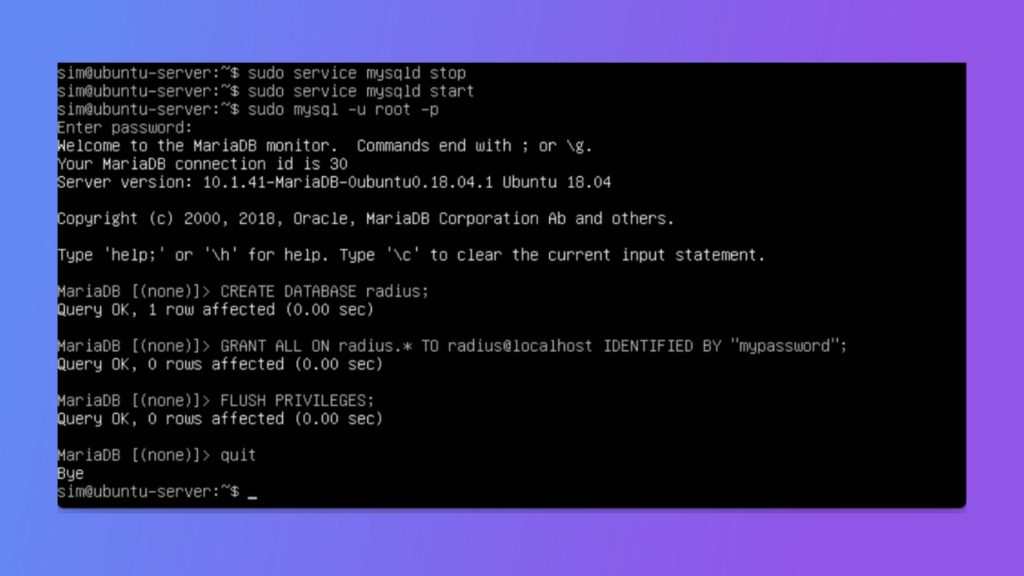
Check them:
freeradius -v
mysql --version
Step 3: Secure MySQL
sudo systemctl enable --now mysql
sudo mysql_secure_installation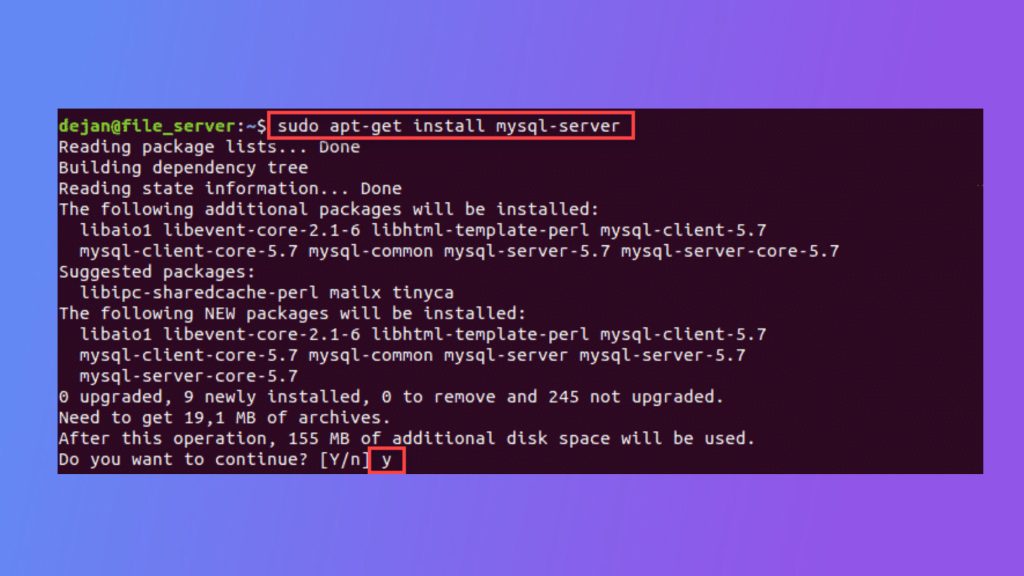
Set a strong root password and accept the options to remove anonymous users, remove the test database and reload the privileges.
Step 4: Create the database and user
sudo mysqlCREATE DATABASE radius;
CREATE USER 'radius_user'@'localhost' IDENTIFIED BY 'StrongPassword';
GRANT ALL PRIVILEGES ON radius.* TO 'radius_user'@'localhost';
FLUSH PRIVILEGES;
EXIT;Step 5: Import the FreeRADIUS schema
sudo mysql -u root -p radius < /etc/freeradius/3.0/mods-config/sql/main/mysql/schema.sqlThis creates the tables radcheck, radreply, radacct, radusergroup and others.
Step 6: Enable the SQL module
cd /etc/freeradius/3.0/mods-enabled
sudo ln -s ../mods-available/sql sql
Edit the module:
sudo nano /etc/freeradius/3.0/mods-available/sqlSet these values:
sql {
    dialect = "mysql"
    driver = "rlm_sql_mysql"
    server = "localhost"
    port = 3306
    login = "radius_user"
    password = "StrongPassword"
    radius_db = "radius"
    read_clients = yes
    client_table = "nas"
}
Check that the file is readable by the FreeRADIUS group:
sudo chgrp -h freerad /etc/freeradius/3.0/mods-available/sql
sudo chown -R freerad:freerad /etc/freeradius/3.0/mods-enabled/sql
Step 7: Use SQL in the site config
Edit /etc/freeradius/3.0/sites-enabled/default. In the authorize {} section uncomment (or add) sql. Do the same in the accounting {} and session {} sections, and in post-auth {}.
Step 8: Add a test user
sudo mysql radiusINSERT INTO radcheck (username, attribute, op, value) VALUES ('testuser', 'Cleartext-Password', ':=', 'testpass');
EXIT;(Cleartext passwords are fine for a test. For real use consider hashed attributes.)
Step 9: Test
Stop the service and run FreeRADIUS in debug mode:
sudo systemctl stop freeradius
sudo freeradius -X
In another terminal, test a login:
radtest testuser testpass localhost 0 testing123You should see Received Access-Accept. Stop the debug mode with Ctrl+C, then start the service:
sudo systemctl enable --now freeradiusAdd a client (a router or NAS)
Insert the device into the nas table (or clients.conf), with its IP and shared secret:
INSERT INTO nas (nasname, shortname, type, secret) VALUES ('192.168.1.1', 'router1', 'other', 'SharedSecret');Restart FreeRADIUS after you add clients.
Quick recap
- Install the packages, create the
radiusdatabase and import the schema. - Enable the
sqlmodule and use it inauthorize,accountingandpost-auth. - Test with
radtest.