

A reverse proxy takes requests from visitors and passes them to an app behind it. With Nginx in front of your containers you get one public address, SSL, caching and the option to host many apps on one server.
What you need
- A Linux server or virtual machine (Ubuntu or CentOS).
- Root or sudo access.
- Docker and Docker Compose installed.
- Basic knowledge of Nginx and Docker.
Step 1: Install Docker and Docker Compose
Install Docker from the Docker repository or with sudo apt install docker.io. For Compose, the easiest way is the plugin:
sudo apt install docker-compose-plugin
Check them:
docker --version
docker compose version
(If you install the older standalone tool, the command is docker-compose with a hyphen. Use the current release from the Docker releases page, not an old one.)
Step 2: Create a Docker network
sudo docker network create nginx_reverse_proxy
Step 3: Start the application container
For this example we use a simple Nginx container as the "app".
Create a folder and a test page:
mkdir -p ~/proxy-demo/app && cd ~/proxy-demo
echo "Hello, World!" > app/index.html
Create docker-compose.yaml:
services:
  app:
    image: nginx
    container_name: my_app
    networks:
      - nginx_reverse_proxy
    volumes:
      - ./app:/usr/share/nginx/html
    ports:
      - "127.0.0.1:8080:80"

networks:
  nginx_reverse_proxy:
    external: true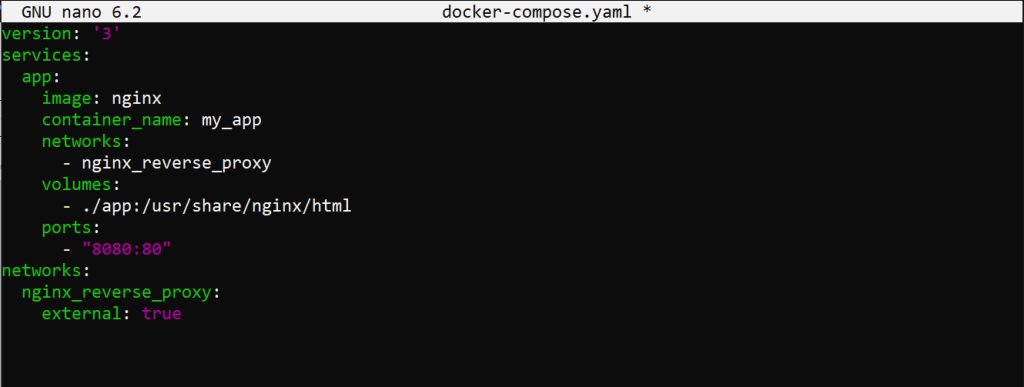
Publishing the port on 127.0.0.1 means only the server itself can reach it, so visitors must come through the proxy.
Start it:
sudo docker compose up -d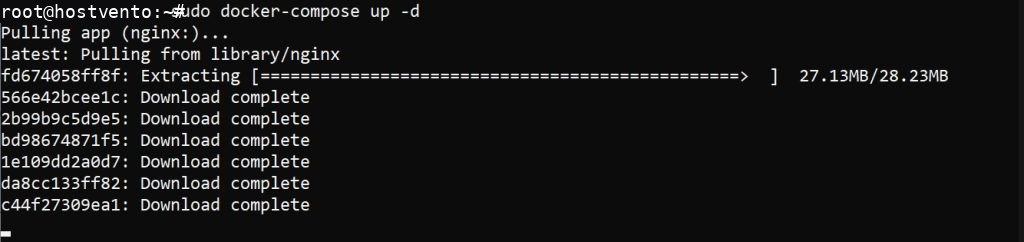
Step 4: Install and configure the reverse proxy
Install Nginx on the host:
sudo apt install nginx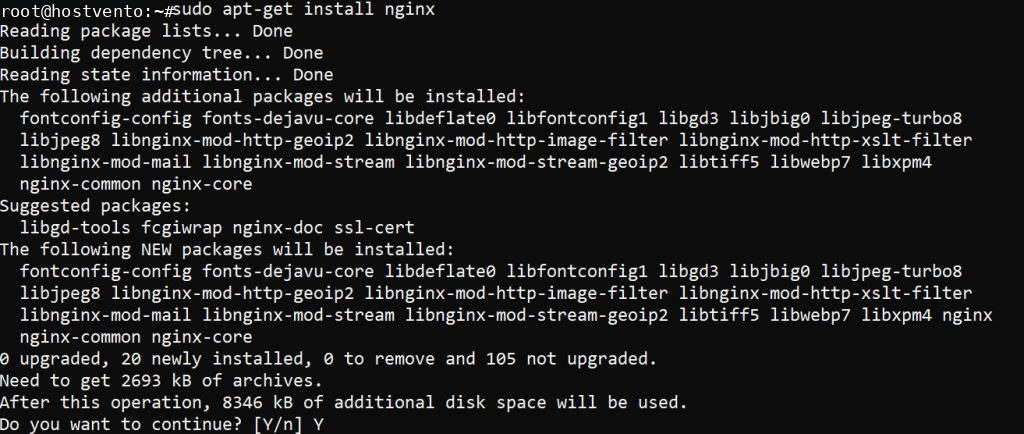
Create the proxy config:
sudo nano /etc/nginx/conf.d/reverse-proxy.confserver {
listen 80;
server_name example.com;
location / {
proxy_pass http://127.0.0.1:8080;
proxy_set_header Host $host;
proxy_set_header X-Real-IP $remote_addr;
proxy_set_header X-Forwarded-For $proxy_add_x_forwarded_for;
proxy_set_header X-Forwarded-Proto $scheme;
}
}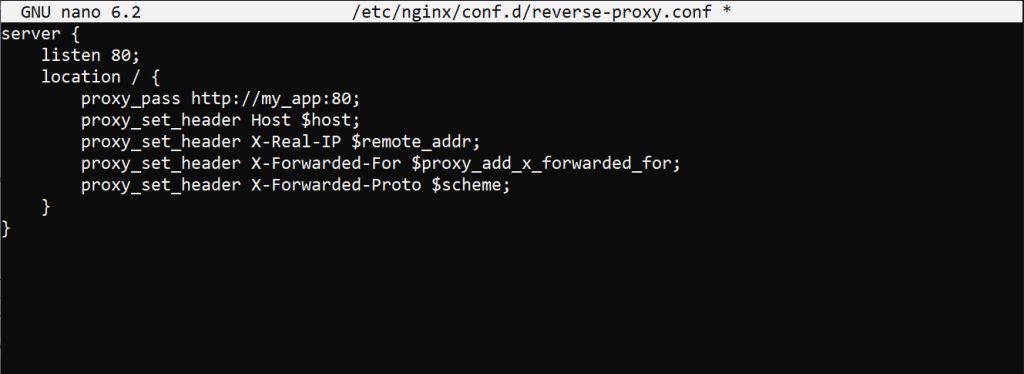
Note: an Nginx that runs on the host cannot resolve the container name my_app, so it uses the published port on 127.0.0.1. If Nginx itself runs as a container on the same Docker network, you can use proxy_pass http://my_app:80; instead.
Test and reload:
sudo nginx -t
sudo systemctl reload nginx
Step 5: Check it
Open http://example.com (or the server IP) in a browser. You should see "Hello, World!".
curl -I http://example.comAdd HTTPS with Certbot: sudo certbot --nginx -d example.com.
Quick recap
- Run the app in a container and publish its port on
127.0.0.1. - Use
proxy_pass http://127.0.0.1:PORT;in an Nginx server block.