

What a .deb file is
A .deb file is a software package for Debian and Ubuntu. It holds the program files and instructions for the installation. You use one when software is not in the Ubuntu repositories, for example Google Chrome or VS Code.
Note: Only install .deb files from sources you trust. A package can run code as root.
Before you start
Update the system:
sudo apt update && sudo apt upgrade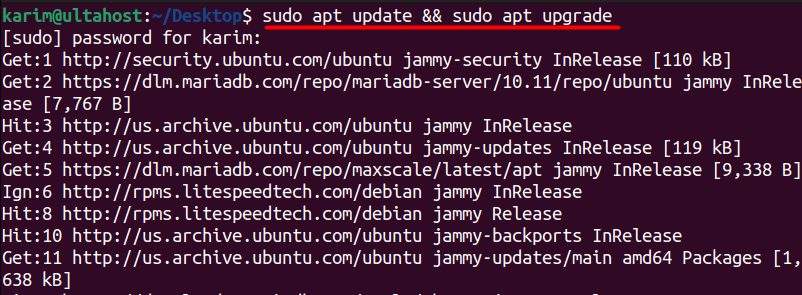
Method 1: The command line
With dpkg
Go to the folder with the file:
cd ~/DownloadsInstall it:
sudo dpkg -i package_name.debExample:
sudo dpkg -i google-chrome-stable_current_amd64.deb
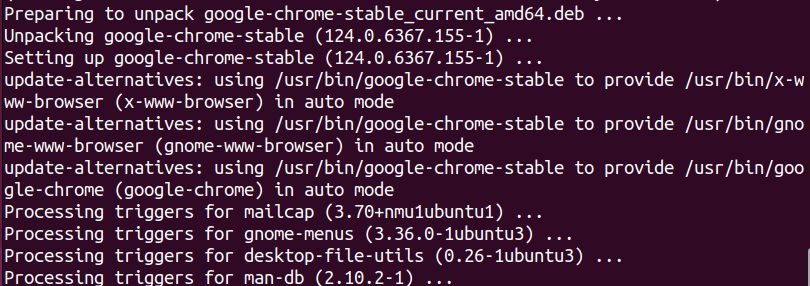
If dpkg reports missing dependencies, fix them with:
sudo apt install -fWith apt (recommended)
apt installs the dependencies for you:
sudo apt install ./google-chrome-stable_current_amd64.deb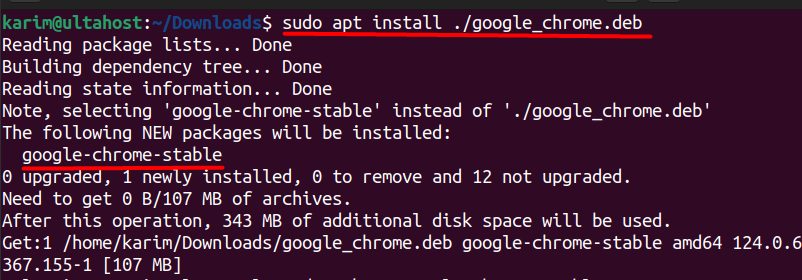
Use the ./ before the file name, so apt knows it is a local file.
Method 2: Ubuntu Software
- Open the file manager and find the
.debfile. - Double-click it. It opens in Ubuntu Software (or right-click and choose Open With Software Install).
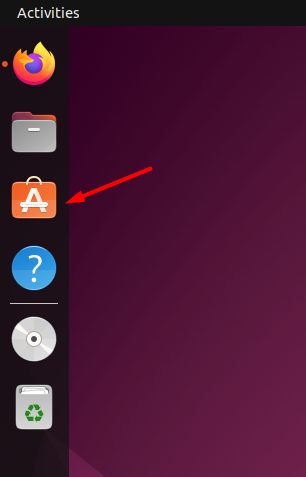
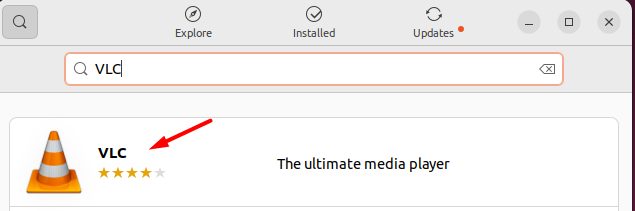
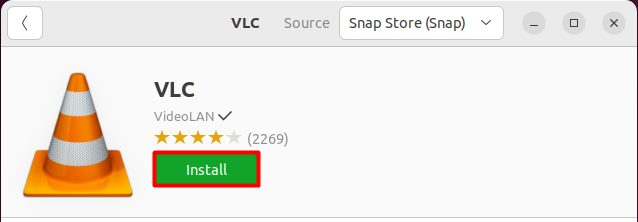
- Click Install and type your password.
Remove a package
sudo apt remove package_nameTo see the name of an installed package, use dpkg -l | grep name.
Troubleshooting
| Problem | Fix |
|---|---|
| Dependency problems | sudo apt install -f |
| "Package architecture is not right" | Download the right version (amd64, arm64) |
| "dpkg was interrupted" | sudo dpkg --configure -a |
| Permission denied | Use sudo |
| The package is broken | Download it again and check its checksum |
Quick recap
sudo apt install ./file.debis the best command-line way.- Ubuntu Software works with a double-click.
- Fix dependencies with
sudo apt install -f.