

Choose a desktop
- GNOME. The modern default desktop of Ubuntu. Clean and complete.
- KDE Plasma. Very customizable.
- XFCE. Light, good for small servers and older hardware.
- MATE. A traditional desktop.
On a VPS, XFCE is usually the best choice, because it needs the least RAM.
Step 1: Update the server
sudo apt update && sudo apt upgrade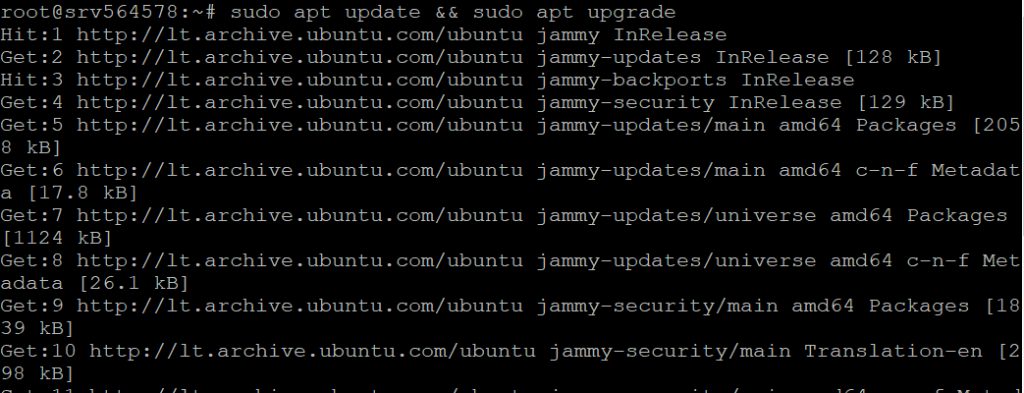
Step 2: Install a display manager
sudo apt install lightdm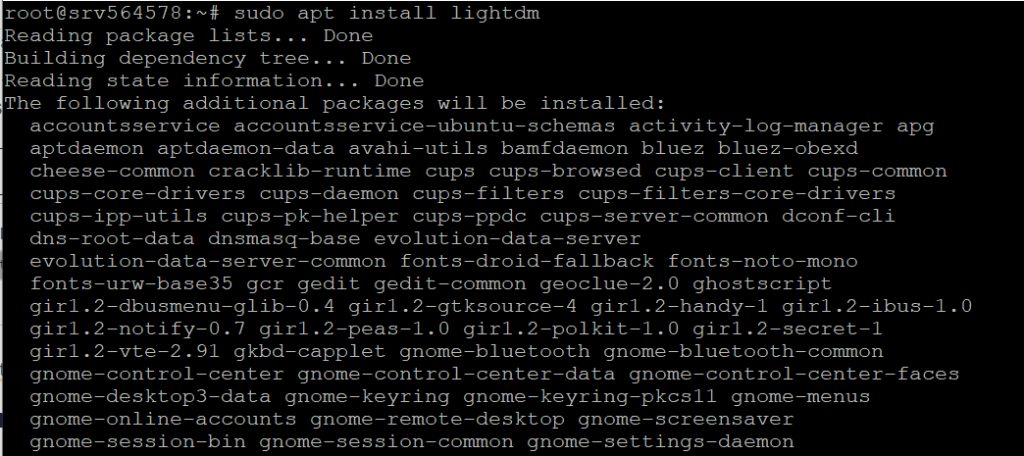
When asked, choose lightdm as the default display manager.
Step 3: Install a desktop environment
Install one of these:
GNOME
sudo apt install ubuntu-desktopKDE Plasma
sudo apt install kde-plasma-desktopXFCE
sudo apt install xubuntu-core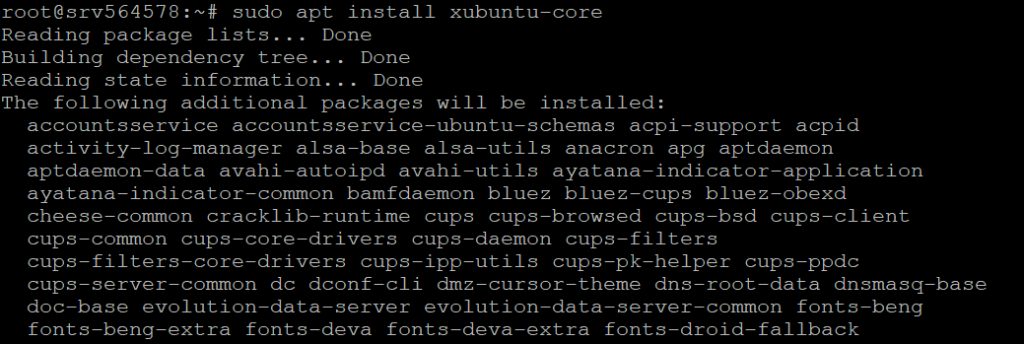
Reach the desktop remotely with VNC
A VPS has no monitor, so use VNC or xRDP.
Install a VNC server
sudo apt install tightvncserver
Start it once to set a password
vncserverEdit the startup file
Stop the server first with vncserver -kill :1. Then edit ~/.vnc/xstartup so that it starts XFCE:
#!/bin/sh
xrdb $HOME/.Xresources
startxfce4 &
Start the VNC server
chmod +x ~/.vnc/xstartup
vncserver -kill :1 && vncserver :1
Connect from your computer
Install a VNC viewer, such as RealVNC Viewer, and connect to the IP address of your server with display :1 (port 5901), for example:
192.168.1.12:5901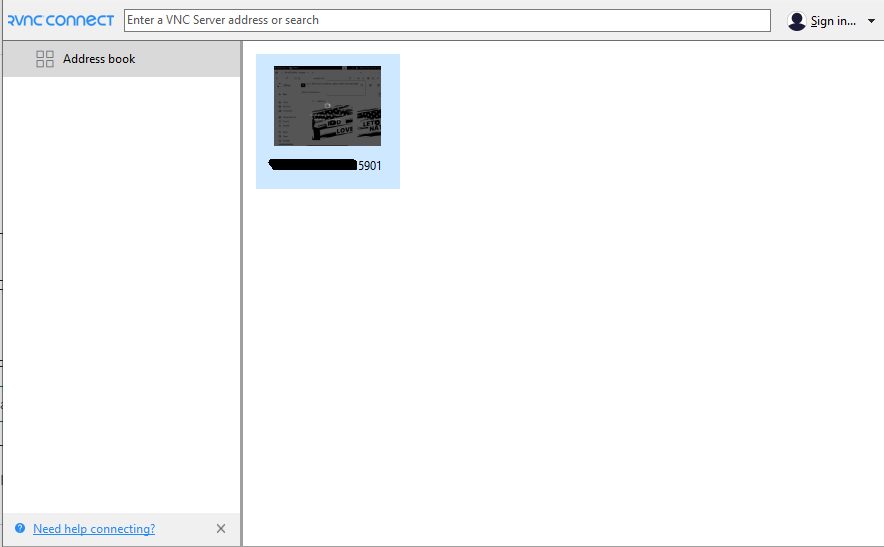
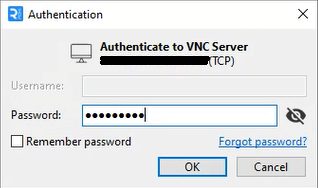
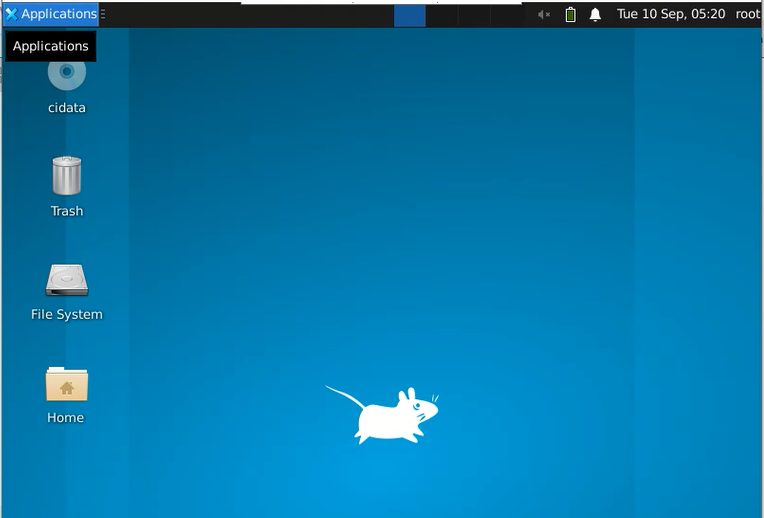
Enter the VNC password you set. The XFCE desktop opens.
Warning: VNC traffic is not encrypted by default. Do not open port 5901 to the internet. Use an SSH tunnel, for example
ssh -L 5901:localhost:5901 user@server, and connect your viewer to localhost:5901.Important notes
- Check that your hardware can run the desktop you choose.
- A desktop uses RAM and CPU. If you run heavy apps on the server, think twice, or pick a light desktop like XFCE.
- Keep the server secure: use a firewall and strong passwords.
Quick recap
- Install
lightdmand a desktop such asxubuntu-core. - Install a VNC server and start XFCE in
xstartup. - Connect through an SSH tunnel.