

What Samba does
Samba lets Linux share files and printers with Windows (SMB/CIFS). Features:
- File and printer sharing.
- Authentication and access control.
- Network browsing.
- Domain controller support.
- Support for many file systems.
- Data encryption.
- Command-line tools.
Install Samba
Step 1: Update
sudo apt update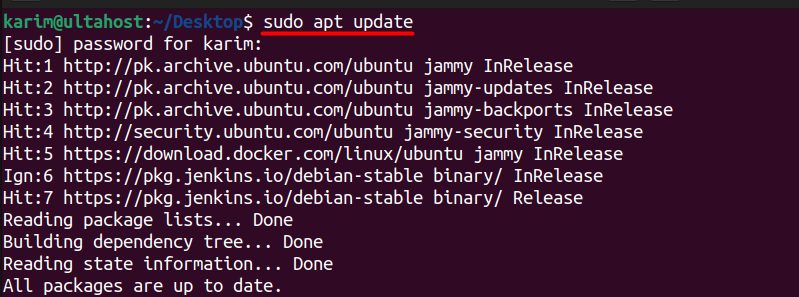
Step 2: Install the packages
sudo apt install samba samba-common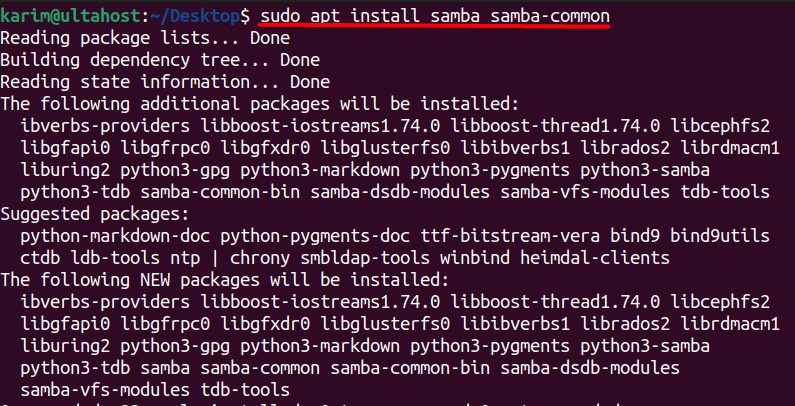
sambahas the main Samba server programs (smbd,nmbd).samba-commonhas common files and tools.
Step 3: Check it
smbd --version
Configure Samba
Step 1: Create a shared folder
mkdir /home/username/sambashare/
Step 2: Edit the Samba configuration
sudo nano /etc/samba/smb.conf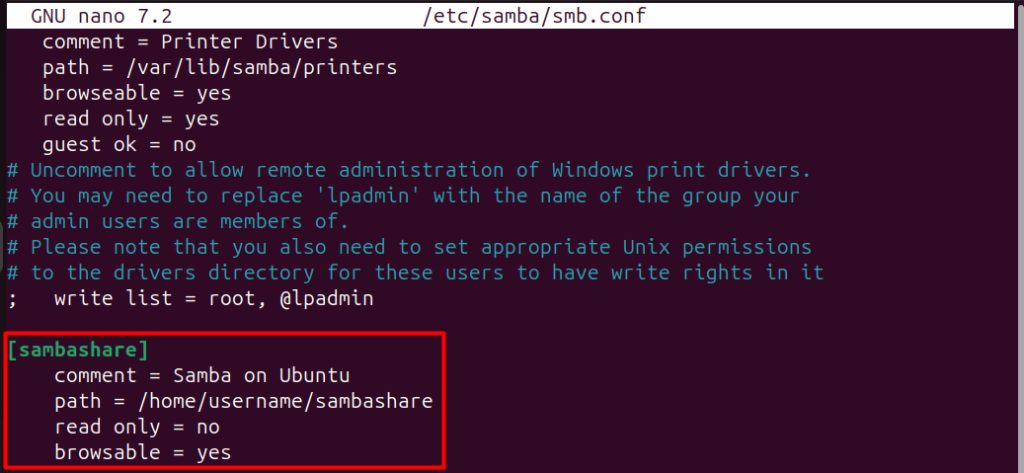
Add this at the end of the file:
[sambashare]
    comment = Samba on Ubuntu
    path = /home/username/sambashare
    read only = no
    browsable = yes
Step 3: Restart Samba
sudo service smbd restart
Step 4: Open the firewall
sudo ufw allow samba
Step 5: Set the permissions
sudo chown -R username:sambashare /home/username/sambashare/
If the group sambashare does not exist, make it first with sudo groupadd sambashare, or use your own group.
Step 6: Create a Samba user
The user must exist on the system. Add a Samba password for it:
sudo smbpasswd -a username
Step 7: Check the configuration
testparm
Connect from Windows
Open File Explorer and type in the address bar:
\\server_ip\sambashareEnter the Samba user name and password.
Connect from Linux
sudo apt install cifs-utils
sudo mount -t cifs //server_ip/sambashare /mnt -o username=username
Why people use Samba
- It bridges Linux and Windows.
- It is open source and free.
- It has a big community and is very customizable.
- It is reliable, and it fits into existing networks.
Quick recap
- Install
samba, create a folder and add a share tosmb.conf. - Add a Samba user with
smbpasswd -a. - Open the firewall and connect with
\\server_ip\sambashare.