

Understand your disk
A disk is split into partitions. Each partition has a file system (ext4, xfs and others). To make more room you grow the partition first, then grow the file system inside it.
Check the current partitions
lsblk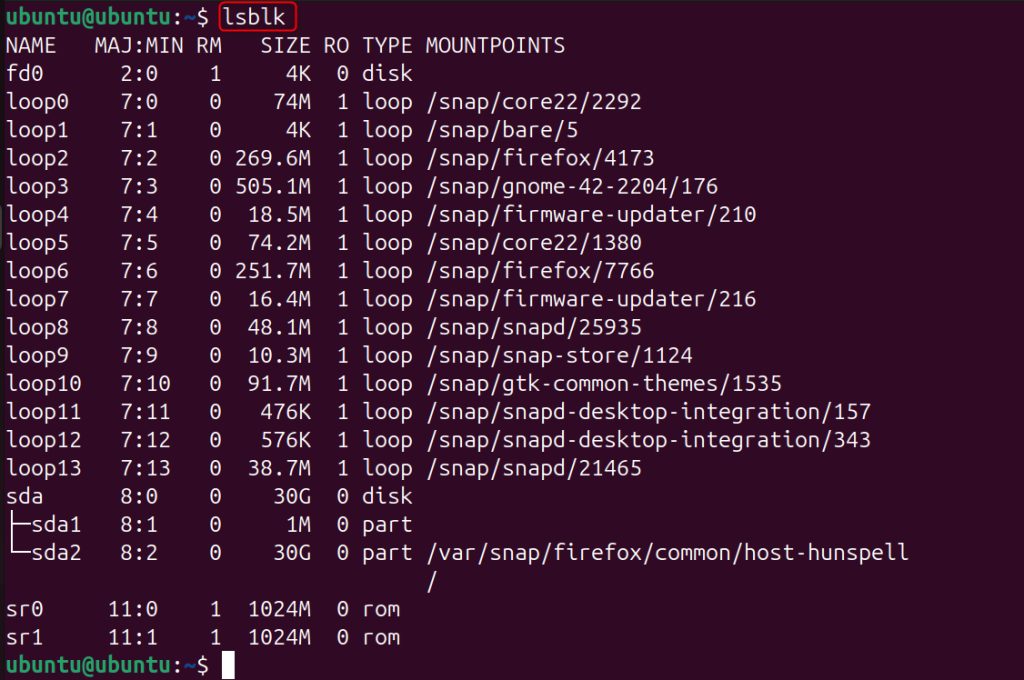
sudo fdisk -l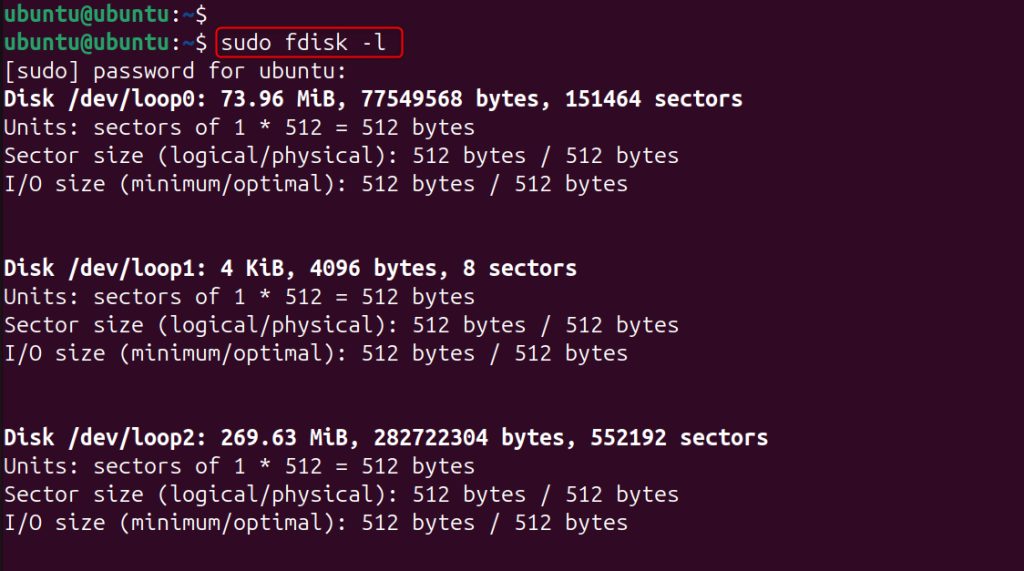
Check the free space
df -h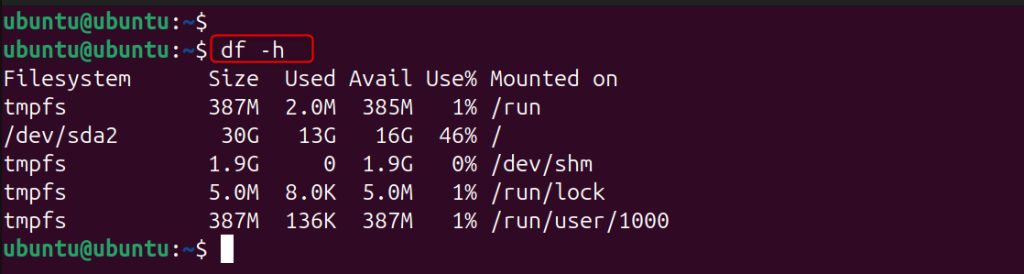
Method 1: growpart (easiest)
growpart extends a partition to use the free space after it. It is common on cloud VPS servers after you increase the disk size in the provider panel.
Step 1: Install growpart
Ubuntu and Debian:
sudo apt install cloud-guest-utils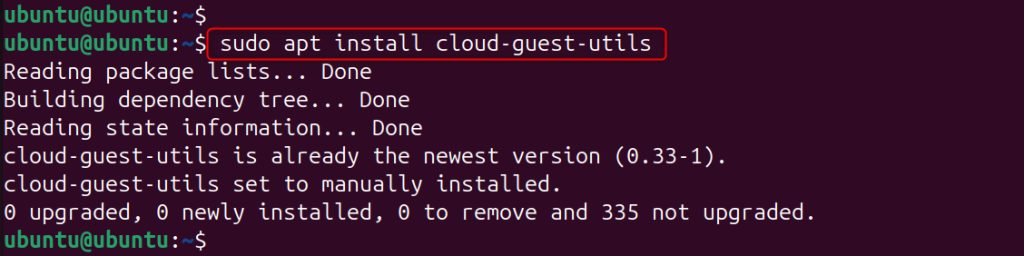
CentOS, AlmaLinux and Rocky:
sudo yum install cloud-utils-growpartStep 2: Grow the partition
Use the disk and the partition number (here the disk is /dev/sda and the partition is number 2):
sudo growpart /dev/sda 2
Step 3: Grow the file system
For ext4:
sudo resize2fs /dev/sda2
For XFS use the mount point instead:
sudo xfs_growfs /Method 2: fdisk
With fdisk you delete the partition entry and create it again with the same start sector and a larger end. The data stays because only the partition table changes. The partition should not be mounted, or the file system must support online growing.
Step 1: Open fdisk on the disk
sudo fdisk /dev/sda
(Use the disk, not the partition.)
Step 2: Note the start sector, then delete the partition
Type p to print the table and write down the Start sector of the partition. Then type d and choose the partition number.
Step 3: Recreate the partition
Type n, choose the same partition number, enter the same start sector, and set a larger end (press Enter to use all the free space). When asked to remove the file system signature, answer No.
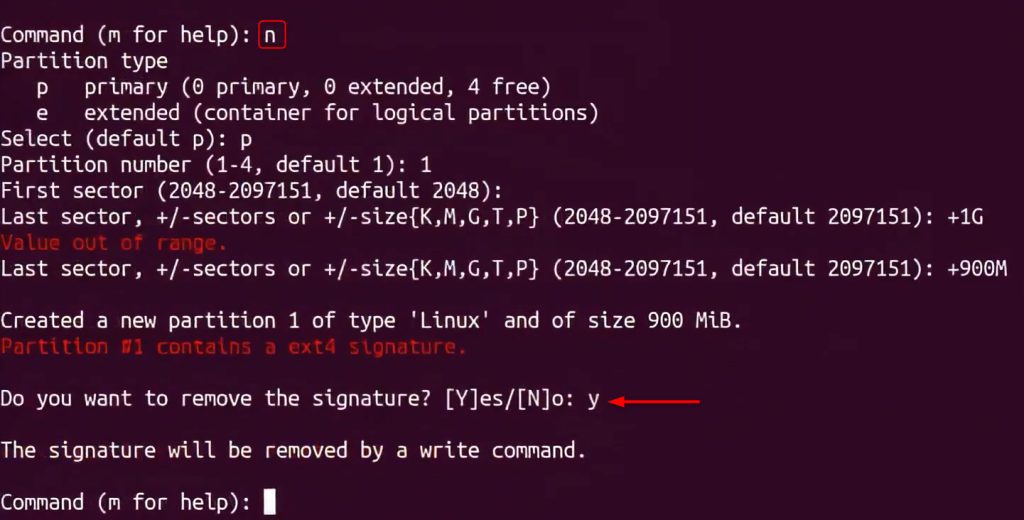
Step 4: Write the changes
Type w.

Step 5: Grow the file system
sudo resize2fs /dev/sda2
Method 3: parted
Step 1: Open parted
sudo parted /dev/sda
Step 2: View the layout
print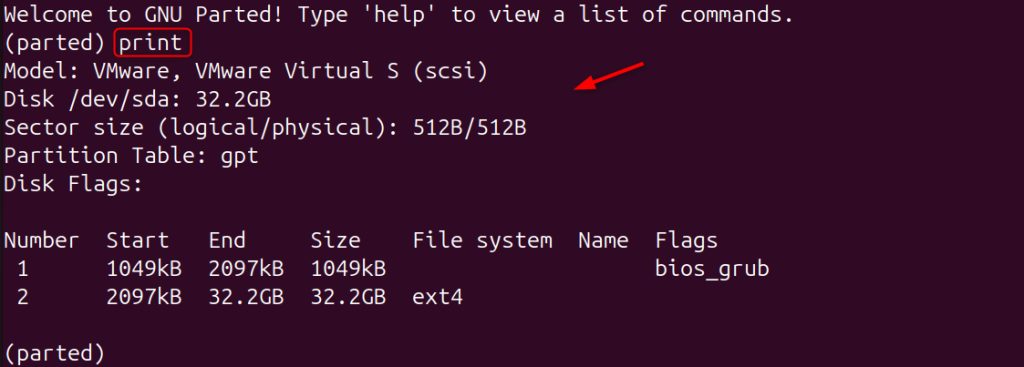
Step 3: Resize the partition
resizepart 2 100%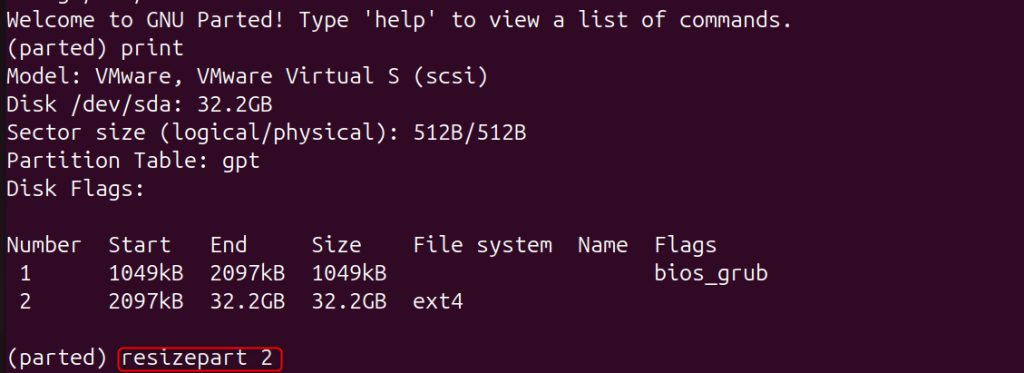
Type quit to leave.
Step 4: Grow the file system
sudo resize2fs /dev/sda2
Check the result
df -h
lsblk
Tips
- Always back up first.
- Do not shrink a partition before you shrink its file system, or you will lose data. Shrink the file system first, then the partition.
- For LVM volumes, use
lvextend -r -l +100%FREE /dev/vg/lv.
Quick recap
- Grow the partition (
growpart,fdiskorparted), then the file system (resize2fsorxfs_growfs).