

Push and pull
- Push uploads an image to a registry, here Docker Hub.
- Pull downloads an image from it.
Docker Hub is the official public registry. A free account gives you public repositories and a limited number of private ones.
Step 1: Install Docker
Install Docker on your machine. On Ubuntu: sudo apt install docker.io.
Step 2: Create an account and log in
Create a free account on hub.docker.com.
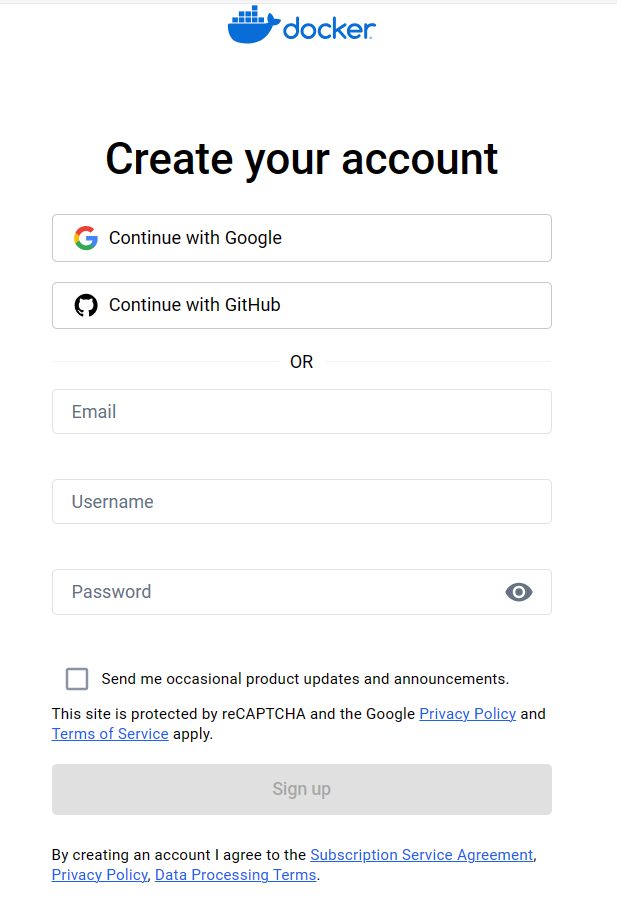
Log in from the terminal:
docker login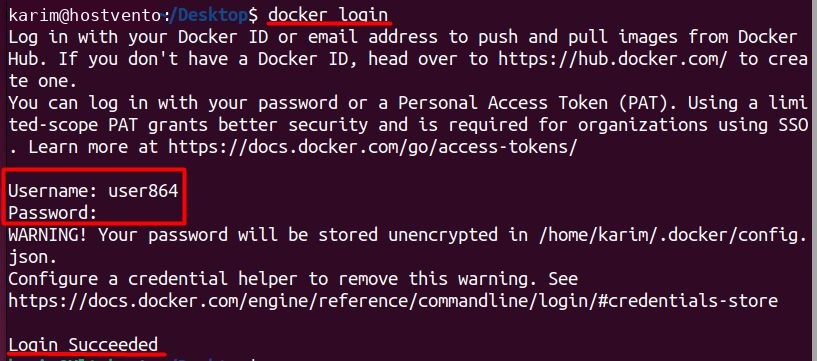
Enter your username and password (or an access token, which is safer and can be created under Account Settings > Security).
Step 3: Tag the image
List your images and find the image ID:
docker images
Tag it with your Docker Hub username and a repository name:
docker tag <image_id> <username>/<repository_name>:<tag>Example:
sudo docker tag d2c94e258dcb user864/myhello:latest
You can also tag by name instead of ID, for example docker tag myhello user864/myhello:latest.
Step 4: Push the image
docker push <username>/<repository_name>:<tag>Example:
sudo docker push user864/myhello:latest
The image now appears in your repository on Docker Hub.
Step 5: Pull the image
On any machine with Docker:
docker pull <username>/<repository_name>:<tag>Example:
docker pull user864/myhello:latest
Run it:
docker run user864/myhello:latestSecurity considerations
- Do not put passwords, keys or secrets in an image. Anyone who pulls a public image can read them.
- Use access tokens instead of your password, and log out on shared machines with
docker logout. - Use private repositories for private code.
- Scan images for known problems and use trusted base images.
- Pin tags like
1.2.3instead oflatestfor production.
Quick recap
docker login,docker tag,docker push,docker pull.