

Why secure SSH
SSH (Secure Shell) is the way you manage your VPS from far away. A secure SSH connection:
- Encrypts your login and your commands.
- Keeps strangers out of the server.
- Stops others from misusing your server for attacks.
- Helps keep your services running.
An SSH key pair is much stronger than a password. The private key stays on your computer. The public key goes on the server.
Steps
- Create the key pair on your computer if you do not have one yet:
ssh-keygen -t ed25519- Copy the public key to the server. Replace the user and IP:
ssh-copy-id username@server_IPIf ssh-copy-id is missing, paste the content of your .pub file into ~/.ssh/authorized_keys on the server.
- Connect with your private key.
OpenSSH (Linux and macOS)
- Open a terminal.
- Run:
ssh -i /path/to/private_key username@server_IP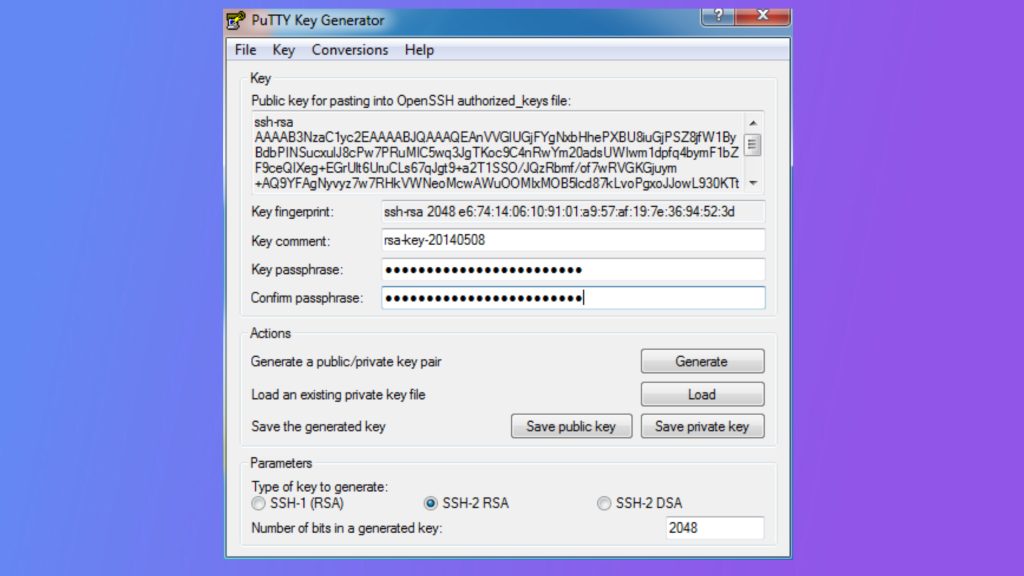
- If the key has a passphrase, type it when asked.
PuTTY (Windows)
- Download and install PuTTY from its official website. If your key is in OpenSSH format, convert it with PuTTYgen first.
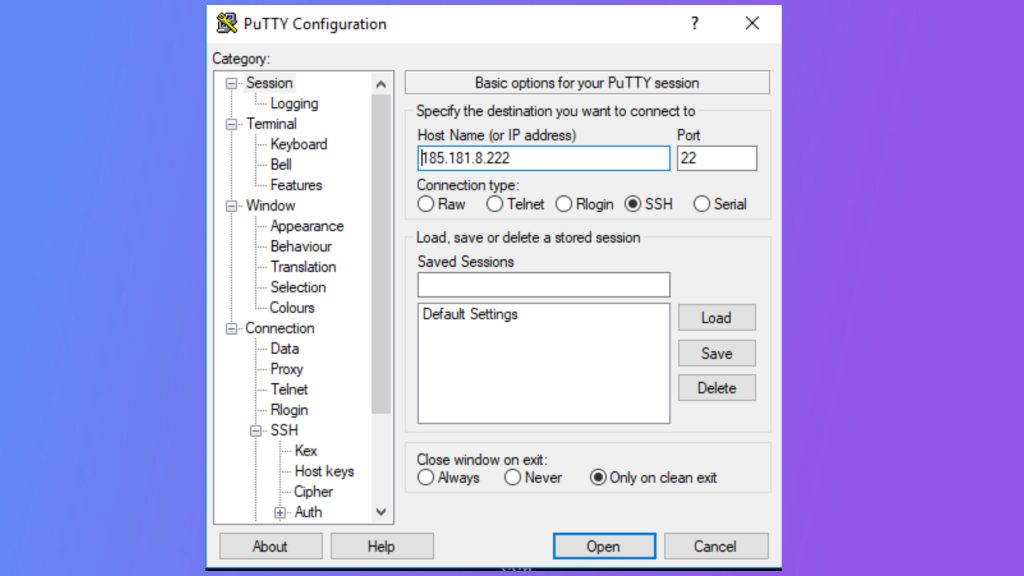
- Open PuTTY. Enter the server IP or domain in Host Name.
- In the left panel, go to Connection, SSH, Auth.
- Click Browse next to Private key file for authentication and pick your
.ppkfile. - Go back to Session, and (optional) save the session under a name.
- In Connection, Data, enter the user name in Auto-login username.
- Click Open. Enter the passphrase if you set one.
Harden the server
After the key login works, edit /etc/ssh/sshd_config on the server:
PasswordAuthentication no
PermitRootLogin no
Reload SSH:
sudo systemctl reload sshdWarning: Keep your current session open and test a new login in a second window before you close it. Otherwise a mistake can lock you out.
Quick recap
- Use an SSH key pair, not a password.
- Copy the public key to the server, keep the private key safe.
- Turn off password and root logins when the key works.