

Why connect to Linux with Remote Desktop
- You can use Linux-specific applications and tools.
- You can manage Linux servers without being near them.
- You can work from anywhere, with more flexibility.
- You save on hardware and software costs by using one computer for both.
What you need
- A Linux machine with a desktop environment (such as XFCE, GNOME or KDE).
- An RDP server on Linux, such as xrdp.
- A Windows PC with the Remote Desktop Connection app (
mstsc). - A network path between them (an open port 3389).
Step 1: Install an RDP server on Linux
Install xrdp (an RDP server). On Ubuntu:
sudo apt update
sudo apt install xrdp
sudo systemctl enable --now xrdp
If the server has no desktop, install a light one first:
sudo apt install xfce4 xfce4-goodies
echo "xfce4-session" > ~/.xsession
Other options are VNC servers (see our VNC guide) or TeamViewer.
Step 2: Open the firewall
sudo ufw allow 3389/tcpFor better security, allow only your own IP address: sudo ufw allow from YOUR_IP to any port 3389 proto tcp.
Step 3: Check the user account
The Linux user needs a password set. Check or set it with:
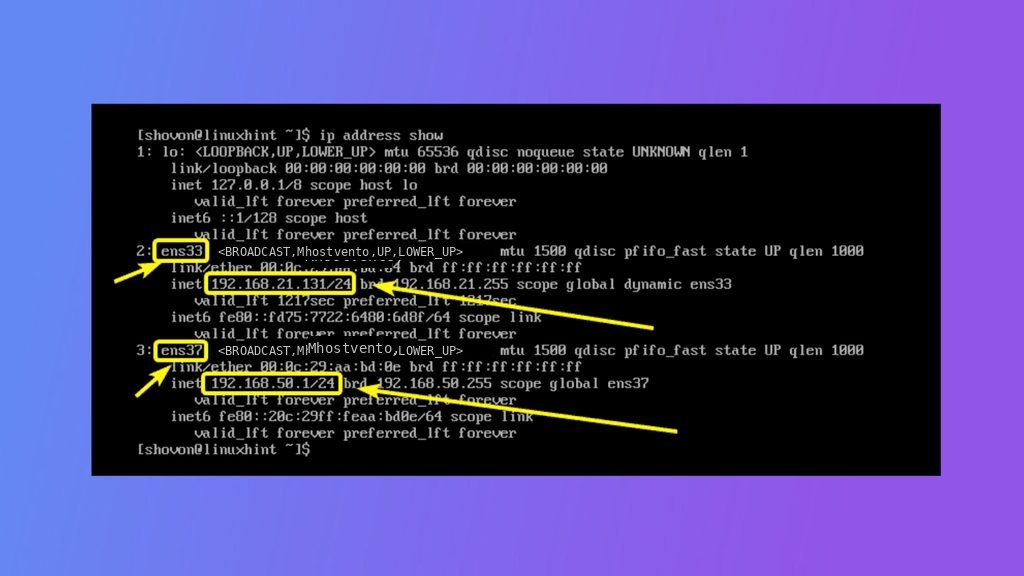
sudo passwd usernameFind the IP address of the Linux machine:
ip addr showStep 4: Connect from Windows
- Press
Win + R, typemstscand press Enter. - In Computer enter the IP address of the Linux machine.
- Click Connect.
- In the xrdp login window choose the session Xorg, then enter the Linux user name and password.
- The Linux desktop opens.
Troubleshooting
- Black screen after login: make sure you installed a desktop and set the session in
~/.xsession. Do not log in to the same user on the local screen at the same time. - Cannot connect: check that
xrdpruns (systemctl status xrdp) and that port 3389 is open on the firewall and in the provider panel. - Keyboard or clipboard problems: restart xrdp.
Warning: Do not leave RDP open to the whole internet. Use a VPN, an SSH tunnel (
ssh -L 3389:localhost:3389 user@server) or allow only trusted IP addresses.Quick recap
- Install xrdp and a desktop, open port 3389 and connect with
mstsc.