

Why the version matters
Each Ubuntu release gets its own security fixes. Some software only runs on certain releases. When you ask support for help, they will often ask which version you use. It takes less than a minute to check.
Check in the desktop (GUI)
Use this way if you have a screen with the Ubuntu desktop.
- Click Activities or the Applications icon in the bottom left corner.
- Search for Settings and open it.
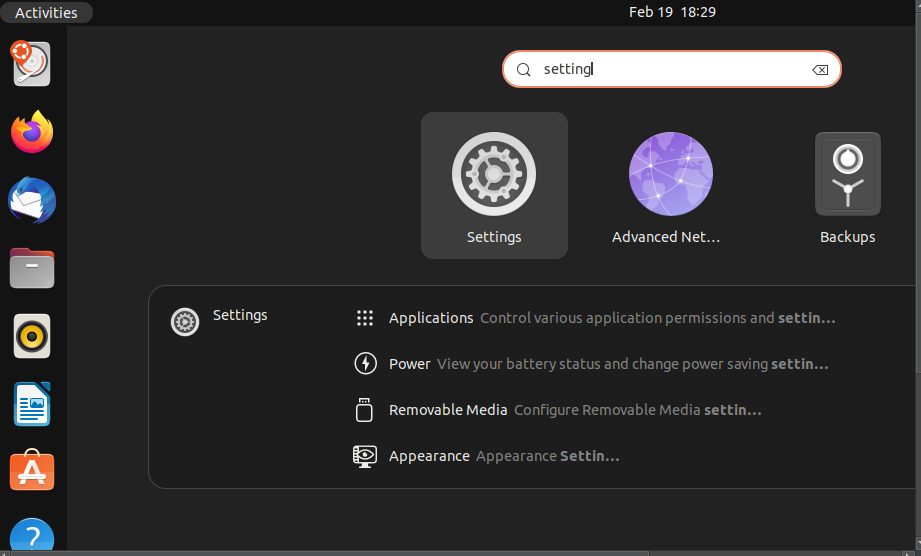
- Scroll down the left sidebar and click About.
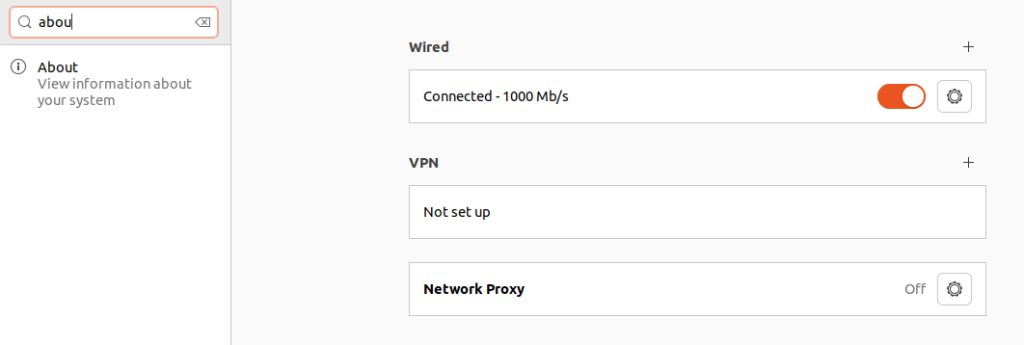
- Your version is shown next to OS Name.
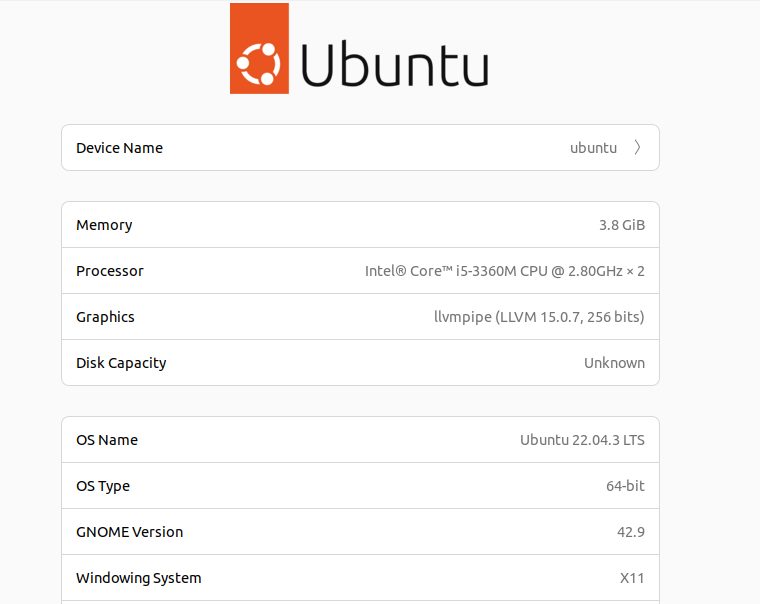
You can also open System Information from the same search box. The version is listed under Operating System.
Check on the command line
On a VPS you usually have no desktop, so use the terminal. On a desktop, press Ctrl + Alt + T to open it.
Option 1: lsb_release
lsb_release -aLook at the Description and Release lines. They show the version and its code name.
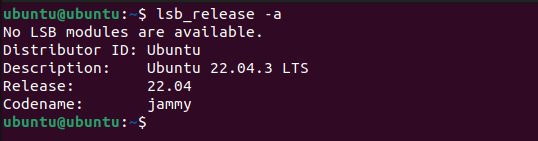
If you only want the number, run:
lsb_release -rOption 2: os-release file
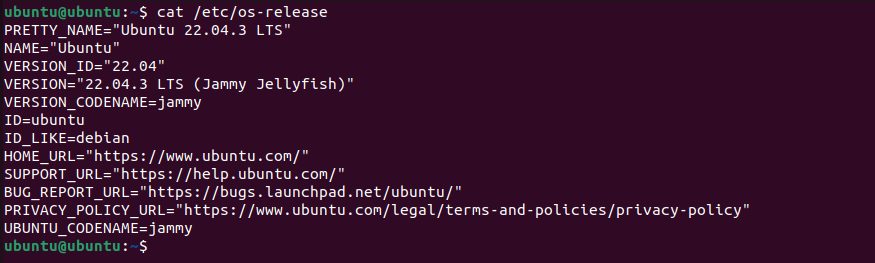
cat /etc/os-releaseFind the lines that start with VERSION= or VERSION_ID=.
Option 3: issue file
cat /etc/issueThe first line shows the version and code name.

Quick recap
- On a desktop, open Settings, then About.
- On a server, run
lsb_release -a. cat /etc/os-releaseworks on almost every Linux system.- Check the version before you install new software.