

Why check
- Make sure software and hardware are compatible.
- Fix problems that belong to one distribution.
- Know when you need security updates.
- Tune the system for your kernel.
Open a terminal, or connect to your server with SSH.
Method 1: uname
uname -a
How to read the output:
- Linux is the operating system.
- The next number, such as
6.5.0-28-generic, is the kernel version. - The long text after it holds the build details of the kernel.
x86_64is the architecture. It means a 64-bit system.
Method 2: os-release file
cat /etc/os-release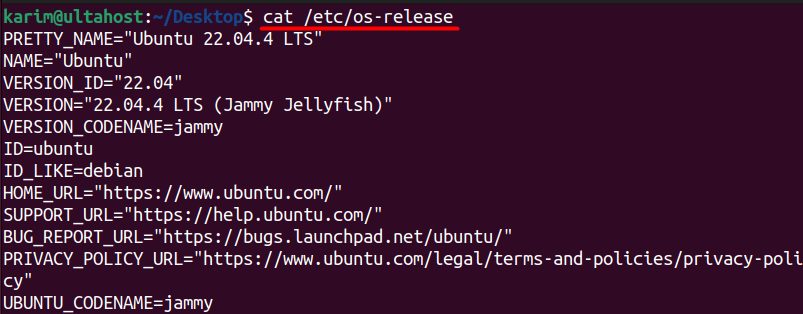
Useful lines:
PRETTY_NAMEis the friendly name, for example "Ubuntu 22.04.4 LTS".NAMEis the distribution name.VERSION_IDis the version number.VERSIONhas more version details.
Method 3: lsb_release
lsb_release -a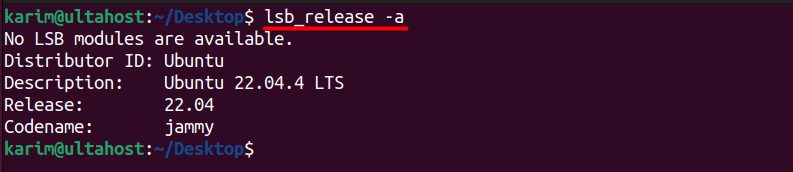
It prints the distributor ID, description, release and code name. On some systems you must install the lsb-release package first.
Method 4: hostnamectl
hostnamectl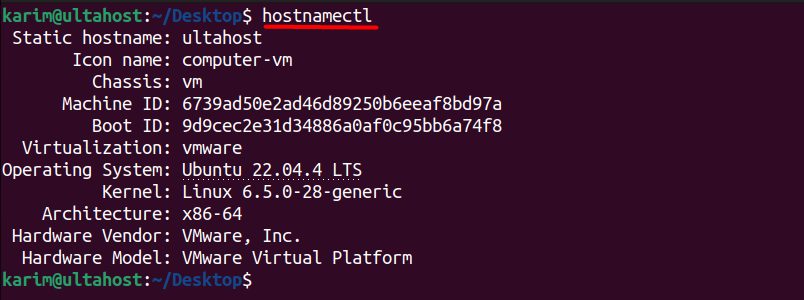
You see the operating system, the kernel and the architecture in one view.
Quick recap
cat /etc/os-releaseworks almost everywhere.uname -agives the kernel.hostnamectlshows both in one view.