

Two kinds of audio
- Playback. You hear sounds from the remote PC on your local speakers.
- Recording. The remote PC uses your local microphone.
Audio redirection uses extra bandwidth. Turn it on only if you need it.
Step 1: Prepare the remote computer
Check the Windows Audio service
- Press
Win + R, typeservices.mscand pressEnter.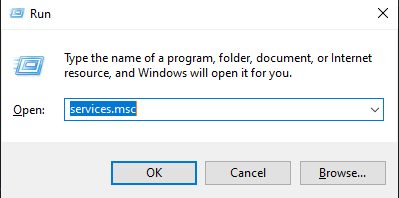
- Find Windows Audio.
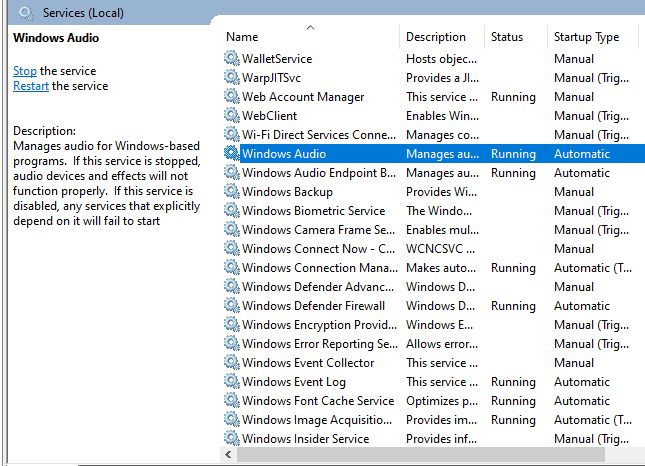
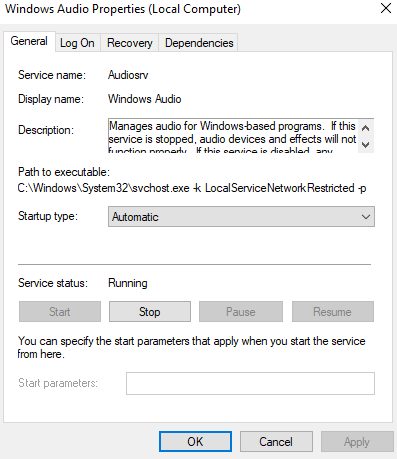
- Right-click it and choose Properties. Make sure Startup type is Automatic and the service is Running. Click Start if it is not.
Set the default audio devices
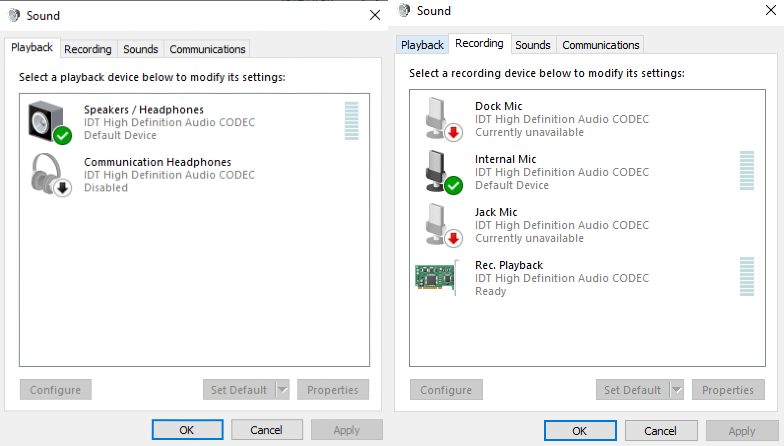
- Right-click the speaker icon in the taskbar and open Sound settings (or Sounds).
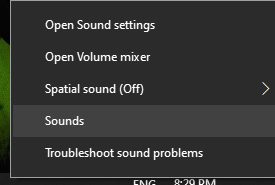
- On the Playback and Recording tabs, choose the default devices.
Step 2: Set up your local computer
- Open the Start menu and search for Remote Desktop Connection (or run
mstsc).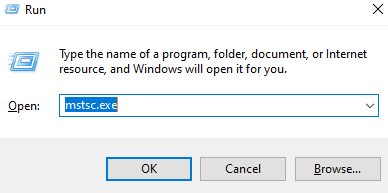
- Click Show Options.
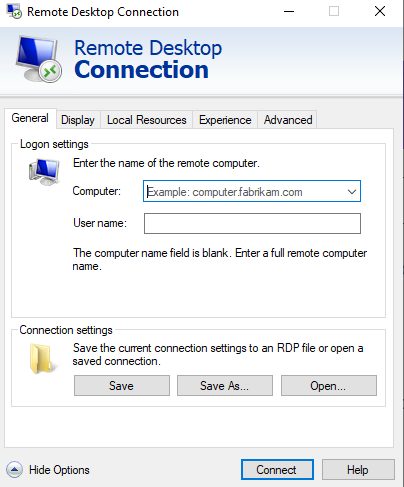
- Open the Local Resources tab. Under Remote audio, click Settings.
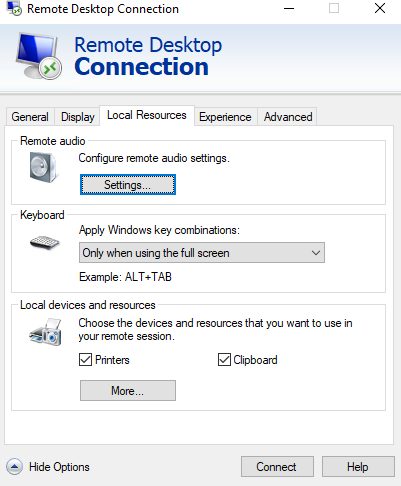
- Under Remote audio playback, choose Play on this computer.
- Under Remote audio recording, choose Record from this computer if you need your microphone.
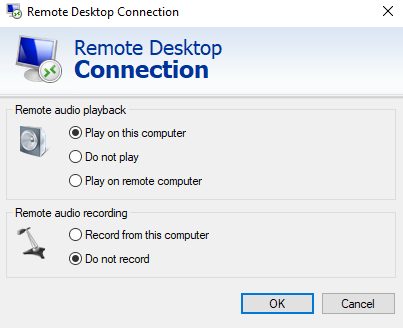
- Click OK, then Connect. Play a sound in the session to test it.
If there is still no sound
- Check the volume on the remote PC and on your own PC.
- Restart the Windows Audio service on both computers.
- Check that the right devices are the defaults on both sides.
- Update the audio drivers.
- Make sure your firewall does not block RDP traffic.
- On a Windows Server, audio redirection can be turned off by policy. In the Group Policy editor, look at Allow audio and video playback redirection under Remote Desktop Services, Device and Resource Redirection.
Note: Other RDP clients, such as those for Mac or Android, have their own audio settings.
Quick recap
- Make sure Windows Audio runs on the remote PC.
- On your PC, choose Play on this computer under Remote audio.
- Use the troubleshooting list when sound is still missing.