

What it is
Windows Sandbox is a light virtual machine built into Windows 10 and 11 (Pro and Enterprise). Each time you open it, you get a clean copy of Windows. When you close it, everything inside is deleted. It came with Windows 10 version 1903.
What you need
- Windows 10 or 11 Pro or Enterprise.
- A 64-bit processor.
- Hardware virtualization turned on in the BIOS or UEFI.
- At least 2 CPU cores (4 are better).
- At least 4 GB of RAM.
- At least 1 GB of free disk space.
Check virtualization
Press Ctrl + Shift + Esc to open Task Manager. On the Performance tab, look under the CPU graph. It should say Virtualization: Enabled.
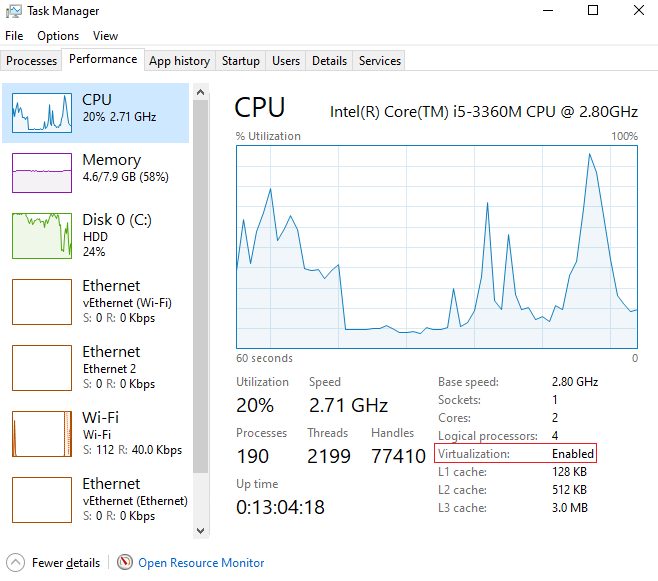
If it says Disabled, restart the PC, open the BIOS or UEFI settings and enable virtualization (often called Intel VT-x or AMD-V).
Method 1: Windows Features
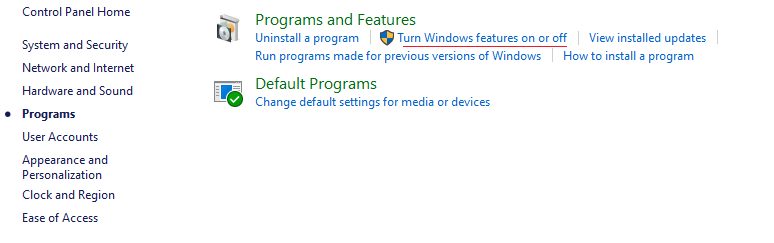
- Open Control Panel, then Programs, then Programs and Features. Click Turn Windows features on or off.
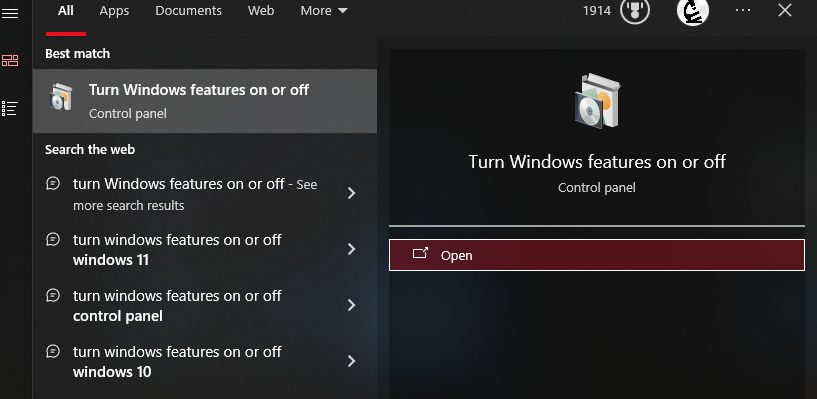
You can also search for "Turn Windows features on or off" in the Start menu.
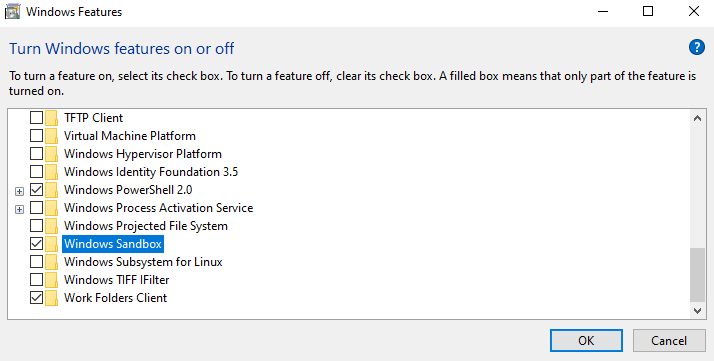
- Scroll down and tick Windows Sandbox. Click OK.
- Wait for the installation, then restart the PC if Windows asks.
Method 2: PowerShell
- Search for PowerShell in the Start menu. Right-click it and choose Run as administrator.
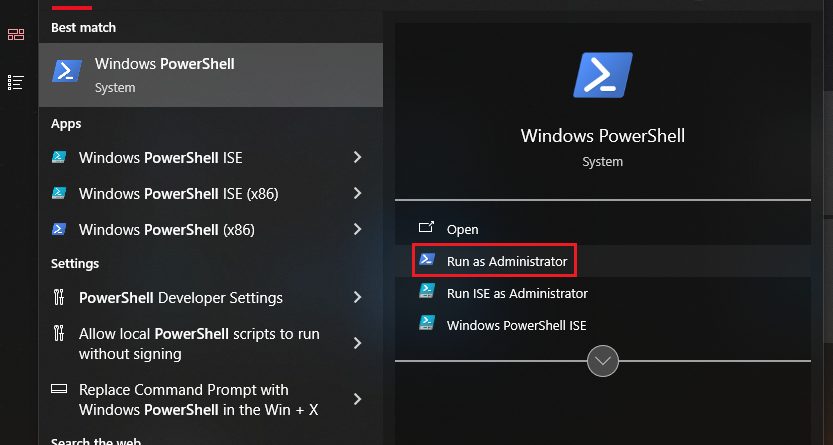
- Run:
Enable-WindowsOptionalFeature -FeatureName "Containers-DisposableClientVM" -All -Online
- Restart the PC when it asks.
Start Windows Sandbox
Open the Start menu and click Windows Sandbox.
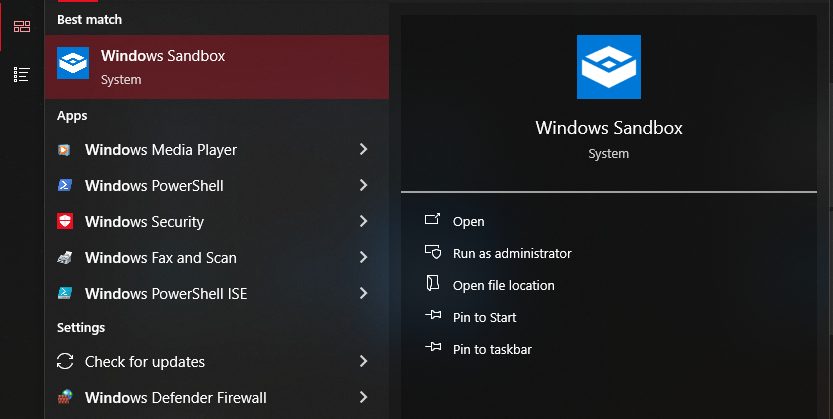
A new window opens with a clean Windows desktop.
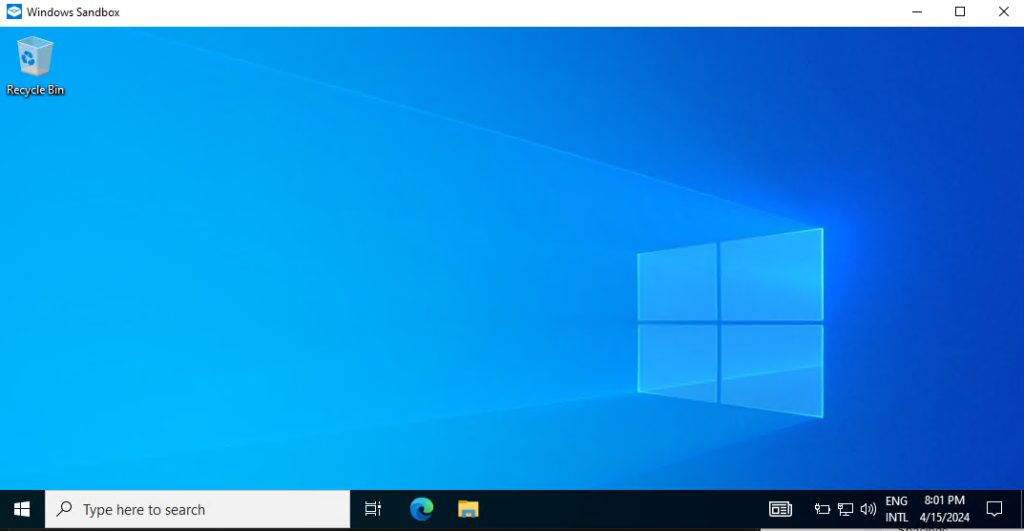
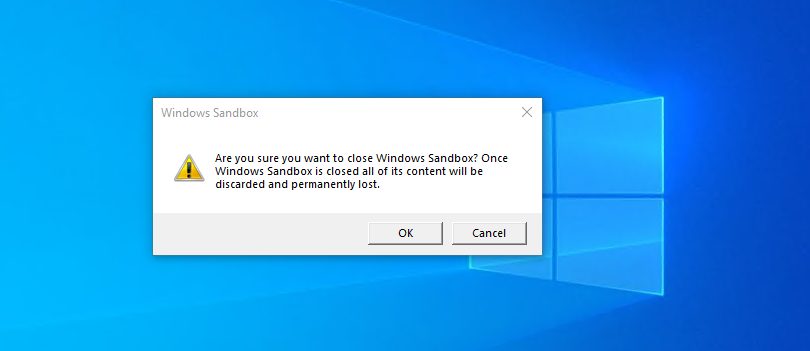
Install and test any software inside it. Nothing changes on your main system. When you close the window, all data in the sandbox is erased.
Tips
- Download test files inside the sandbox browser, not on your main PC.
- The clipboard is shared between the host and the sandbox. You can copy and paste files in.
- For network, folder sharing and other options, use a
.wsbconfiguration file.
Quick recap
- Needs Windows Pro or Enterprise and virtualization.
- Turn it on in Windows Features or with PowerShell.
- Everything inside is deleted when you close it.