

Method 1: System Configuration (msconfig)
Use this if Windows starts normally.
- Press the Windows key, type
System Configuration(ormsconfig) and open it.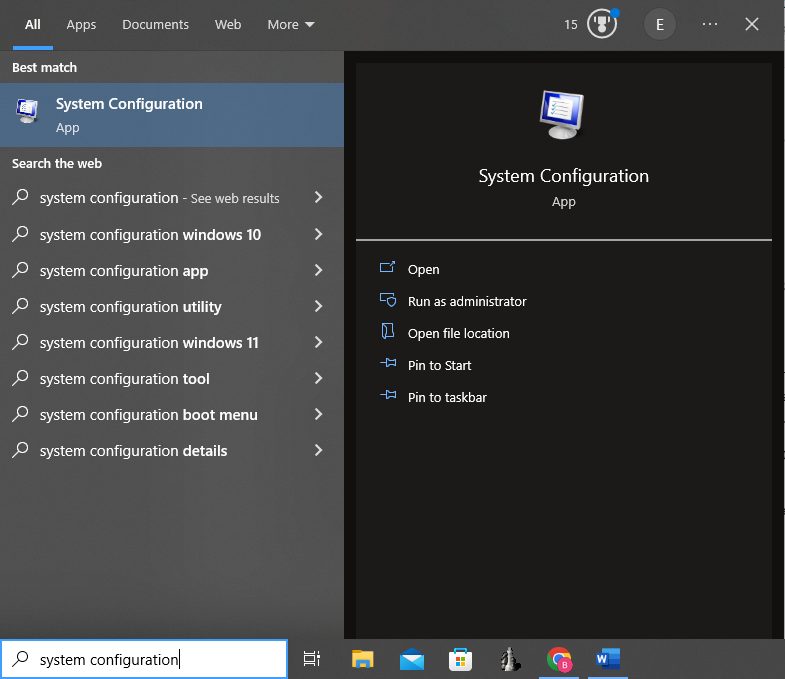
- Open the Boot tab. Under Boot options, tick Safe boot and choose Minimal. Click OK and then Restart.
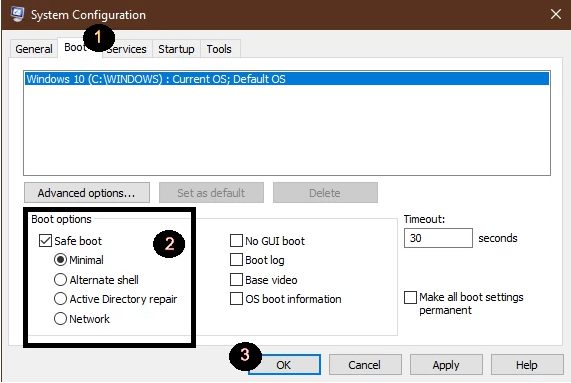
- Windows restarts in Safe Mode.
Important: Windows will start in Safe Mode every time until you undo this. When you are done, open
msconfig again, untick Safe boot and restart.Method 2: Shift + Restart
Use this at the sign-in screen, or when Windows does not start well.
- On the sign-in screen, click the Power button at the bottom right. Hold
Shiftand click Restart.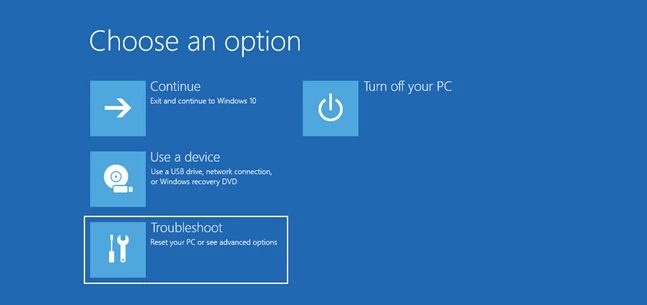
- In the blue screen, click Troubleshoot.
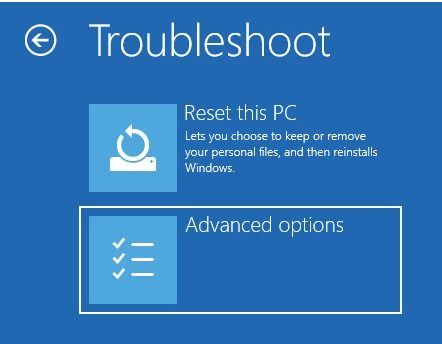
- Click Advanced options.
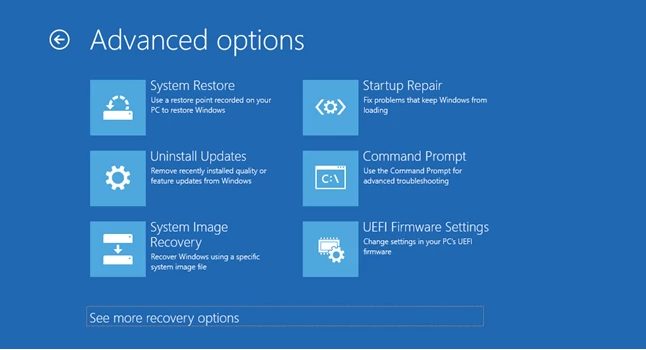
- Click Startup Settings, then Restart.
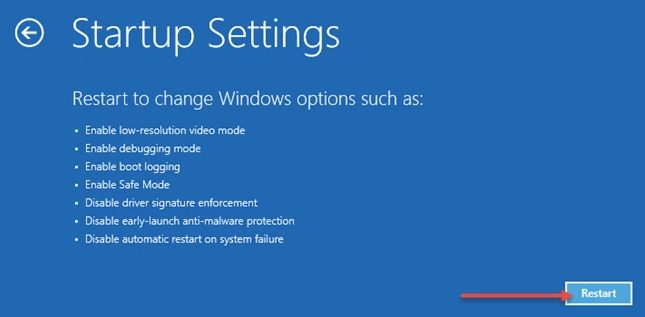
- After the restart, press
4orF4for Safe Mode. Press5orF5for Safe Mode with Networking.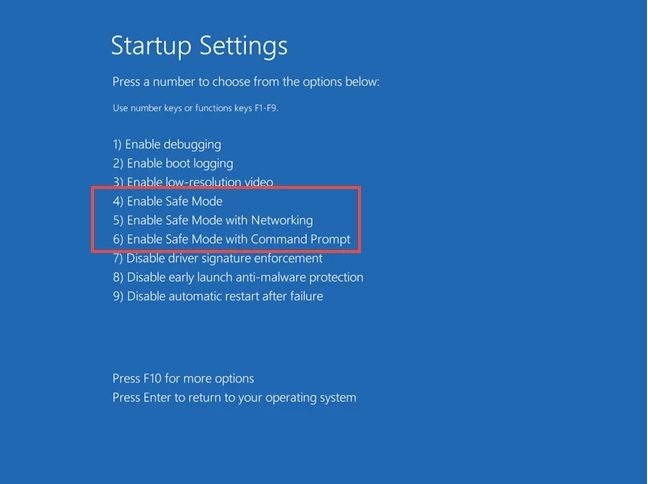
Which Safe Mode to choose
- Safe Mode (4): the minimum drivers and services.
- Safe Mode with Networking (5): also loads network drivers, so you can use the internet.
- Safe Mode with Command Prompt (6): opens a command window and not the desktop.
What to do in Safe Mode
- Uninstall a program or driver that causes trouble.
- Run a malware scan.
- Use System Restore.
- Update or roll back a driver.
Quick recap
msconfig, Boot, Safe boot is the simple way.Shift+ Restart works when Windows will not start normally.- Undo the msconfig setting when you finish.