

What is NSLOOKUP?
DNS is like a phone book for the internet. It turns a website name into a number called an IP address. NSLOOKUP is a small tool that asks DNS questions for you. You can see which IP a site uses, where its email goes, and which nameservers hold its records. A nameserver is a server that stores the DNS records of a domain. It is useful after you move a site or change DNS.
Steps for a simple lookup
- Click Start and type cmd.
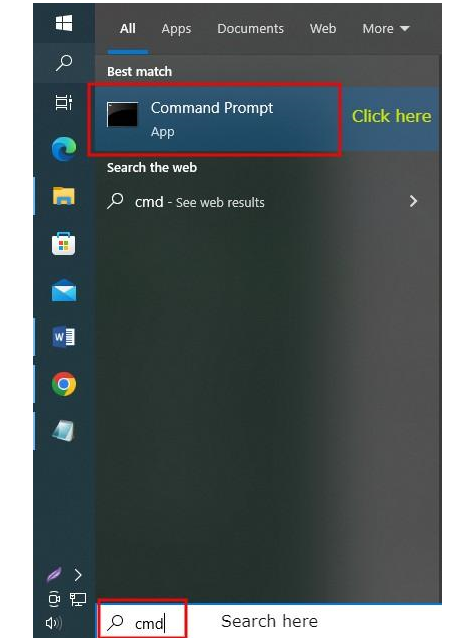
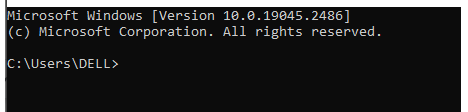
- Open Command Prompt.
- Type this and press Enter:
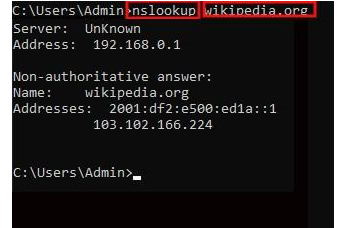
This shows the IP address for example.com. Use your own domain instead.nslookup example.com
- Read the result. The first part tells which DNS server answered. The second part, after "Name:", shows the IP address.
If it says "Non-authoritative answer", the reply came from a cache and not straight from the domain's own nameserver. That is normal.
Look up other record types
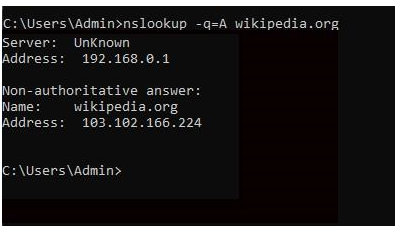
A record type is a kind of DNS entry. Use the -type option.
nslookup -type=MX example.com
nslookup -type=NS example.com
nslookup -type=TXT example.com
nslookup -type=CNAME www.example.com- MX shows where the domain's email goes.
- NS shows the nameservers.
- TXT shows text notes, often used for email security.
- CNAME shows if a name is an alias for another name.
Ask a specific DNS server
Add the DNS server at the end of the command. This is handy to compare answers.
nslookup example.com 8.8.8.8This asks Google's public DNS server, 8.8.8.8, instead of your own.
Interactive mode
- Type
nslookupalone and press Enter. - At the
>prompt, typeset type=MX. - Type a domain name and press Enter.
- Type
exitto leave.
Read the result
- "Can't find example.com: Non-existent domain" means the name does not exist in DNS.
- "Request timed out" means the DNS server did not answer.
- Different IPs from different DNS servers may mean a change is still spreading. This can take hours.
Tip: If your result looks old, clear your computer's DNS cache with
ipconfig /flushdns and try again.Quick recap
- NSLOOKUP asks DNS questions from Command Prompt.
- Use
nslookup domainfor the IP.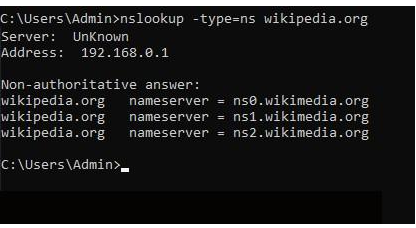
- Use
-type=MX,NSorTXTfor other records. - Add a DNS server at the end to compare answers.