

Why you cannot ping a port
ping uses ICMP, which has no ports. To test a port you must try to open a TCP connection to it. Windows has tools for that.
Method 1: PowerShell (Test-NetConnection)
This is built into Windows.
Test-NetConnection -ComputerName example.com -Port 80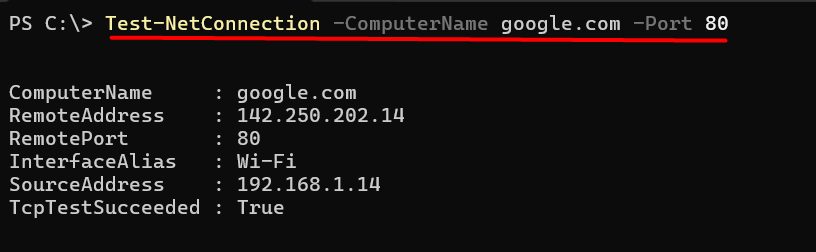
Look at TcpTestSucceeded. True means the port is open. False means it is closed or blocked.
Method 2: Telnet
Telnet is not installed by default. Enable it:
- Open Control Panel > Programs > Turn Windows features on or off.
- Tick Telnet Client and click OK.
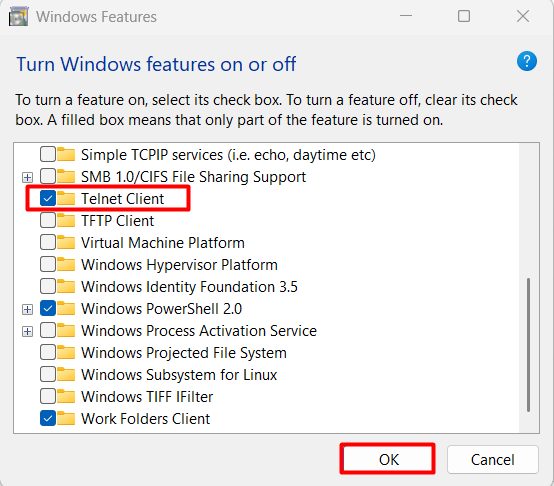
Or, in an administrator Command Prompt: dism /online /Enable-Feature /FeatureName:TelnetClient.
Test the port:
telnet example.com 80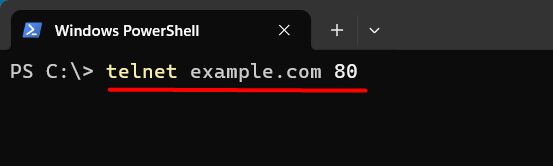
A blank screen means the connection worked. Could not open connection means the port is closed or blocked.
Method 3: Nmap
Download Nmap from its official website and install it.
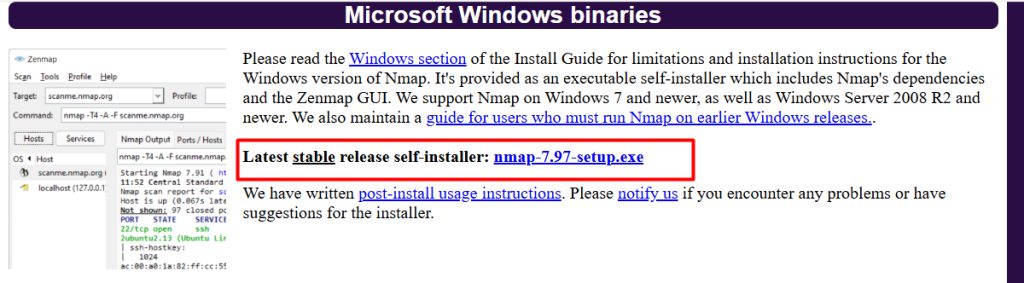
Scan one port:
nmap -p 443 example.com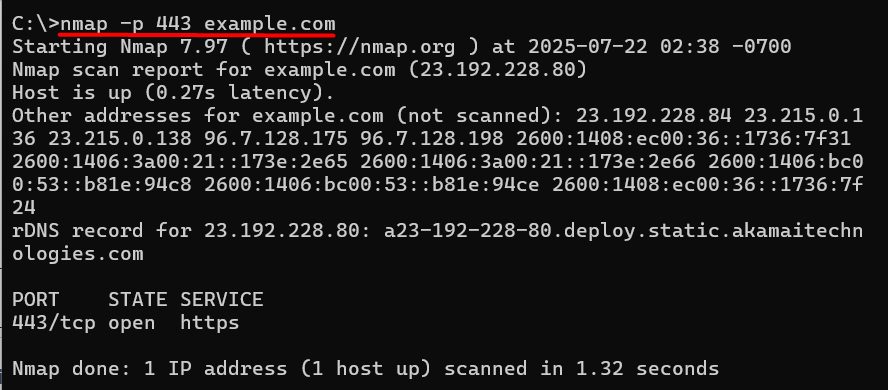
Quick scan of the 100 most common ports:
nmap -F example.com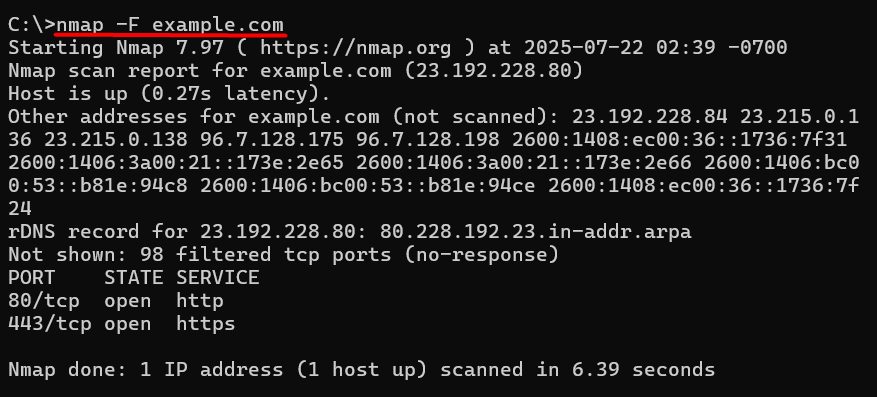
Read the results
- Open. The port accepts connections.
- Closed. The host is reachable, but nothing listens on that port.
- Filtered. A firewall, router or security group drops the traffic, so the state is unknown.
Common uses
- Check that a web server (80, 443) or Remote Desktop (3389) is reachable.
- Check that a database port is open for your app.
- Find out whether a firewall rule works.
Security notes
- Test only your own servers or those you have permission to test.
- Do not leave ports like 3389, 1433 or 3306 open to the whole internet.
- Close the ports you do not use.
Quick recap
- Use
Test-NetConnection -ComputerName host -Port number. - Check
TcpTestSucceeded.