

What is IIS?
IIS stands for Internet Information Services. It is the web server program from Microsoft. A web server program hands out web pages to visitors. IIS can host many sites on one server. Each site needs a name so IIS knows which one to show.
That name is set in a binding. A binding links a domain name, an IP address and a port to one website. A port is like a door number. Websites normally use port 80, and port 443 for HTTPS.
Before you start
- You need admin access to the Windows Server (RDP login). RDP lets you see the server screen from your computer.
- Your domain's DNS must point to the server's IP address. DNS is the phone book that connects names to numbers. Set this at your domain registrar.
- Put your website files in a folder on the server.
Steps
- Connect to the server with Remote Desktop.
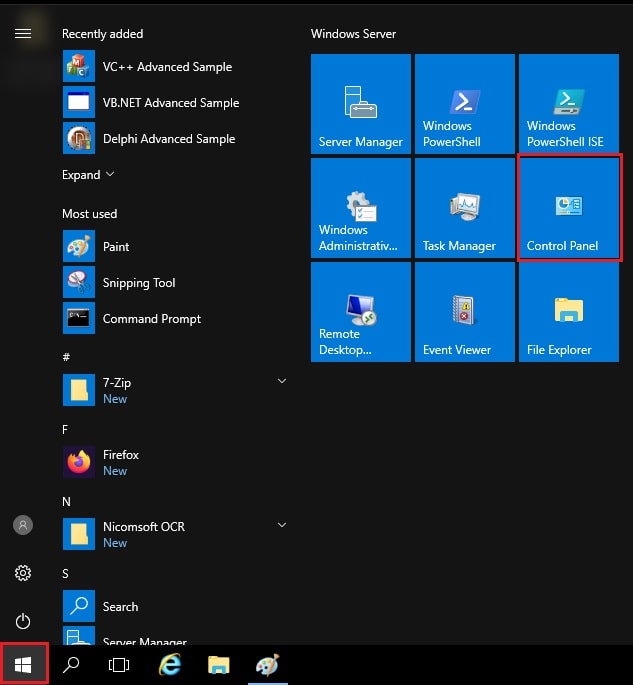
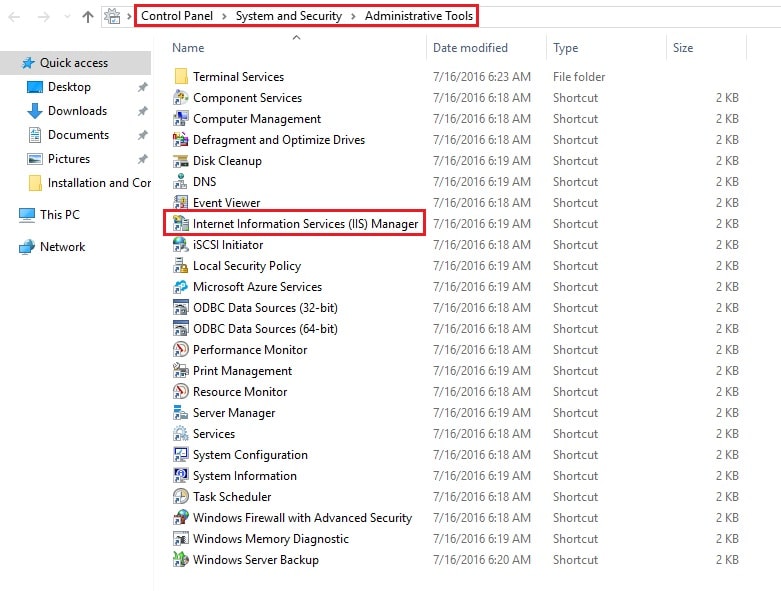
- Open Server Manager. Go to Tools and click Internet Information Services (IIS) Manager.
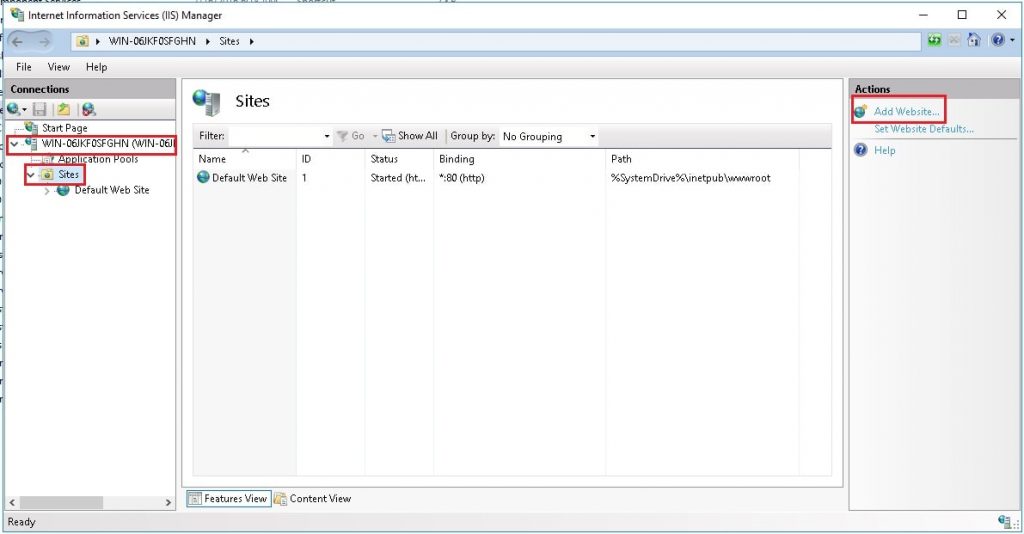
- In the left panel, expand your server name.
- Right-click Sites and choose Add Website. To use an existing site, click on it instead.
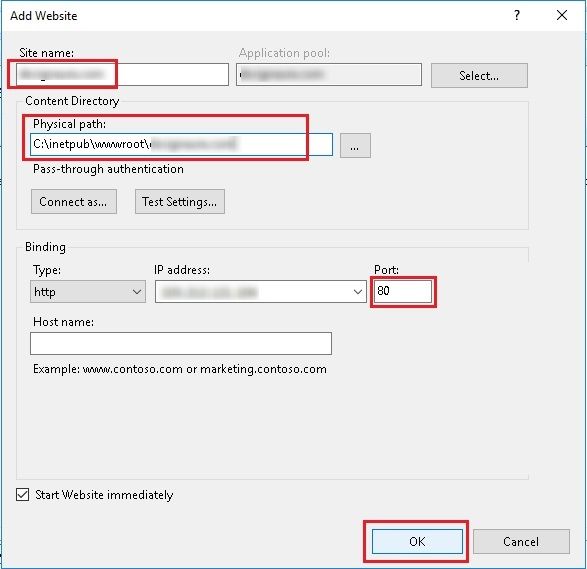
- Type a name for the site.
- For Physical path, browse to your site folder.
- Leave the type as http and port as 80.
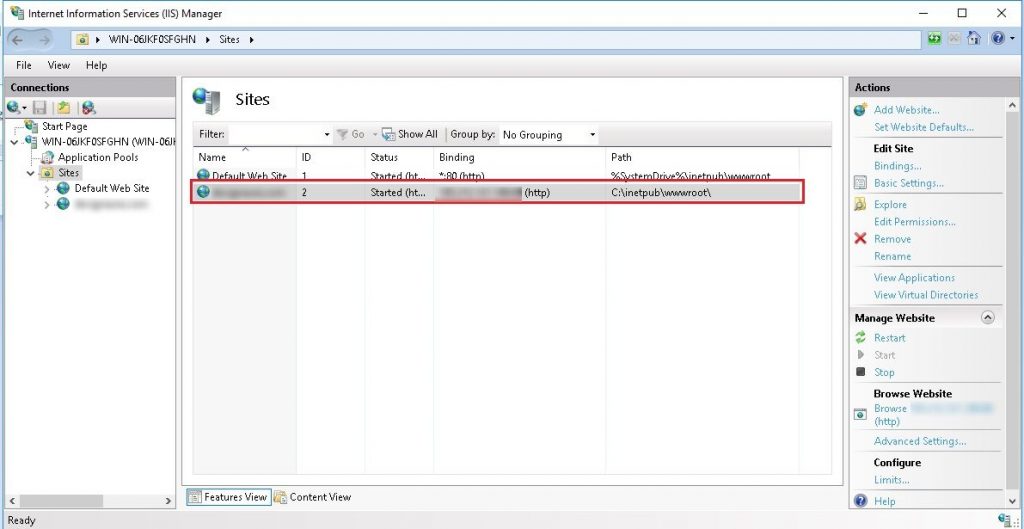
- In the Host name box, type your domain, for example
www.example.com. - Click OK.
Adding more names to an existing site
- Select the site in the left panel.
- Click Bindings on the right side.
- Click Add.
- Enter the host name, such as
example.com. - Click OK, then Close.
Add one binding for the name with www and one without it.
Test it
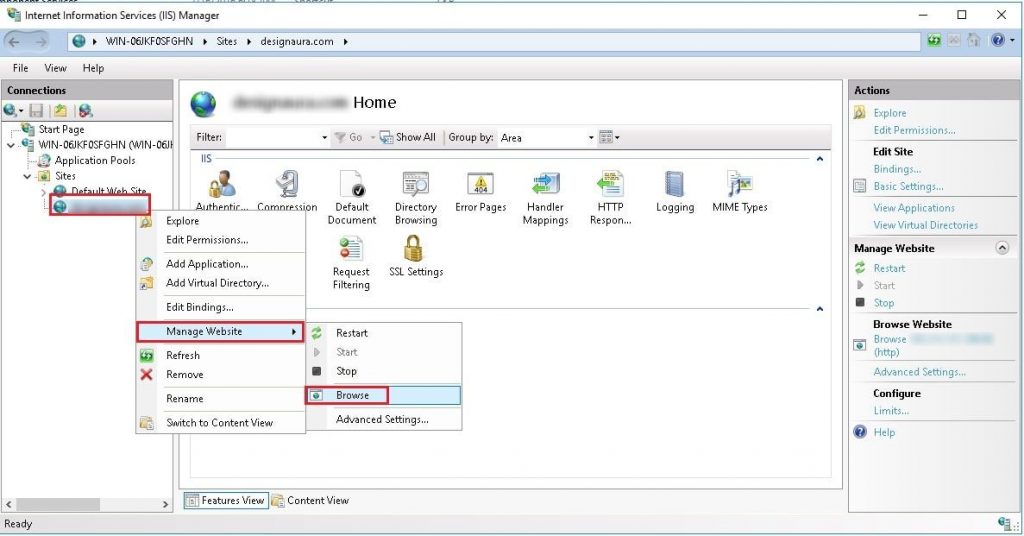
- Open a browser on your own computer.
- Type your domain name.
- Your site should open. DNS changes can take some time to spread.
Tip: If it does not work, check the Windows firewall. Port 80 must be open.
Quick recap
- IIS uses bindings to link a domain to a site.
- Point DNS to the server first.
- Use Add Website or Bindings in IIS Manager.
- Enter the domain in the Host name box.