

Step 1: Update the system
sudo apt update && sudo apt upgrade -y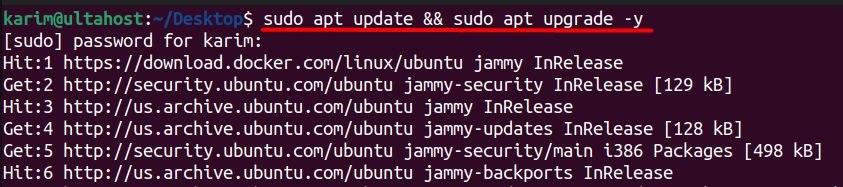
Step 2: Install Apache
sudo apt-get install apache2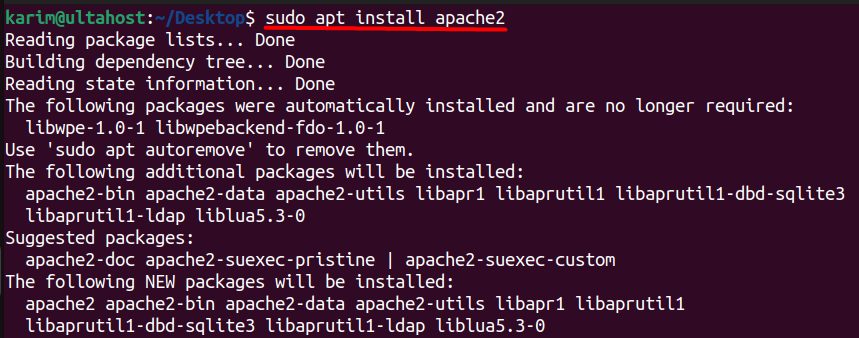
Start it and enable it at boot:
sudo systemctl start apache2 && sudo systemctl enable apache2
Check it:
sudo systemctl status apache2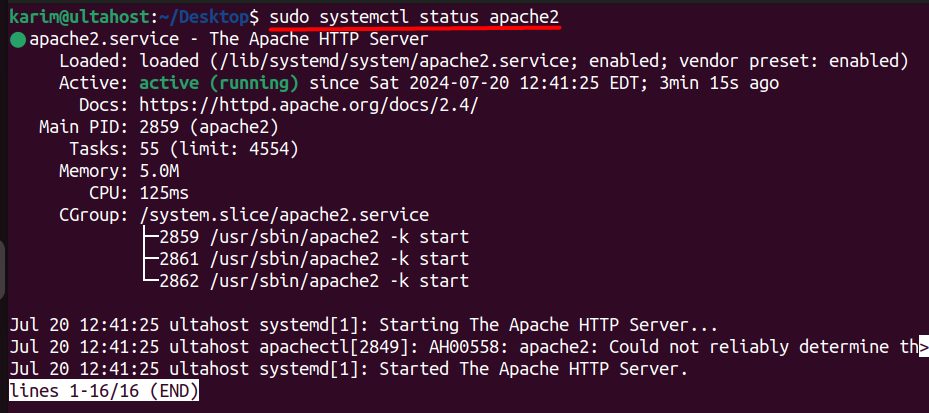
Step 3: Install PHP
sudo apt install php libapache2-mod-php php-mysql php-curl php-gd php-dom php-xml php-mbstring php-zip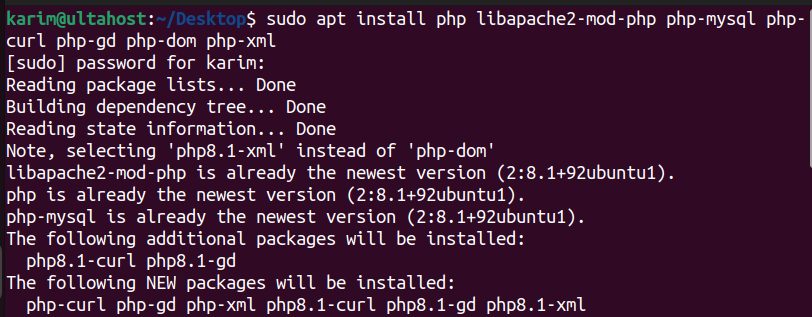
php -v
Step 4: Install MariaDB
sudo apt install mariadb-server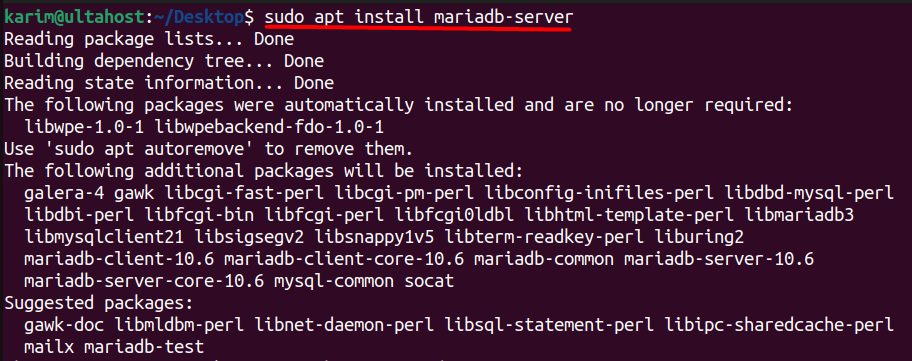
sudo systemctl start mariadb && sudo systemctl enable mariadb
Log in to the database:
sudo mysql -u root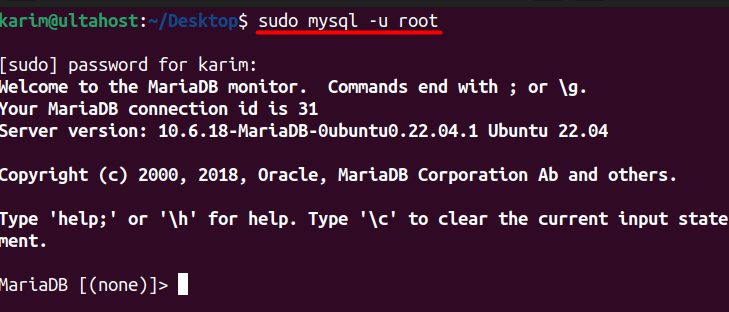
Create a database and a user. Choose a strong password:
CREATE DATABASE concrete5;
CREATE USER 'concrete5'@'localhost' IDENTIFIED BY 'change-this-password';
GRANT ALL PRIVILEGES ON concrete5.* TO 'concrete5'@'localhost';
FLUSH PRIVILEGES;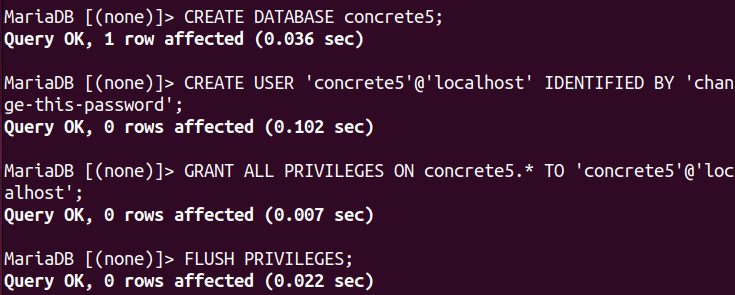
QUIT;
Step 5: Download Concrete CMS
Get the link of the latest version from the Concrete CMS website and download it:
wget https://www.concretecms.com/application/files/3016/5350/5462/concrete-cms-9.1.1.zip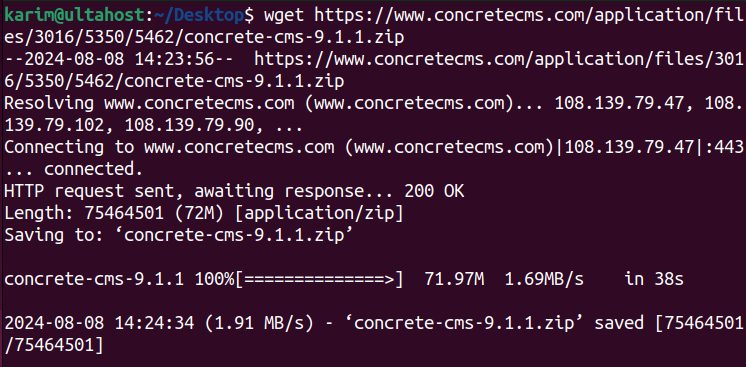
Unzip it (install unzip first if needed):
unzip concrete-cms-9.1.1.zip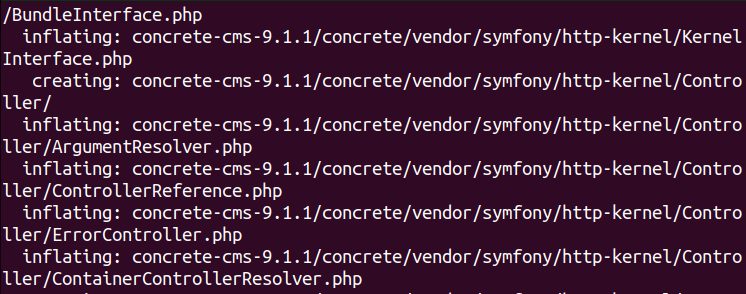
Move it to the web folder:
sudo mv concrete-cms-9.1.1 /var/www/html/concrete5
Set the owner and the permissions:
sudo chown -R www-data:www-data /var/www/html/concrete5/
sudo chmod -R 755 /var/www/html/concrete5
Step 6: Create an Apache virtual host
sudo nano /etc/apache2/sites-available/concrete5.confAdd (change the domain and the paths to match your setup):
<VirtualHost *:80>
    ServerAdmin admin@your-domain.com
    DocumentRoot /var/www/html/concrete5
    ServerName your-domain.com

    <Directory /var/www/html/concrete5>
        Options FollowSymlinks
        AllowOverride All
        Require all granted
    </Directory>

    ErrorLog ${APACHE_LOG_DIR}/your-domain.com_error.log
    CustomLog ${APACHE_LOG_DIR}/your-domain.com_access.log combined
</VirtualHost>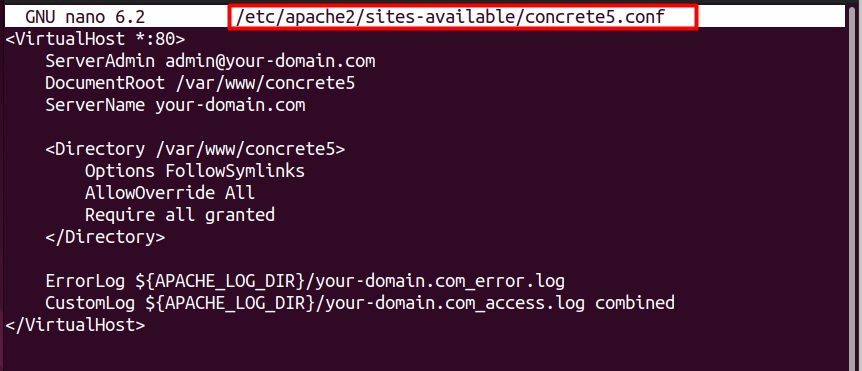
Step 7: Enable the site
sudo a2ensite concrete5.conf
sudo a2enmod rewrite
sudo systemctl reload apache2
Step 8: Finish in the browser
Open https://your-domain.com/index.php/install (or http:// if you do not have SSL yet).
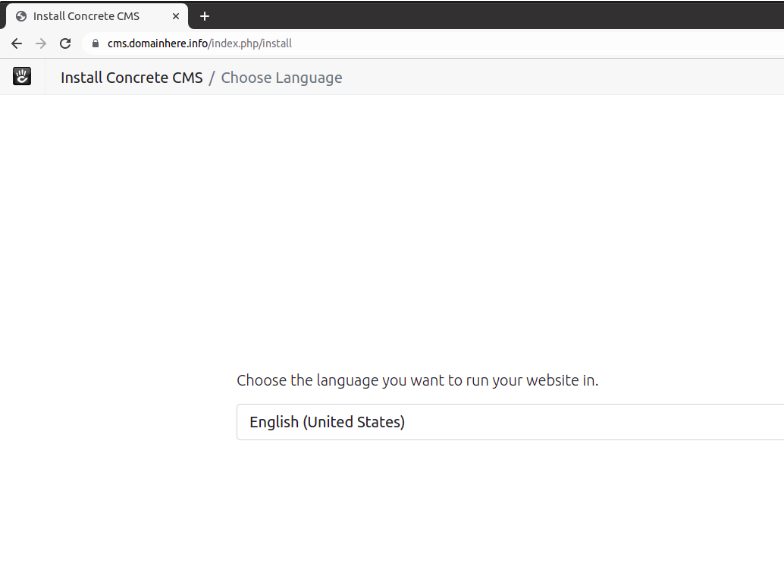
- Check the requirements and choose your language.
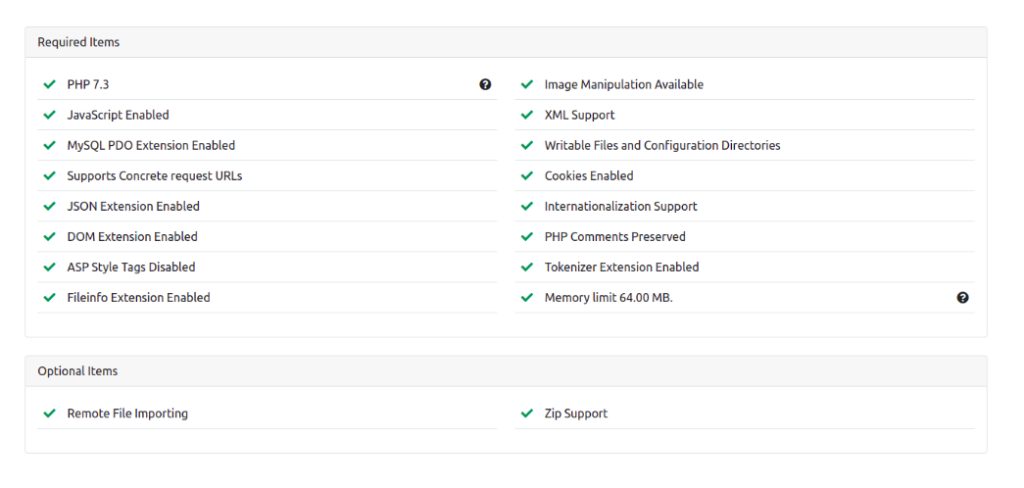
- Enter the name of the site, your admin email and a password.
- Enter the database details: server
localhost, the database name, user name and password from step 4.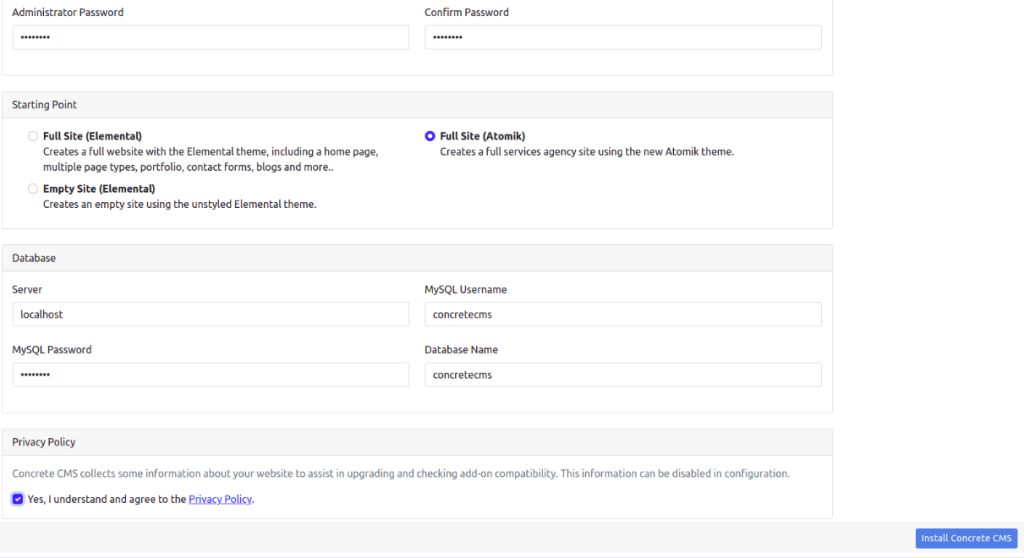
- Choose a starting point (sample content or blank site) and click Install Concrete CMS.
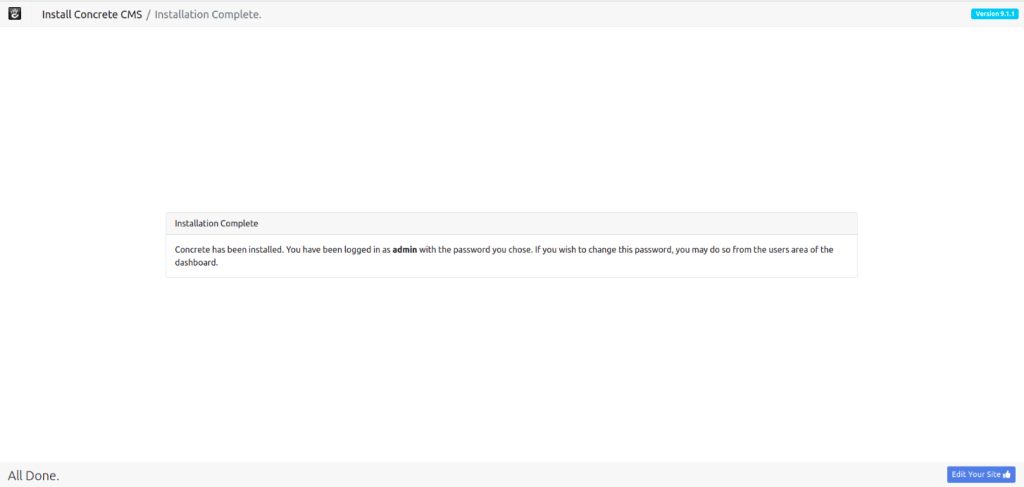
- When it finishes, log in to your new site.
Quick recap
- Install the LAMP stack and create a database.
- Download Concrete CMS to
/var/www/html/concrete5and make a virtual host. - Finish the setup at
/index.php/install.