

What you need
- Windows. Any current version.
- A web server. Apache (comes with XAMPP) or IIS.
- PHP. Concrete CMS needs a recent PHP version (check the requirements of your version).
- A database. MySQL 5.7+ or MariaDB 10.2+.
- A modern browser.
Step 1: Install XAMPP
- Download XAMPP from the Apache Friends website.
- Run the installer and follow the steps. Keep the default folder
C:\xamppand the components Apache, MySQL, PHP and phpMyAdmin. - Start XAMPP when it finishes.
Step 2: Start Apache and MySQL and create the database
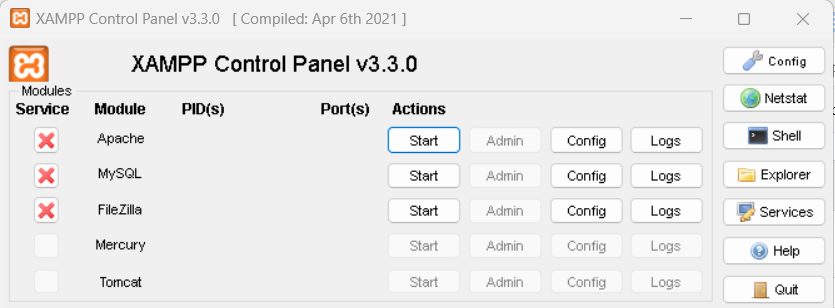
- In the XAMPP Control Panel, click Start next to Apache and MySQL.
- Click Admin next to MySQL, or open
http://localhost/phpmyadmin.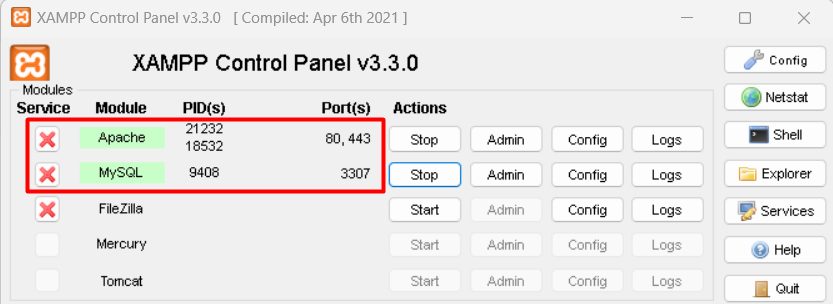
- In phpMyAdmin, click New, enter a database name such as
concrete5and click Create.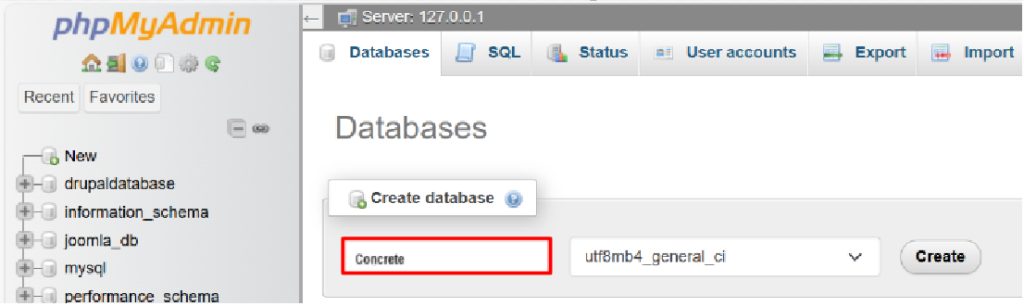
Step 3: Install Concrete CMS
- Download Concrete CMS (zip) from the Concrete CMS website and extract it into
C:\xampp\htdocs\concrete5.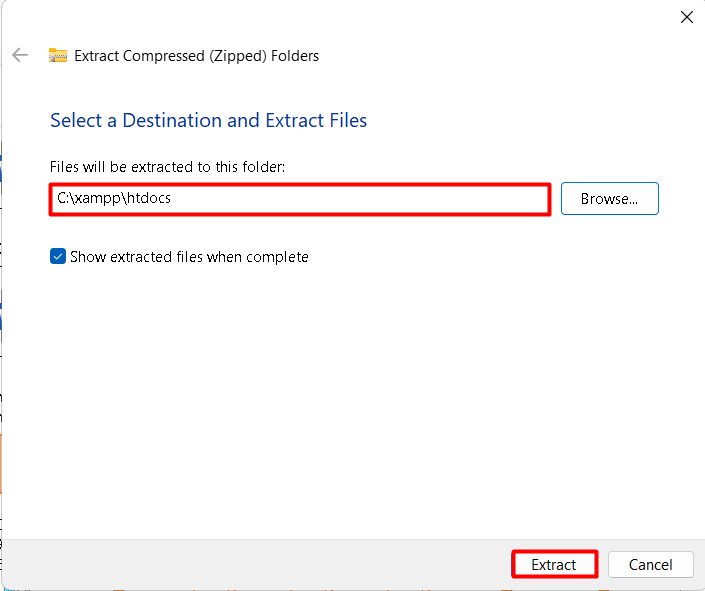
- Open
http://localhost/concrete5/index.php/installin your browser.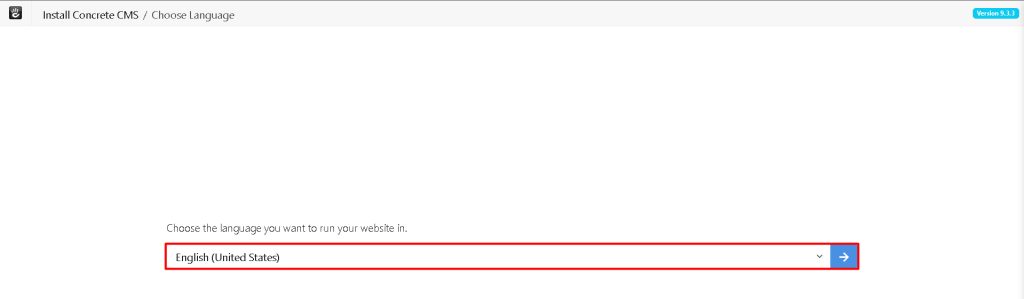
- Check that the system requirements pass.
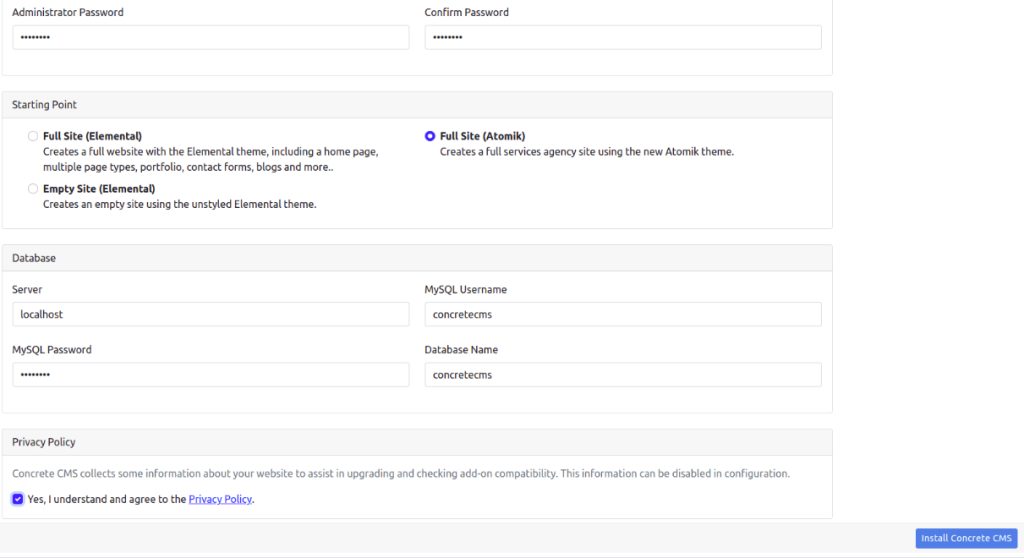
- Enter the site name, the admin email and password.
- Enter the database details:
- The database server, usuallylocalhost
- The database user name (rootin a default XAMPP setup)
- The password for that user (empty by default in XAMPP)
- The name of the database you created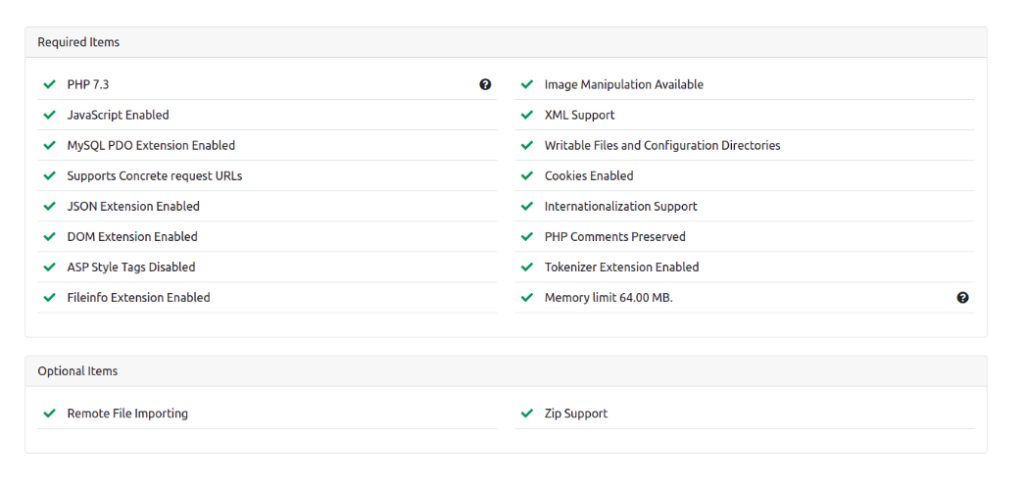
- Choose a starting point and click Install Concrete CMS.
- When it ends, open
http://localhost/concrete5to see your site.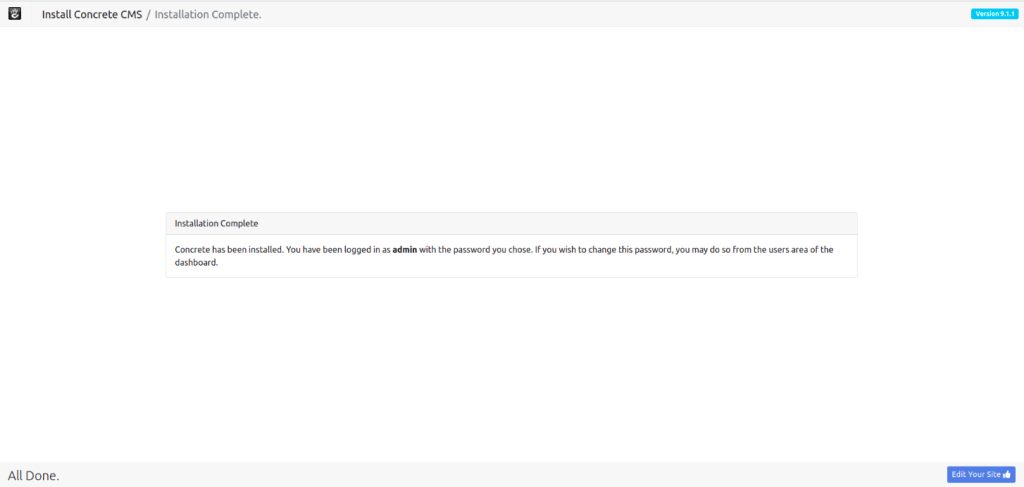
Warning: XAMPP is for local testing. The default MySQL root user has no password, so do not expose this setup to the internet.
Quick recap
- Install XAMPP, start Apache and MySQL, and create a database.
- Extract Concrete CMS into
htdocs. - Finish the web installer.