

Steps
- Open the XAMPP Control Panel from the Start menu or the desktop icon.
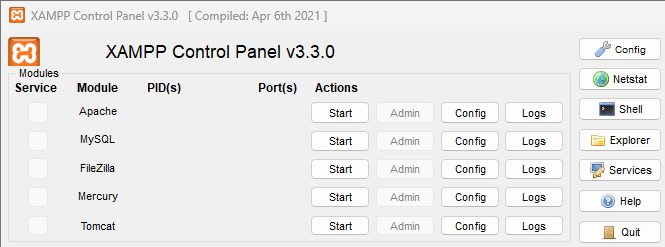
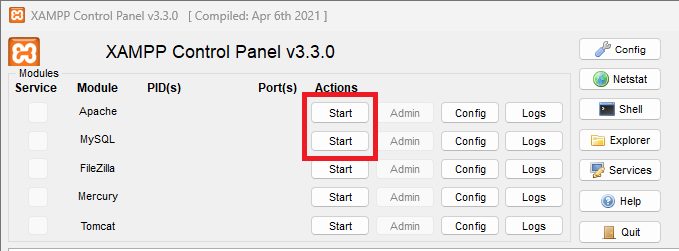
- Click Start next to Apache and MySQL. Wait until both turn green.
- Click Admin next to MySQL. You can also open
http://localhost/phpmyadmin/in your browser. Click the User accounts tab (older versions call it Users).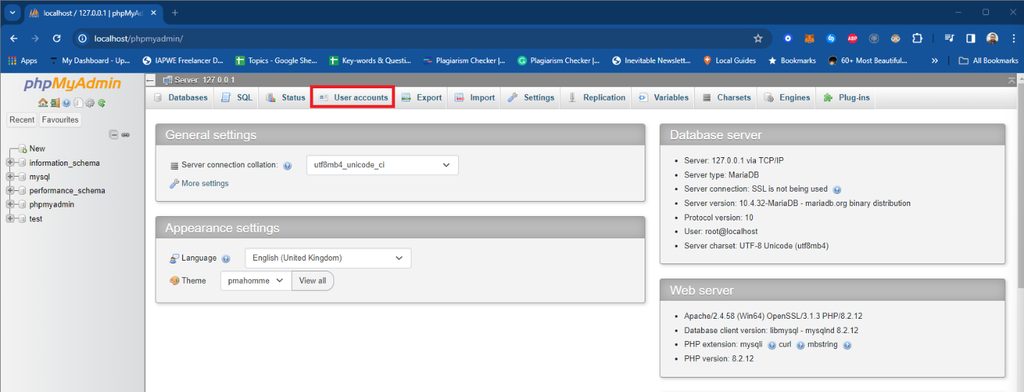
- Find the user, for example
root, and click Edit privileges.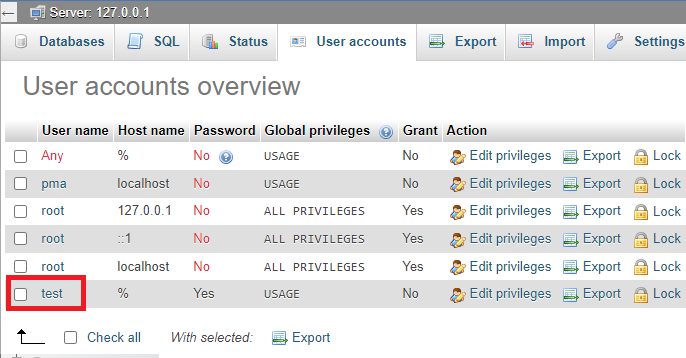
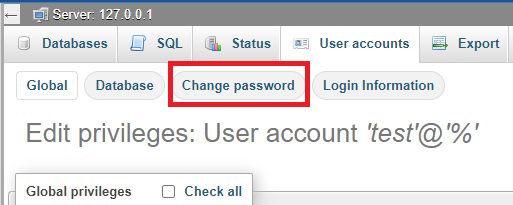
- Click Change password.
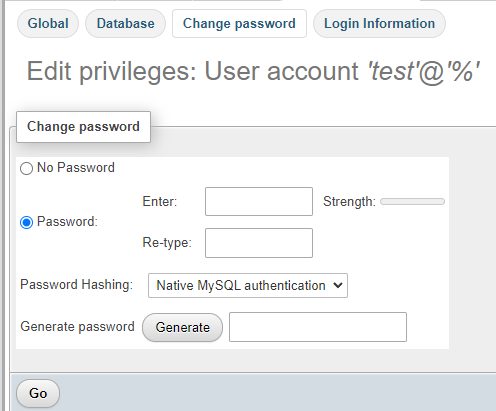
- Type the new password twice. You can use the generator to make a strong one.
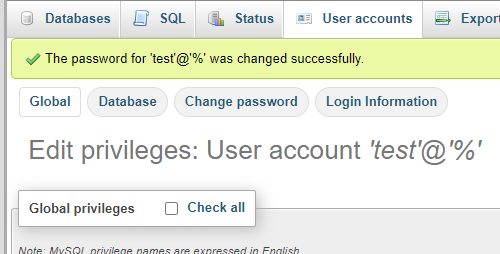
- Click Go. A success message appears.
- Close phpMyAdmin. Restart MySQL in the XAMPP Control Panel.
After the change
phpMyAdmin in XAMPP stores the root password in C:\xampp\phpMyAdmin\config.inc.php. If you changed the password for root, set the same value in the line $cfg['Servers'][$i]['password']. Otherwise phpMyAdmin cannot sign in. Also update every script and app that used the old password.
Tip: Use a long, unique password. Limit access to your own computer and keep MySQL closed to the internet.
Quick recap
- Start Apache and MySQL, then open phpMyAdmin.
- Edit the user and choose Change password.
- Update
config.inc.phpand your scripts.