

Step 1: Install PostgreSQL
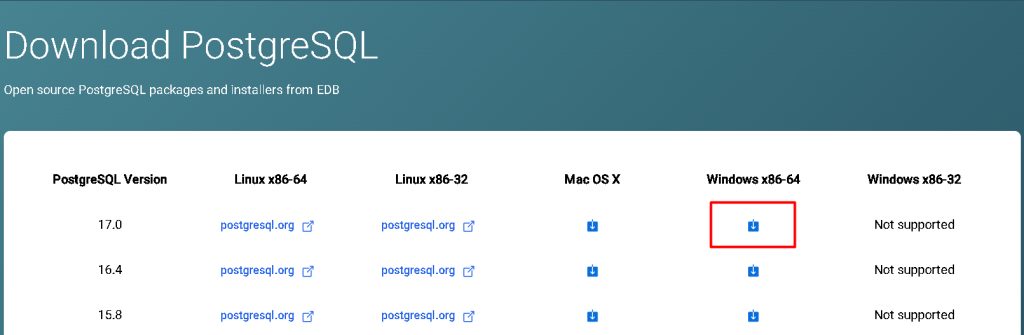
Download the PostgreSQL installer for Windows from the PostgreSQL website and install it. Remember the password you set for the postgres user and the port (5432).
Step 2: Install XAMPP
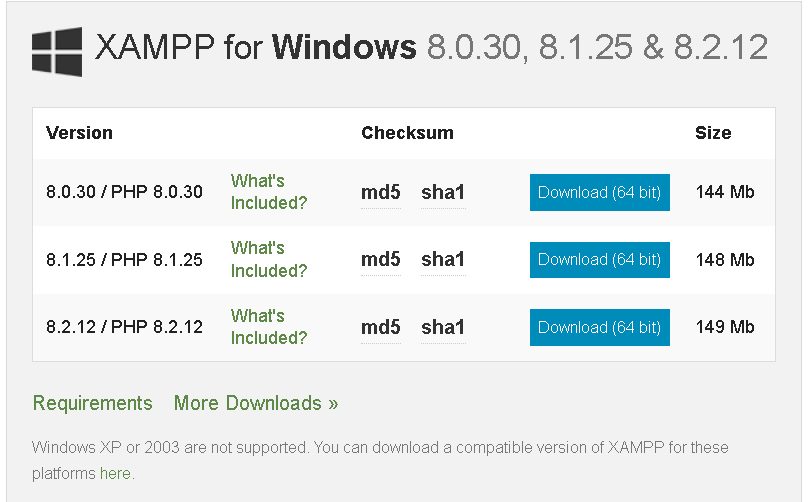
Download and install XAMPP (Apache and PHP).
Enable the PostgreSQL extension in PHP. In the XAMPP Control Panel click Config next to Apache, then PHP (php.ini). Remove the ; before these lines:
extension=pgsql
extension=pdo_pgsql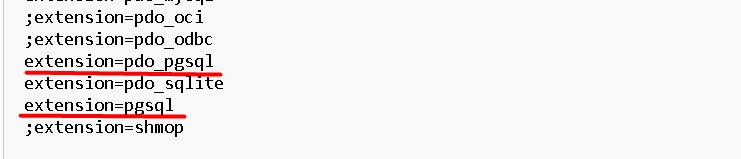
Save the file and restart Apache.
Step 3: Download phpPgAdmin
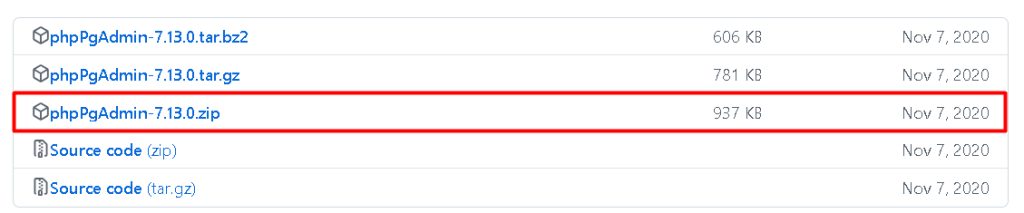
Download phpPgAdmin from its project page (GitHub) as a zip and extract it to C:\xampp\htdocs\phppgadmin.
Open conf\config.inc.php in the folder and check that the server is set to localhost. For logins as the postgres user, change:
$conf['extra_login_security'] = false;(Only do this on a private test machine.)
Step 4: Start phpPgAdmin
Start Apache in the XAMPP Control Panel.
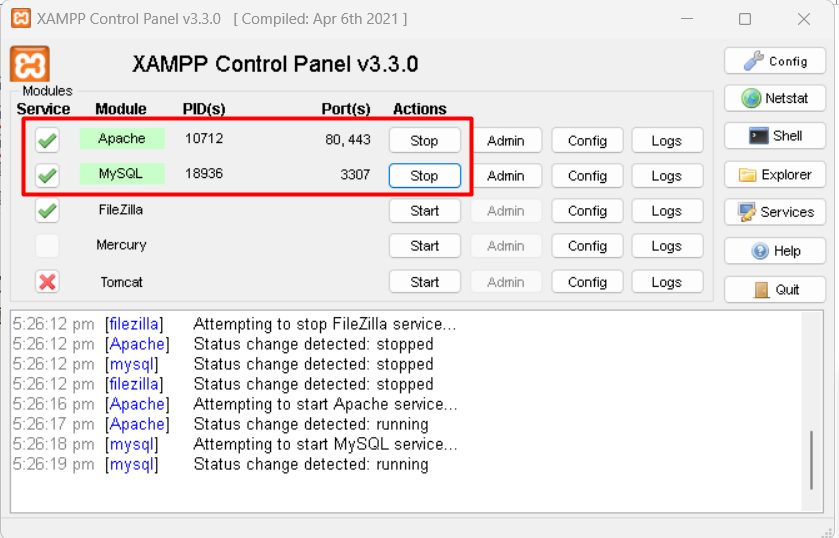
Open http://localhost/phppgadmin in your browser. Click the server, then log in with the user postgres and your password.
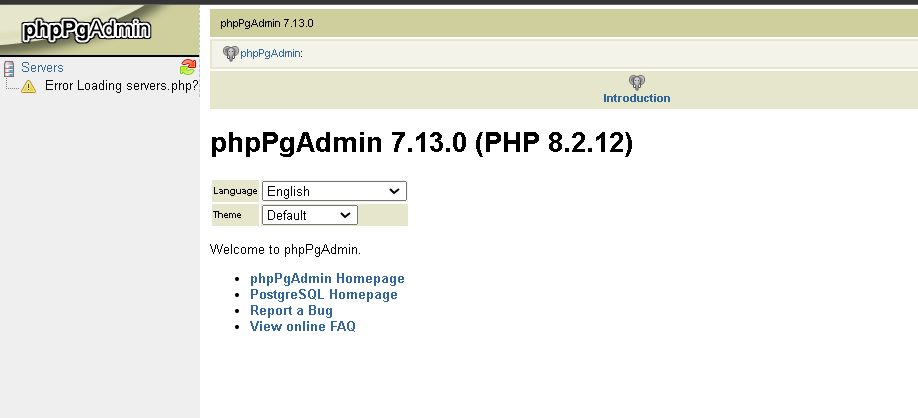
Features of phpPgAdmin
- Database management. Create, change and delete databases.
- SQL queries. Run queries and see the results.
- Tables. Create and change tables, columns and indexes.
- Import and export data.
- User management. Manage PostgreSQL users and roles.
Quick recap
- Install PostgreSQL and XAMPP, and enable
pgsqlinphp.ini. - Extract phpPgAdmin to
htdocs. - Open
http://localhost/phppgadmin.