

What is Windows Firewall?
A firewall is a guard that decides which connections may reach your computer. Windows Firewall comes with Windows. An IP address is a number that identifies a computer on a network, like a house number.
You may want to allow one trusted IP address, for example your office, to reach your Windows VPS. Or you may want to block an address that keeps attacking you.
Allow a single IP address
- Click Start and type
Windows Defender Firewall with Advanced Security. Open it.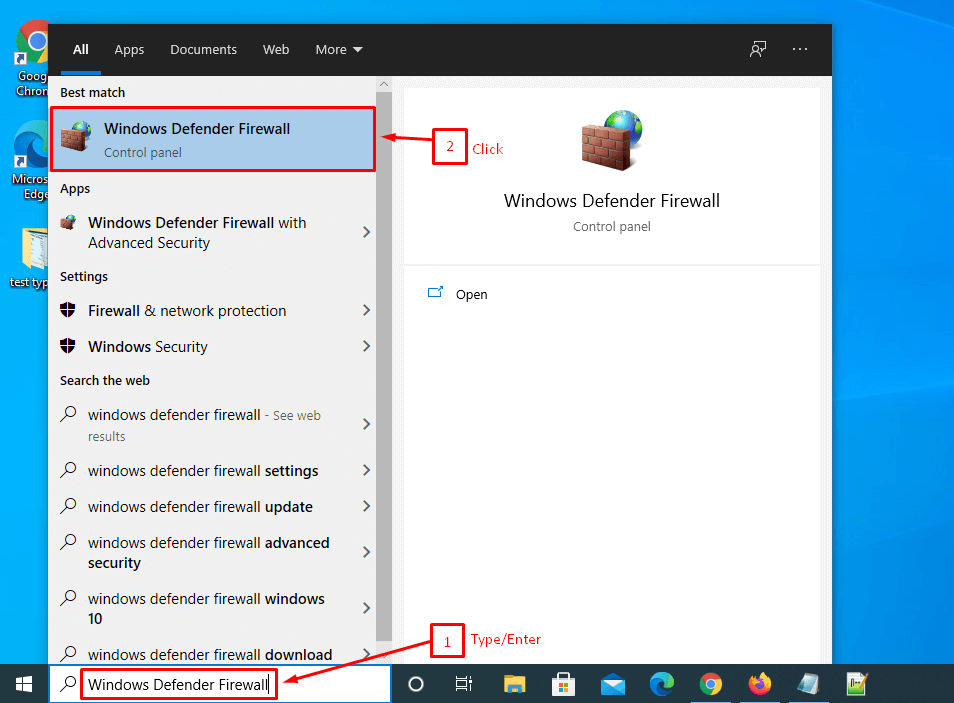
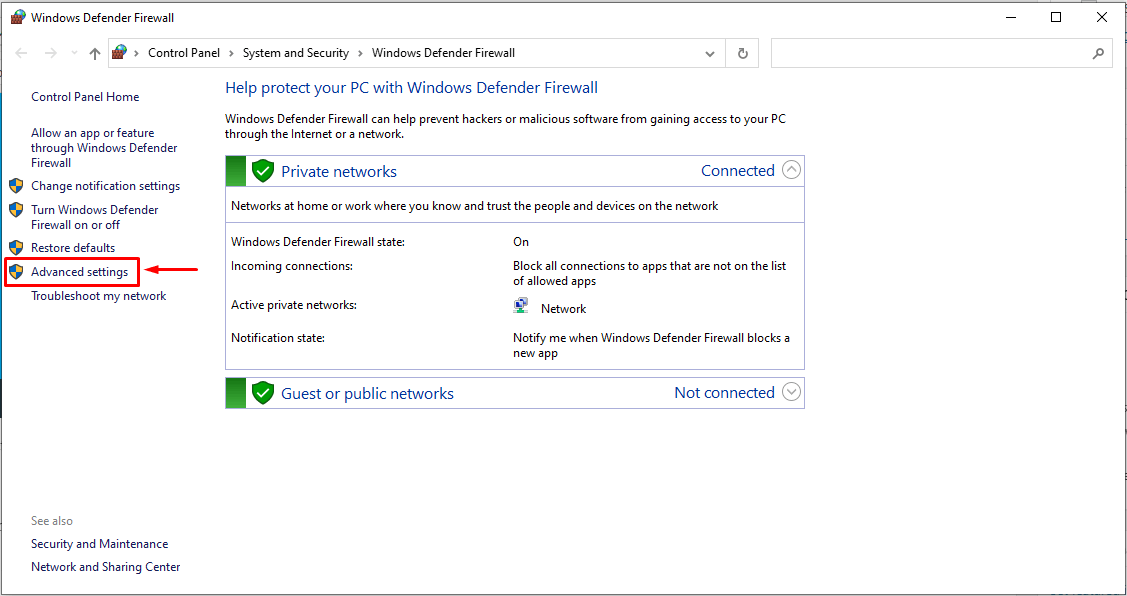
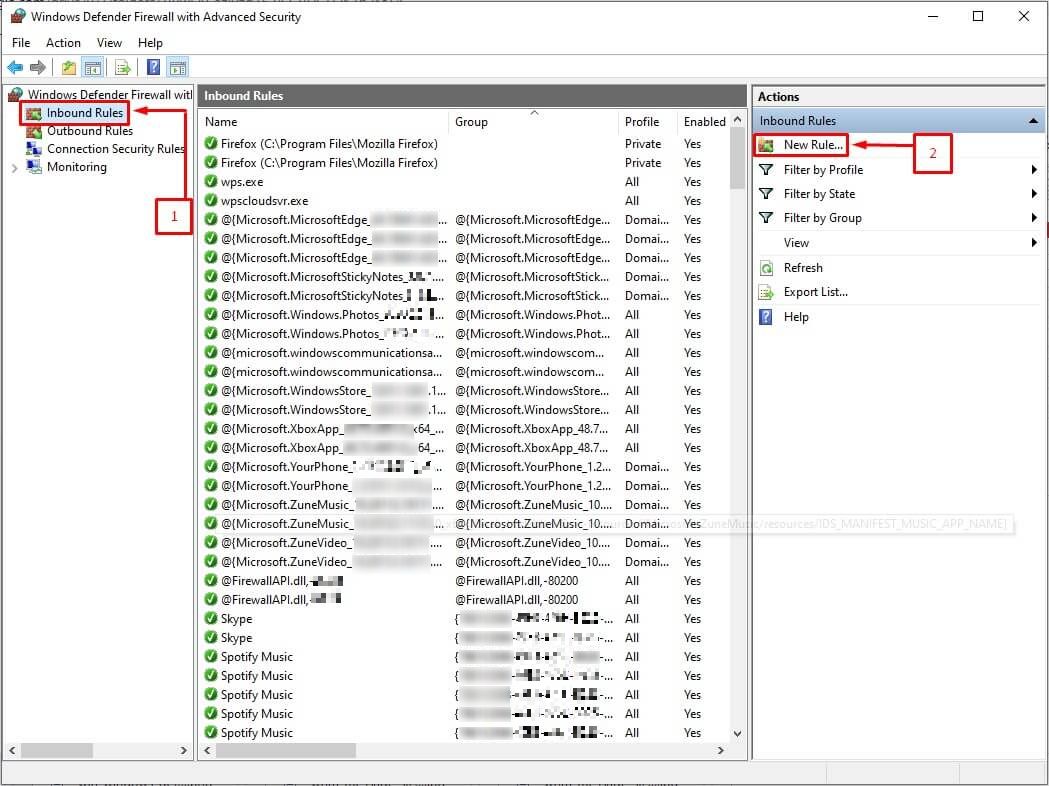
- On the left, click Inbound Rules. Inbound means traffic coming into your machine.
- On the right, click New Rule.
- Choose Port and click Next.
- Choose TCP. In Specific local ports, type the port you want, for example
3389for Remote Desktop. Click Next. - Choose Allow the connection and click Next.
- Tick Domain, Private and Public as needed. Click Next.
- Give the rule a name such as "Allow office IP". Click Finish.
- Double-click the new rule in the list.
- Open the Scope tab.
- Under Remote IP address, choose These IP addresses.
- Click Add, type the IP address, and click OK.
- Click OK again to save.
Now only that address can use the port.
Warning: If you change a Remote Desktop rule on a remote server, make sure your own IP address is in the list. Otherwise you can lock yourself out.
Block an IP address
- Create a new inbound rule as above.
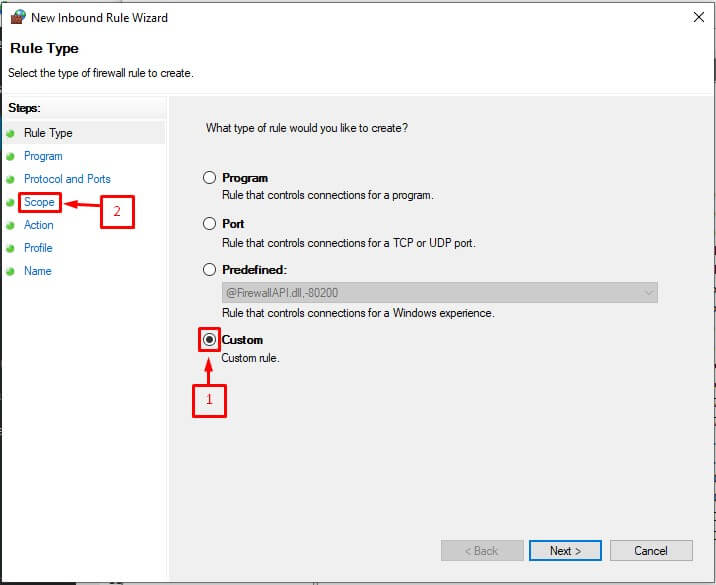
- Choose Custom instead of Port, and accept the defaults until the Scope page.
- Under Which remote IP addresses does this rule apply to?, choose These IP addresses and add the address to block.
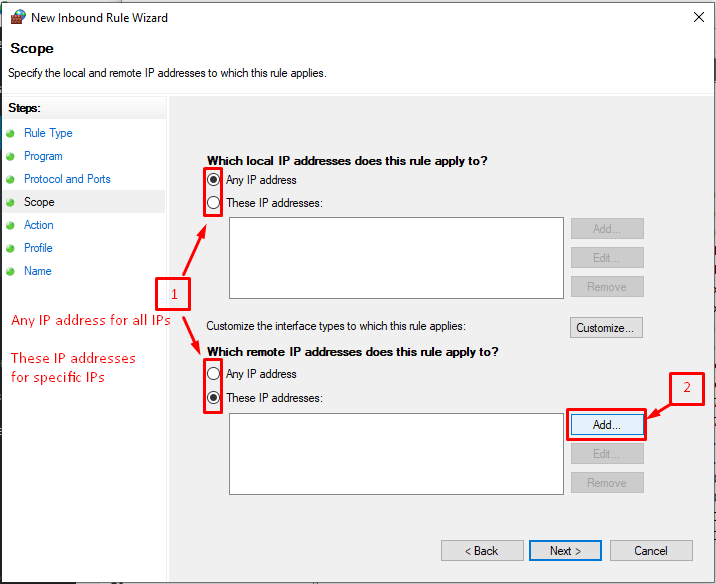
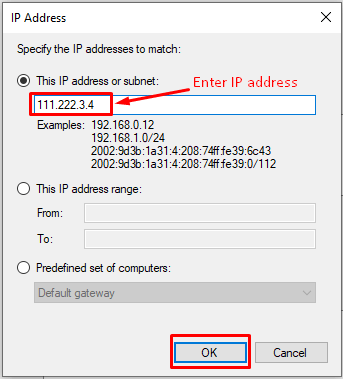
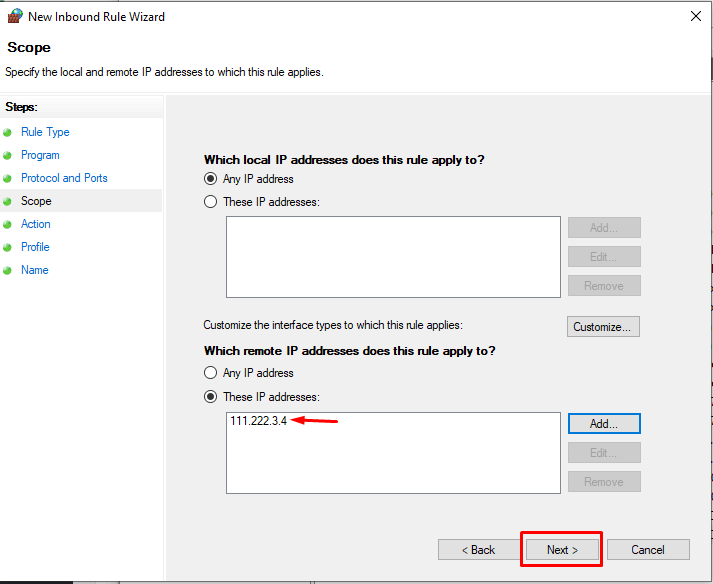
- On the Action page, choose Block the connection.
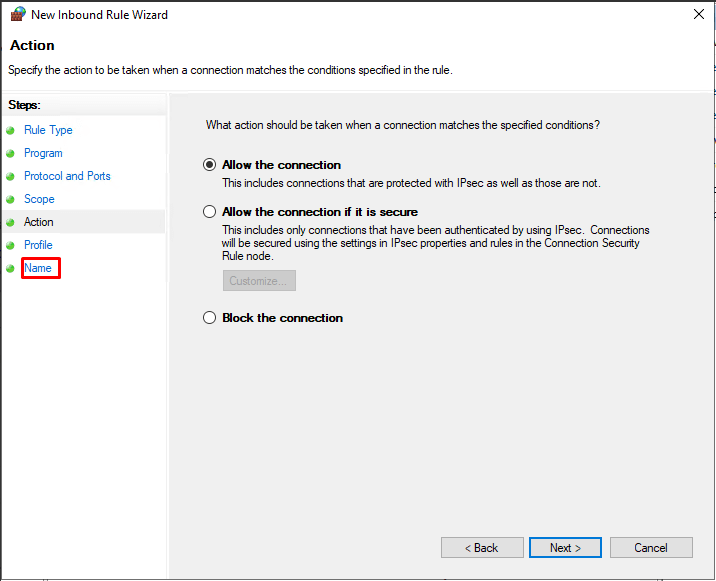
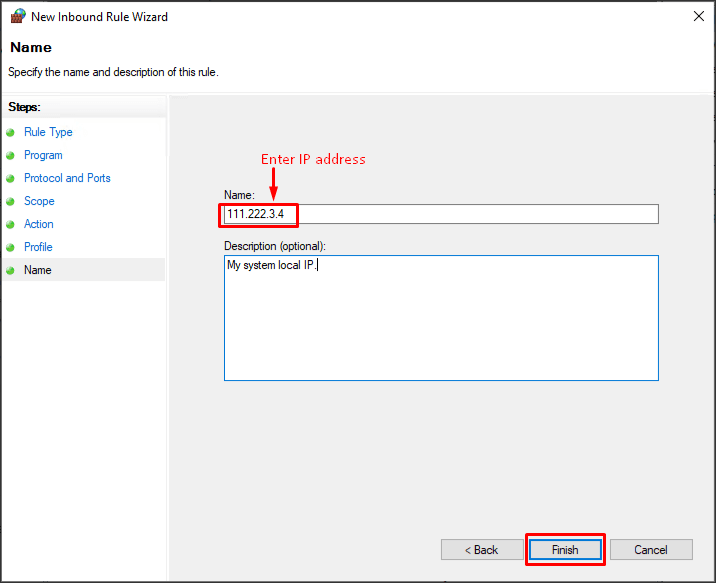
- Name it, for example "Block bad IP", and click Finish.
Do it with one command
Open PowerShell as administrator and run:
New-NetFirewallRule -DisplayName "Block bad IP" -Direction Inbound -RemoteAddress 203.0.113.5 -Action BlockThis creates a rule that blocks inbound traffic from the address 203.0.113.5. Replace it with the real address.
Tip: You can remove a rule any time. Right-click it in the list and choose Delete, or Disable Rule to keep it for later.
Need help? Open a support ticket.
Quick recap
- Open Windows Defender Firewall with Advanced Security.
- Create a new inbound rule.
- Use the Scope tab to list the IP address.
- Choose Allow or Block.
- Keep your own IP allowed on remote servers.