

What is happening here?
A hosting account holds a website's files, emails and databases. WHM is the admin panel for a server that runs cPanel. Its Transfer Tool can move many accounts in one go. You run it on the new server. It pulls the accounts from the old one.
Before you start
- You need root access to both servers.
- Both servers should run cPanel and WHM.
- The new server needs enough free disk space for all accounts.
- Make a fresh backup on the old server first.
Tip: Nothing is removed from the old server. Your sites keep working there until you change DNS.
Steps
- Log in to WHM on the new server as root.
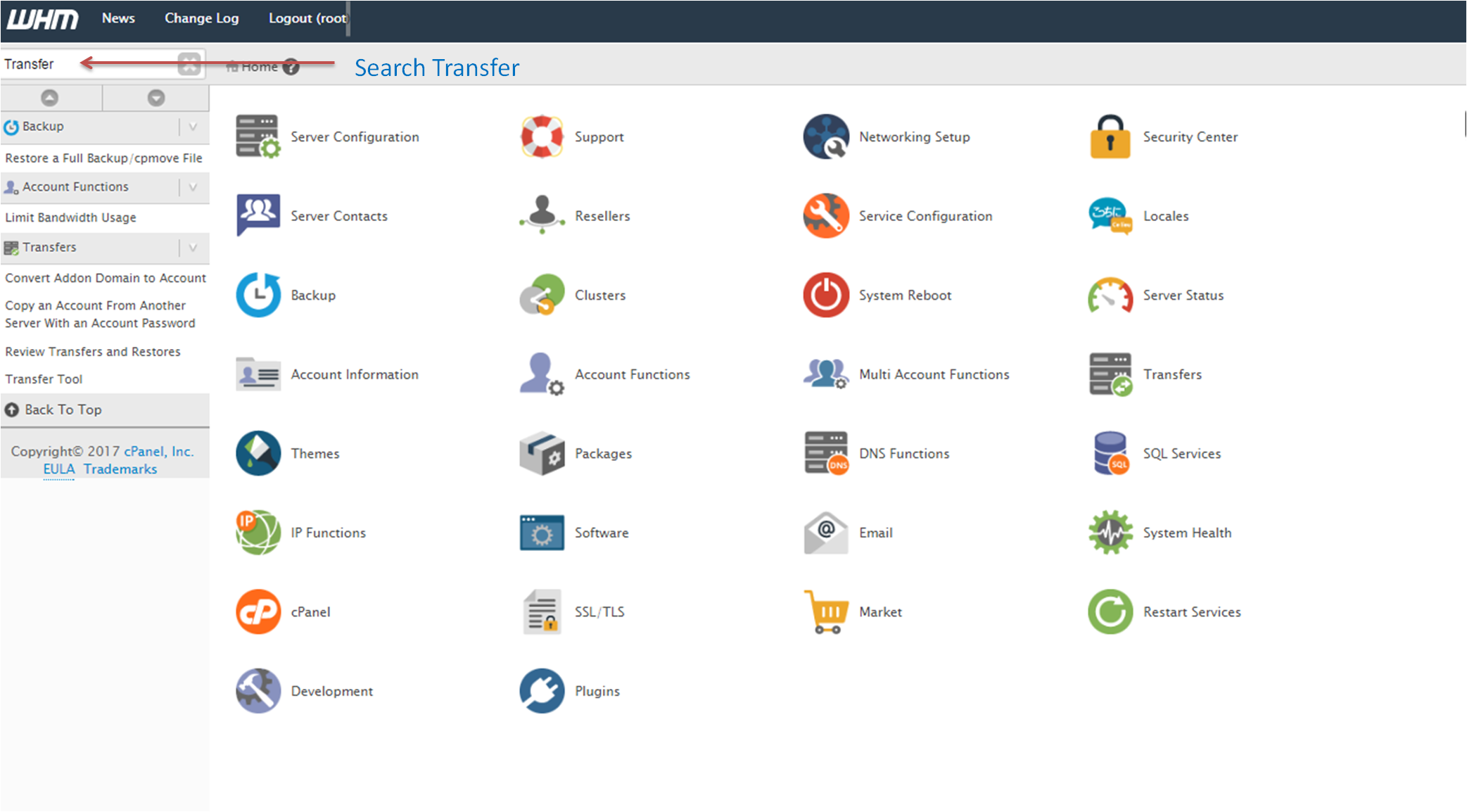
- In the search box, type Transfer Tool.
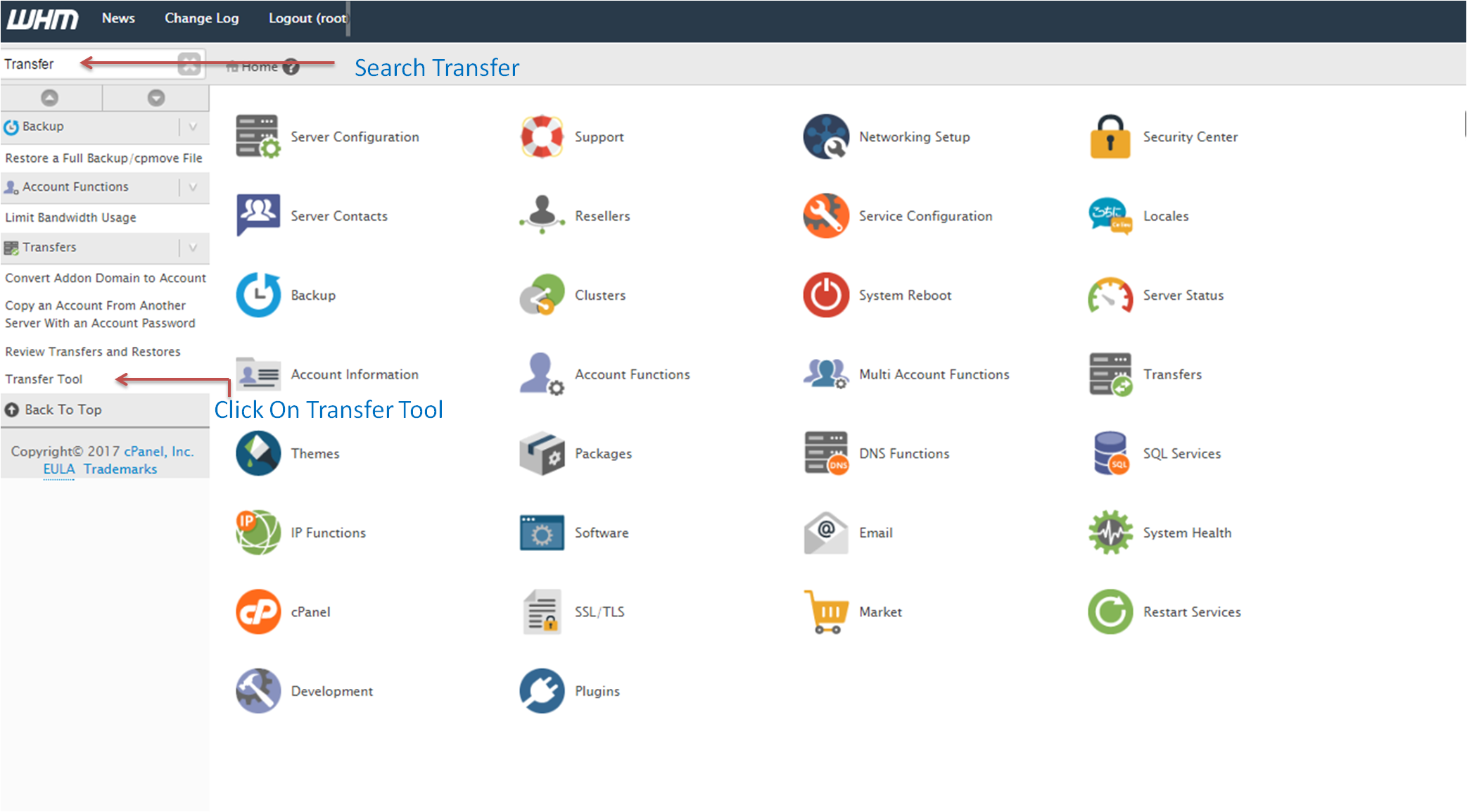
- Click Transfer Tool.
- Enter the old server's IP address or hostname.
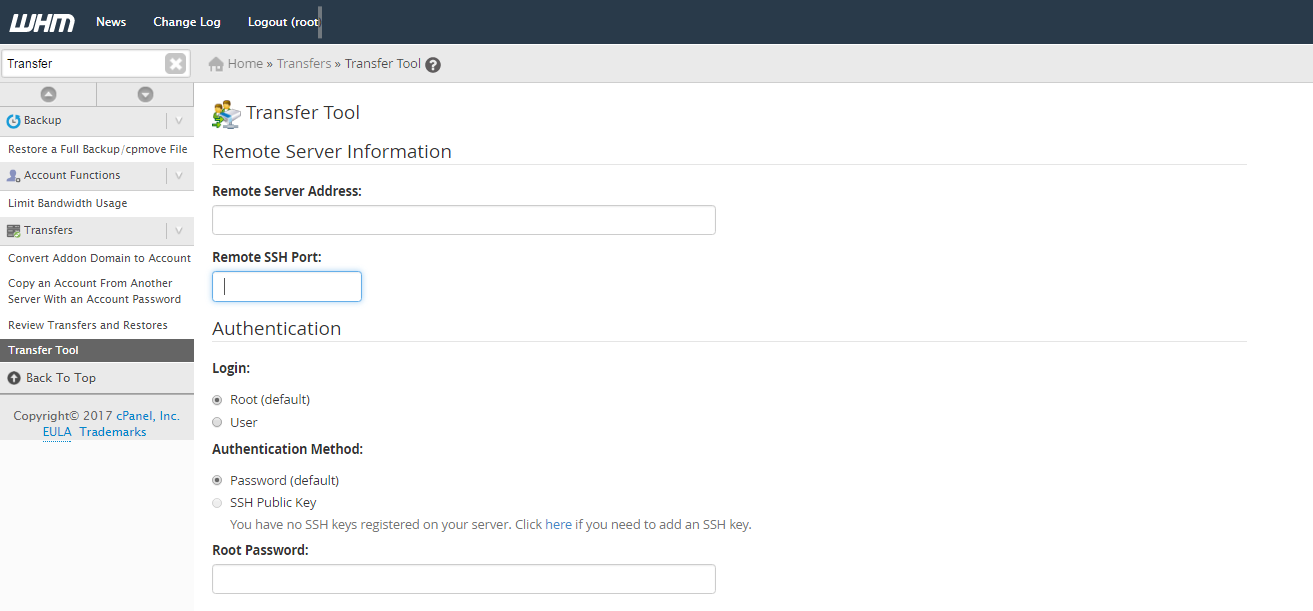
- Choose how to log in. You can use the old server's root password or an SSH key. An SSH key is a safe digital key used instead of a password.
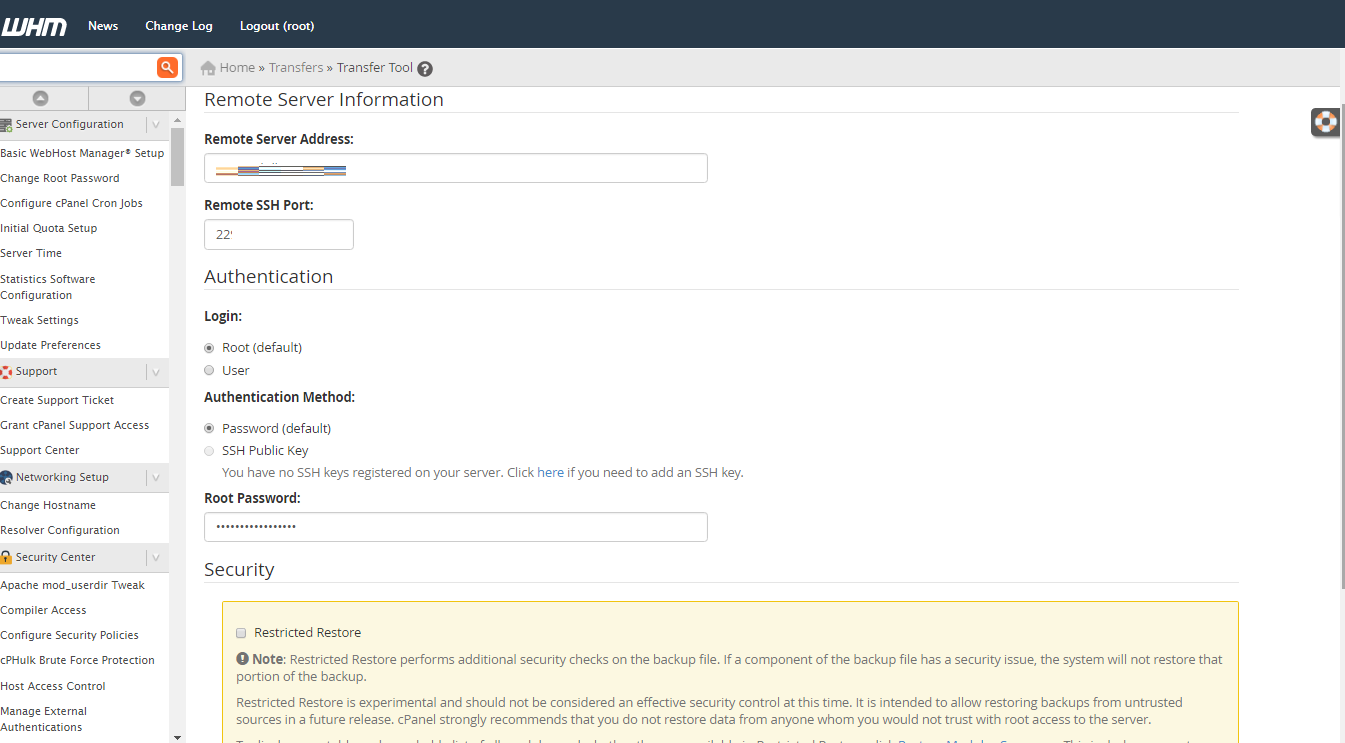
- Click Fetch Account List.
- Wait while WHM connects and loads the list.
- Under accounts, tick the ones you want to copy. Use Select All to take every account.
- Look at the other tabs for packages, IP addresses and settings. The defaults are fine for most people.
- Click Copy to start.
- Watch the progress. Many accounts can take hours.
- When done, read the log for any account that failed.
Check your work
- Edit your computer's hosts file so it reaches the new server. This file maps names to addresses.
- Open a few of the copied sites and test them.
- Send a test email from one account.
Go live
Point each domain's DNS to the new server's IP address once you are happy. DNS is the internet's phone book for website names. It can take a few hours to spread.
If something fails, ask Hostvento support. You can open a support ticket.
Quick recap
- Use the WHM Transfer Tool on the new server.
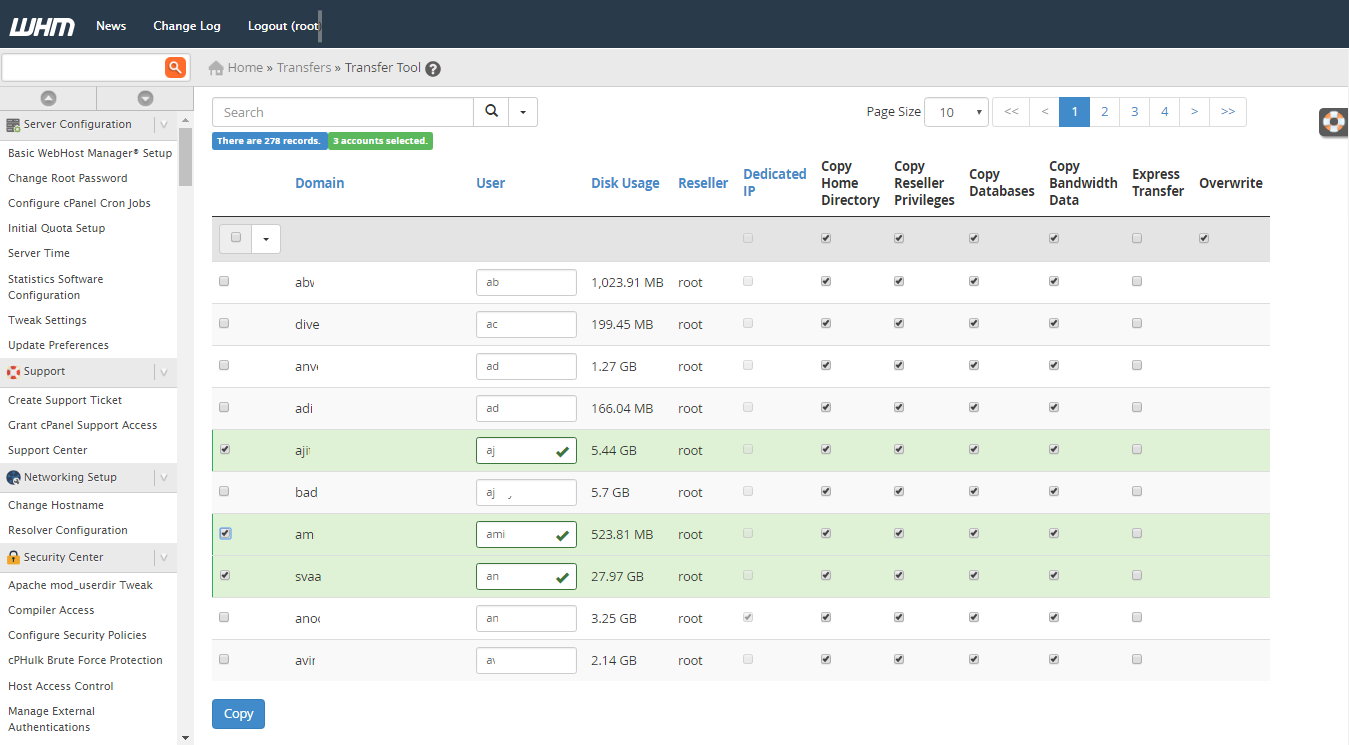
- Fetch the account list and tick the accounts.
- Back up before you start.
- Test sites before changing DNS.
- Update DNS last.